# Creating an account (https://docs.hireway.dev/docs/account/creating-an-account)
You need a free account to save resumes, cover letters and job applications. Signing up takes under a minute, and you can start building right after.
## Sign up with email and password [#sign-up-with-email-and-password]
Go to [hireway.dev](https://hireway.dev) and select **Build your resume**. On the sign-in page, select **Create one now**.
If you run your own copy of Hireway, use its address instead of `hireway.dev`.
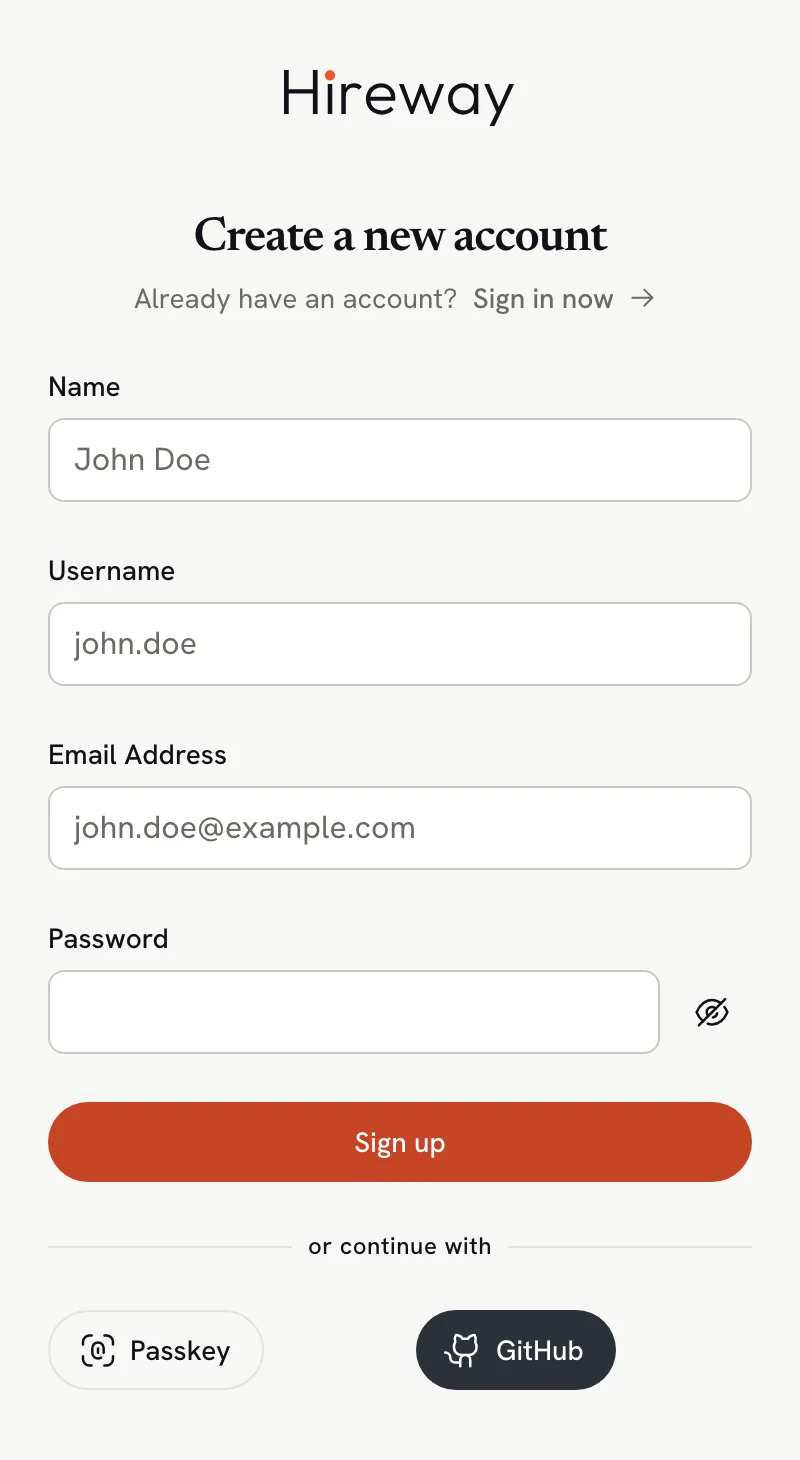
- **Name**: your name as you want it shown in the app (3 to 64 characters). - **Username**: 3 to 64 characters, using
lowercase letters, numbers, dots, hyphens and underscores. It becomes part of every public resume link, for example
`hireway.dev/alexmorgan/game-developer`. - **Email Address**: an address you can open. You need it to reset a
forgotten password. - **Password**: at least 8 characters, up to 64.
Your account is created and you are signed in straight away.
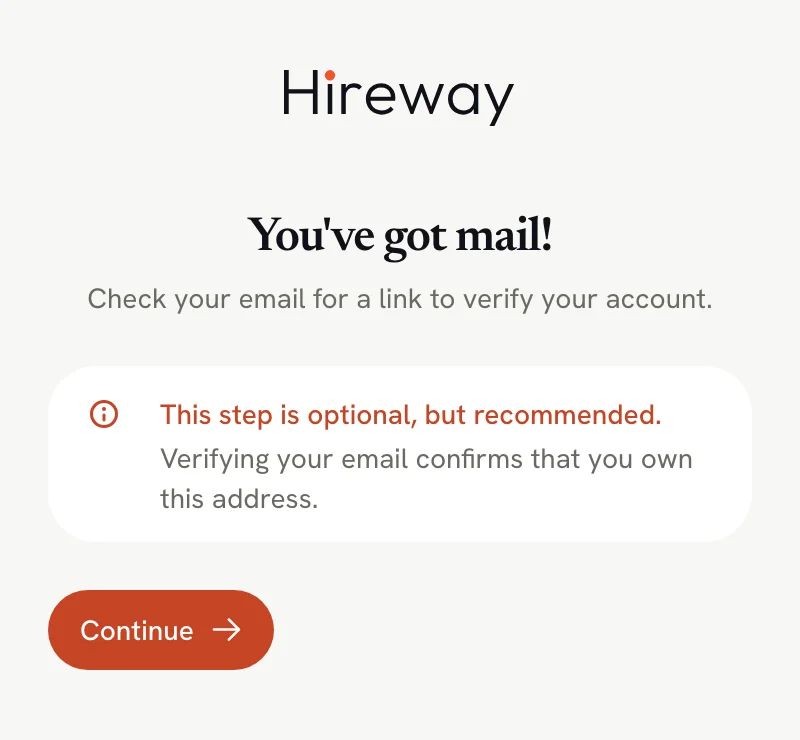
A **You've got mail!** screen confirms that a verification link is on its way. Verifying is optional, so you can select **Continue** and start working, then open the link from your inbox later.
 You can change your name, username and email later in **Settings → Account**. Changing your username changes every
public link you have shared, so pick one you are happy to keep.
## Sign up with a social account [#sign-up-with-a-social-account]
Under **or continue with**, select **Google**, **GitHub** or **LinkedIn** and approve the request on that site. Hireway creates your account from the name, email and photo the provider shares, and picks a username for you. You can change it afterwards in **Settings → Account**.
## If sign-up doesn't work [#if-sign-up-doesnt-work]
Usernames and email addresses are unique. Try another username. If the email is yours, you already have an account: go back to the sign-in page and use **Forgot Password?** to get back in.
Check your spam folder. You can ask for a new link from **Settings → Account**: under the **Email** field, select
**Not verified yet. Resend the link**.
The site's owner has turned off new sign-ups. Only existing accounts can sign in.
## Next steps [#next-steps]
Start from a blank page, a sample or an existing file.
Add two-step verification or a passkey.
You can change your name, username and email later in **Settings → Account**. Changing your username changes every
public link you have shared, so pick one you are happy to keep.
## Sign up with a social account [#sign-up-with-a-social-account]
Under **or continue with**, select **Google**, **GitHub** or **LinkedIn** and approve the request on that site. Hireway creates your account from the name, email and photo the provider shares, and picks a username for you. You can change it afterwards in **Settings → Account**.
## If sign-up doesn't work [#if-sign-up-doesnt-work]
Usernames and email addresses are unique. Try another username. If the email is yours, you already have an account: go back to the sign-in page and use **Forgot Password?** to get back in.
Check your spam folder. You can ask for a new link from **Settings → Account**: under the **Email** field, select
**Not verified yet. Resend the link**.
The site's owner has turned off new sign-ups. Only existing accounts can sign in.
## Next steps [#next-steps]
Start from a blank page, a sample or an existing file.
Add two-step verification or a passkey.