# Setting up passkeys (https://docs.hireway.dev/docs/account/setting-up-passkeys)
A passkey lets you sign in with the same check you use to unlock your device: a fingerprint, your face, a PIN or a hardware security key. There is no password to type or leak, and a passkey only works on the real Hireway site, so it resists phishing.
## Before you start [#before-you-start]
You need a device or password manager that supports passkeys. Recent versions of macOS, iOS, Windows, Android, Chrome, Safari, Edge and Firefox all do, as do password managers such as 1Password and Bitwarden.
## Add a passkey [#add-a-passkey]
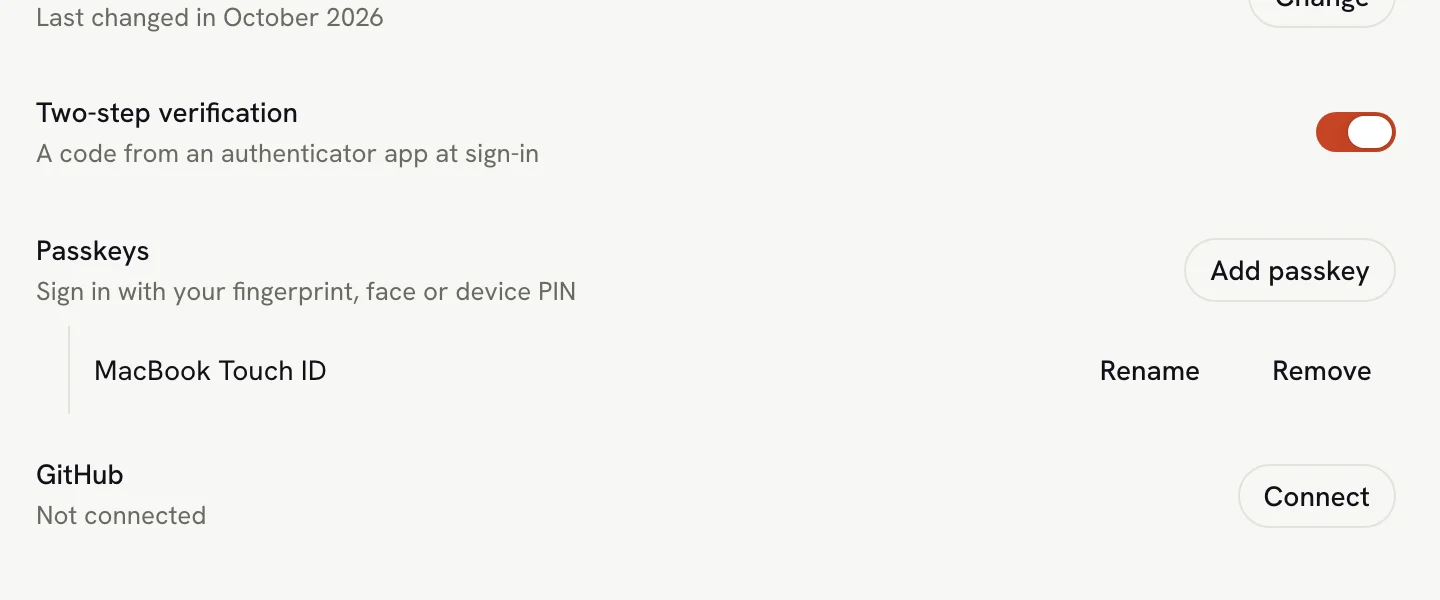
Select your name at the bottom of the sidebar, then **Settings**. On the **Account** page, find **Passkeys** under **Sign-in & security**.
Your browser or device asks you to create a passkey. Follow its prompt: touch the fingerprint sensor, look at the
camera, enter your device PIN, or insert and touch your security key.
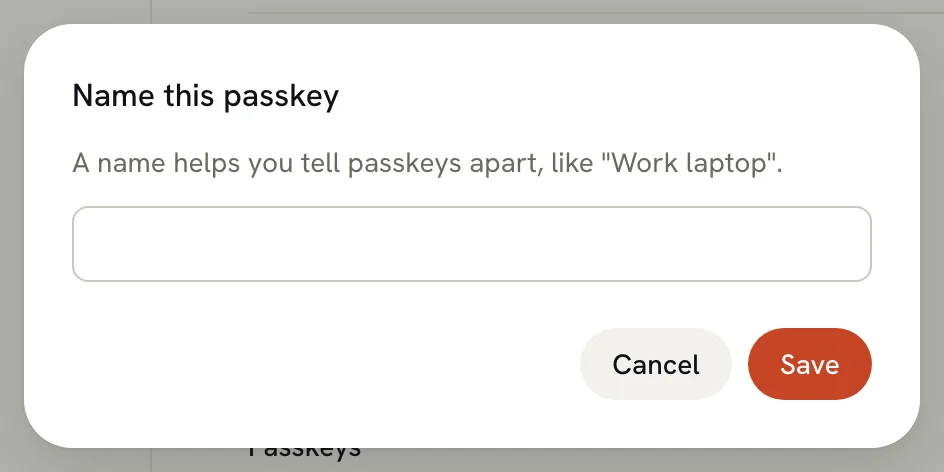
In **Name this passkey**, type a name you will recognize later, such as "MacBook Touch ID" or "Work laptop", and select **Save**.
 The passkey appears under **Passkeys**. If you skip the name, it is listed as **Unnamed passkey**. You can add a passkey on each device you use.
 ## Sign in with a passkey [#sign-in-with-a-passkey]
On the sign-in page, select **Passkey** under **or continue with** and confirm on your device. Many browsers also suggest your passkey when you click the **Email Address** field. A passkey sign-in doesn't ask for a password or a two-step code.
## Remove a passkey [#remove-a-passkey]
Select **Remove** next to the passkey, then confirm **Remove**. It can no longer sign you in. To finish the cleanup, also delete it from your device or password manager.
## Rename a passkey [#rename-a-passkey]
Select **Rename** next to the passkey, enter its new name in **Name this passkey**, and select **Save**.
## Related guides [#related-guides]
- [Signing in](/docs/account/signing-in): all the ways to get into your account.
- [Setting up two-factor authentication](/docs/account/setting-up-two-factor-authentication): a second check for password sign-ins.
## Sign in with a passkey [#sign-in-with-a-passkey]
On the sign-in page, select **Passkey** under **or continue with** and confirm on your device. Many browsers also suggest your passkey when you click the **Email Address** field. A passkey sign-in doesn't ask for a password or a two-step code.
## Remove a passkey [#remove-a-passkey]
Select **Remove** next to the passkey, then confirm **Remove**. It can no longer sign you in. To finish the cleanup, also delete it from your device or password manager.
## Rename a passkey [#rename-a-passkey]
Select **Rename** next to the passkey, enter its new name in **Name this passkey**, and select **Save**.
## Related guides [#related-guides]
- [Signing in](/docs/account/signing-in): all the ways to get into your account.
- [Setting up two-factor authentication](/docs/account/setting-up-two-factor-authentication): a second check for password sign-ins.