# Signing in (https://docs.hireway.dev/docs/account/signing-in)
This guide covers every way to get into your account, including what to do when you have forgotten your password or lost your authenticator app.
## Sign in with your password [#sign-in-with-your-password]
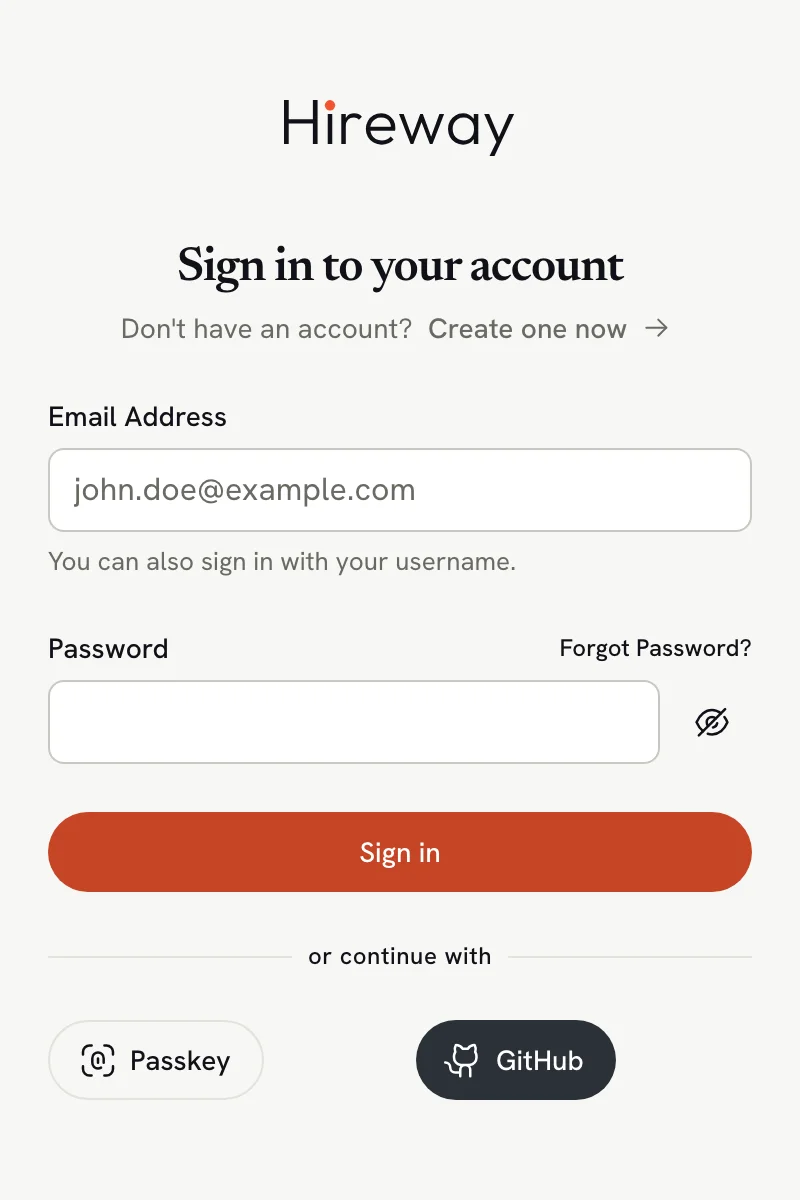
Go to [hireway.dev](https://hireway.dev) and select **Build your resume**. If you are not signed in, Hireway takes you to **Sign in to your account**.
The **Email Address** field also accepts your username.
Select the eye icon next to the field to check what you typed.
If you have turned on two-step verification, Hireway asks for a code next. See [Enter a two-step code](#enter-a-two-step-code) below.
 ## Sign in with a passkey [#sign-in-with-a-passkey]
If you have [added a passkey](/docs/account/setting-up-passkeys), select **Passkey** under **or continue with** and confirm with your fingerprint, face, device PIN or security key. Many browsers also offer your passkey as a suggestion when you click the **Email Address** field.
Signing in with a passkey skips the password and the two-step code.
## Sign in with Google, GitHub or LinkedIn [#sign-in-with-google-github-or-linkedin]
Select the provider's button and approve the request on its site. The buttons appear only when the site has set them up.
A social button signs you in to the account that is [linked to that provider](/docs/account/linking-social-accounts). If no account uses that email yet, a new one is created, unless the site has turned off new sign-ups.
## Reset a forgotten password [#reset-a-forgotten-password]
The link sits next to the **Password** label on the sign-in page.
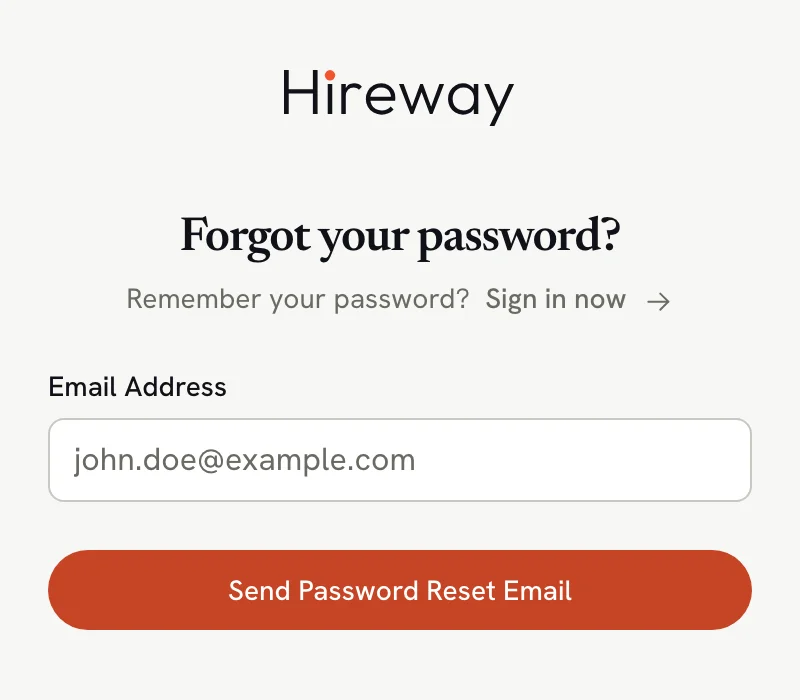
Type the email address on your account and select **Send Password Reset Email**.
On the **Reset your password** page, enter a **New Password** of at least 8 characters and select **Reset Password**. You return to the sign-in page, where you can use the new password.
## Sign in with a passkey [#sign-in-with-a-passkey]
If you have [added a passkey](/docs/account/setting-up-passkeys), select **Passkey** under **or continue with** and confirm with your fingerprint, face, device PIN or security key. Many browsers also offer your passkey as a suggestion when you click the **Email Address** field.
Signing in with a passkey skips the password and the two-step code.
## Sign in with Google, GitHub or LinkedIn [#sign-in-with-google-github-or-linkedin]
Select the provider's button and approve the request on its site. The buttons appear only when the site has set them up.
A social button signs you in to the account that is [linked to that provider](/docs/account/linking-social-accounts). If no account uses that email yet, a new one is created, unless the site has turned off new sign-ups.
## Reset a forgotten password [#reset-a-forgotten-password]
The link sits next to the **Password** label on the sign-in page.
Type the email address on your account and select **Send Password Reset Email**.
On the **Reset your password** page, enter a **New Password** of at least 8 characters and select **Reset Password**. You return to the sign-in page, where you can use the new password.
 ## Enter a two-step code [#enter-a-two-step-code]
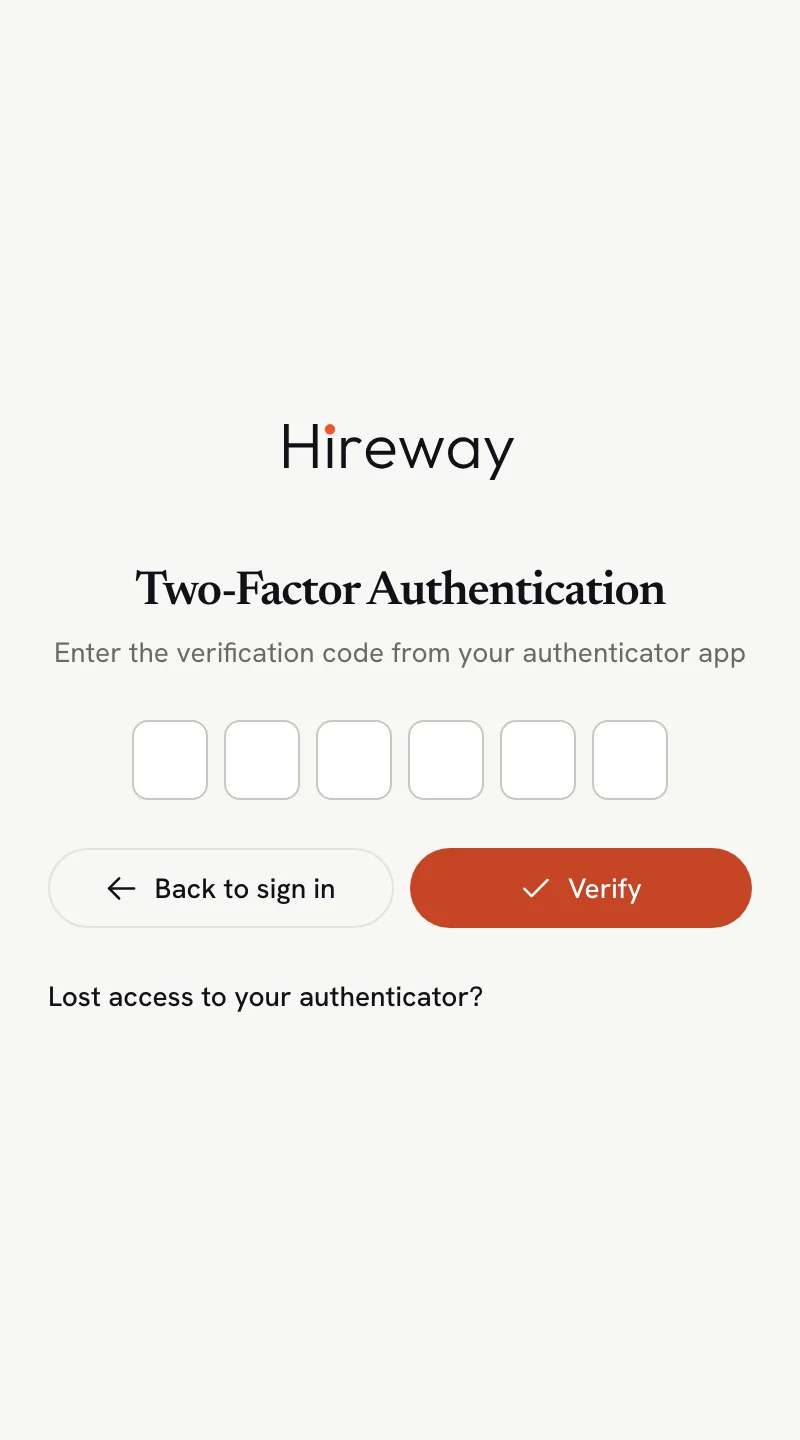
After your password, the **Two-Factor Authentication** page asks for the 6-digit code from your authenticator app. Type it in. The page submits as soon as the sixth digit is in, or you can select **Verify**.
## Enter a two-step code [#enter-a-two-step-code]
After your password, the **Two-Factor Authentication** page asks for the 6-digit code from your authenticator app. Type it in. The page submits as soon as the sixth digit is in, or you can select **Verify**.
 ### Use a backup code instead [#use-a-backup-code-instead]
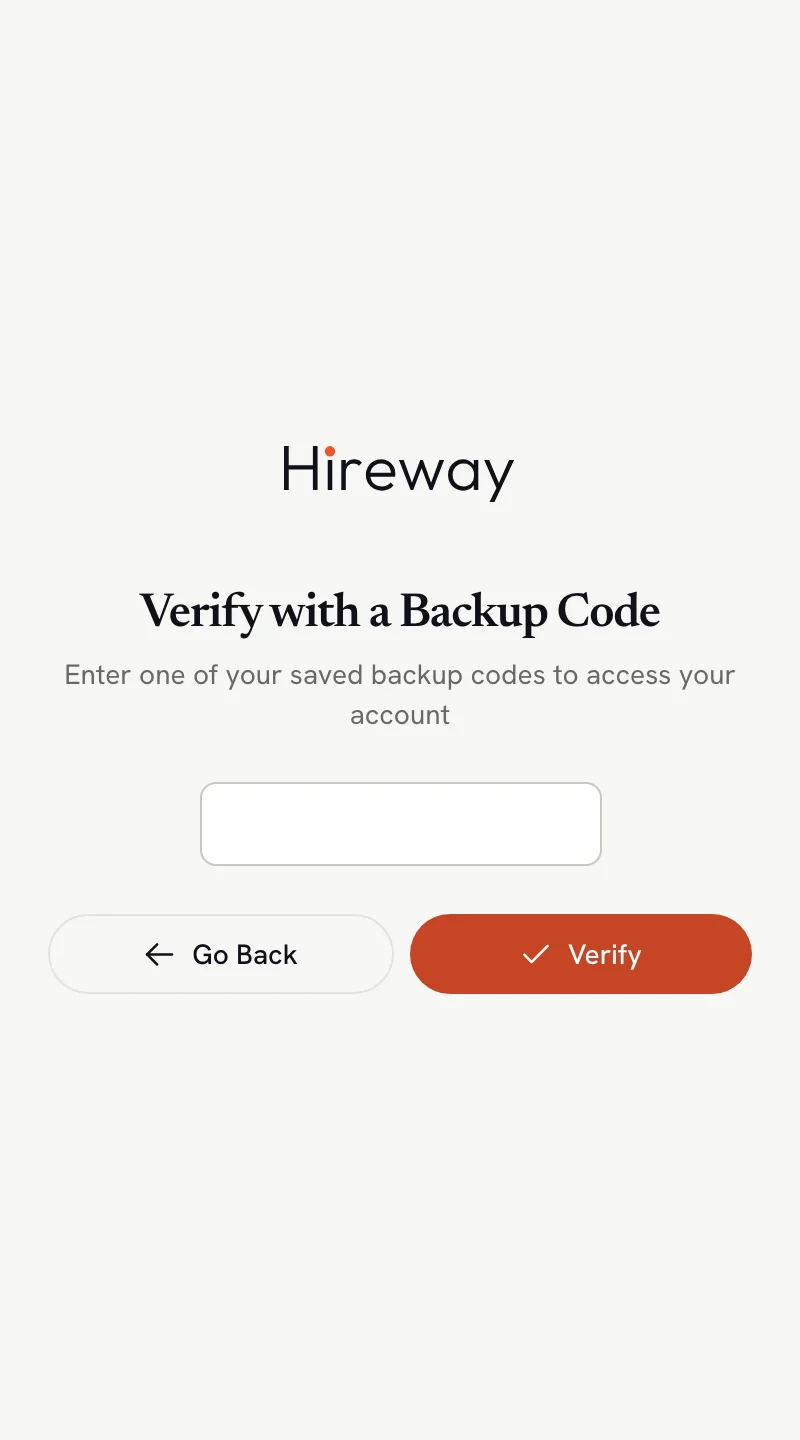
If you don't have your authenticator app, select **Lost access to your authenticator?**, enter one of the backup codes you saved when you turned on two-step verification, and select **Verify**.
Each backup code works once. You can paste it as shown, including the hyphen, or type the two groups together (`82cNK-qaOiN` or `82cNKqaOiN`).
### Use a backup code instead [#use-a-backup-code-instead]
If you don't have your authenticator app, select **Lost access to your authenticator?**, enter one of the backup codes you saved when you turned on two-step verification, and select **Verify**.
Each backup code works once. You can paste it as shown, including the hyphen, or type the two groups together (`82cNK-qaOiN` or `82cNKqaOiN`).
 ## Sign out [#sign-out]
Select your name at the bottom of the sidebar, then **Sign out**. You can also find **Sign out** at the bottom of **Settings → Account**.
## Related guides [#related-guides]
- [Creating an account](/docs/account/creating-an-account): sign up if you don't have an account yet.
- [Setting up two-factor authentication](/docs/account/setting-up-two-factor-authentication): turn codes on or off and get backup codes.
- [Setting up passkeys](/docs/account/setting-up-passkeys): sign in without a password.
## Sign out [#sign-out]
Select your name at the bottom of the sidebar, then **Sign out**. You can also find **Sign out** at the bottom of **Settings → Account**.
## Related guides [#related-guides]
- [Creating an account](/docs/account/creating-an-account): sign up if you don't have an account yet.
- [Setting up two-factor authentication](/docs/account/setting-up-two-factor-authentication): turn codes on or off and get backup codes.
- [Setting up passkeys](/docs/account/setting-up-passkeys): sign in without a password.