# Tracking job applications (https://docs.hireway.dev/docs/applications/tracking-job-applications)
**Applications** is where you keep track of the jobs you're going for. Each application holds the role, the company, the saved job posting, the resume and letter you sent, your contacts, notes and a dated history. It also works out what each application needs next, such as an interview coming up or a follow-up that's due.
To open it, select **Applications** in the sidebar (on a phone, it's in the bottom tab bar).
 ## How stages work [#how-stages-work]
Every application sits in one stage. The first five stages form a pipeline you move through in order:
| Stage | Use it when |
| ------------- | ------------------------------------------------------------------------ |
| **Saved** | You found the job but haven't applied yet. |
| **Applied** | You sent your application. |
| **Screening** | A recruiter or hiring manager got back to you, or you have a first call. |
| **Interview** | You're in the interview process. |
| **Offer** | You received an offer. |
| **Closed** | The application ended, whatever the outcome. |
You can close an application from any stage. Closing asks for a reason (**Not selected**, **I withdrew**, **Accepted another offer** or **No response**), which Insights uses later. Closed applications are hidden until you turn on **Show closed**. See [Managing an application](/docs/applications/managing-an-application#closing-an-application).
When an application with a linked resume or letter reaches **Applied** or a later stage, Hireway saves a copy of each
as a "Sent to *company*" version. You can always open exactly what you sent, even after you keep editing the document.
## Choosing a view [#choosing-a-view]
Use the tabs above the list to switch views. Your choice is kept in the page address, so a bookmark opens the same view.
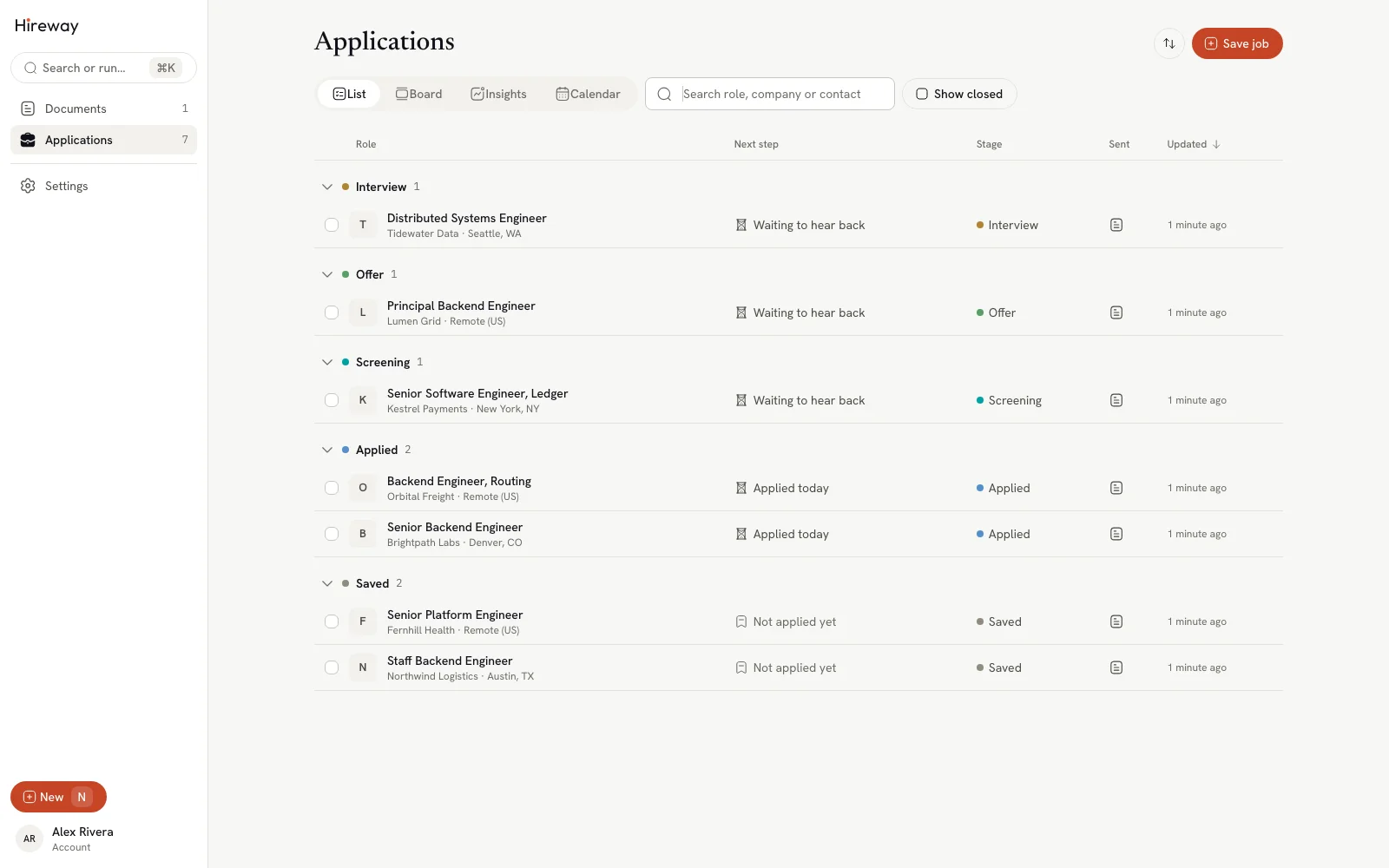
The default view. Applications are grouped by stage in the order that usually needs you first: **Interview**, **Offer**, **Screening**, **Applied**, **Saved**, then **Closed** when shown.
- Select a group heading to collapse or expand it.
- Select the **Role**, **Next step** or **Updated** column heading to sort within each group. Select it again to reverse the order.
- The **Next step** column shows the next interview, the follow-up you set, or how long you've been waiting. It turns amber when something is overdue or you've had no reply for 10 days or more.
- The **Sent** column shows an icon for a linked resume and a linked letter. It says **None** in amber when an application was sent without a linked document.
- Select a row to open its details.
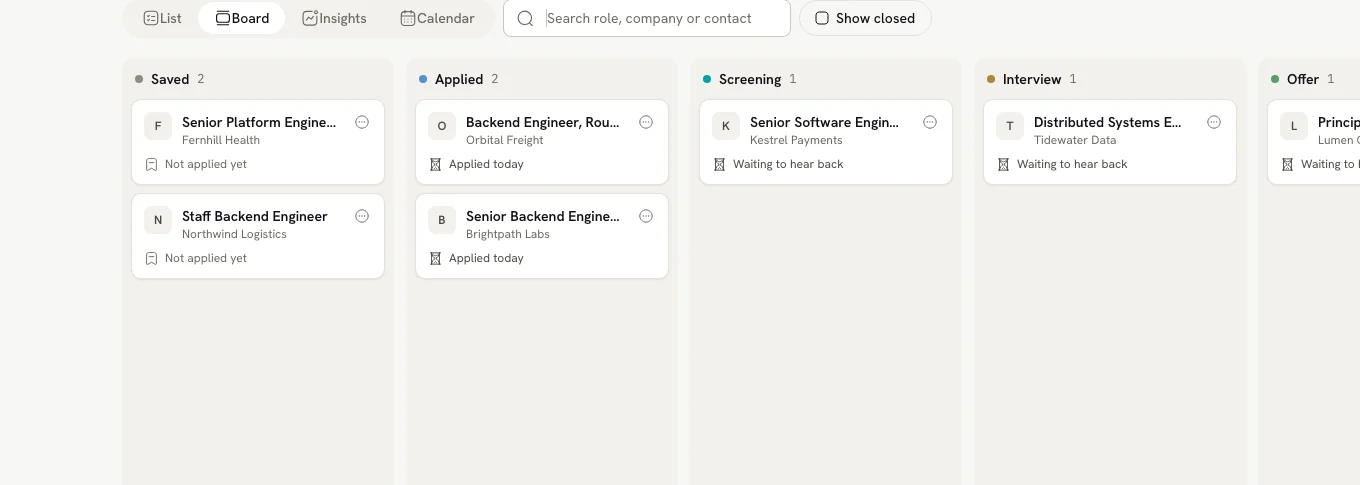
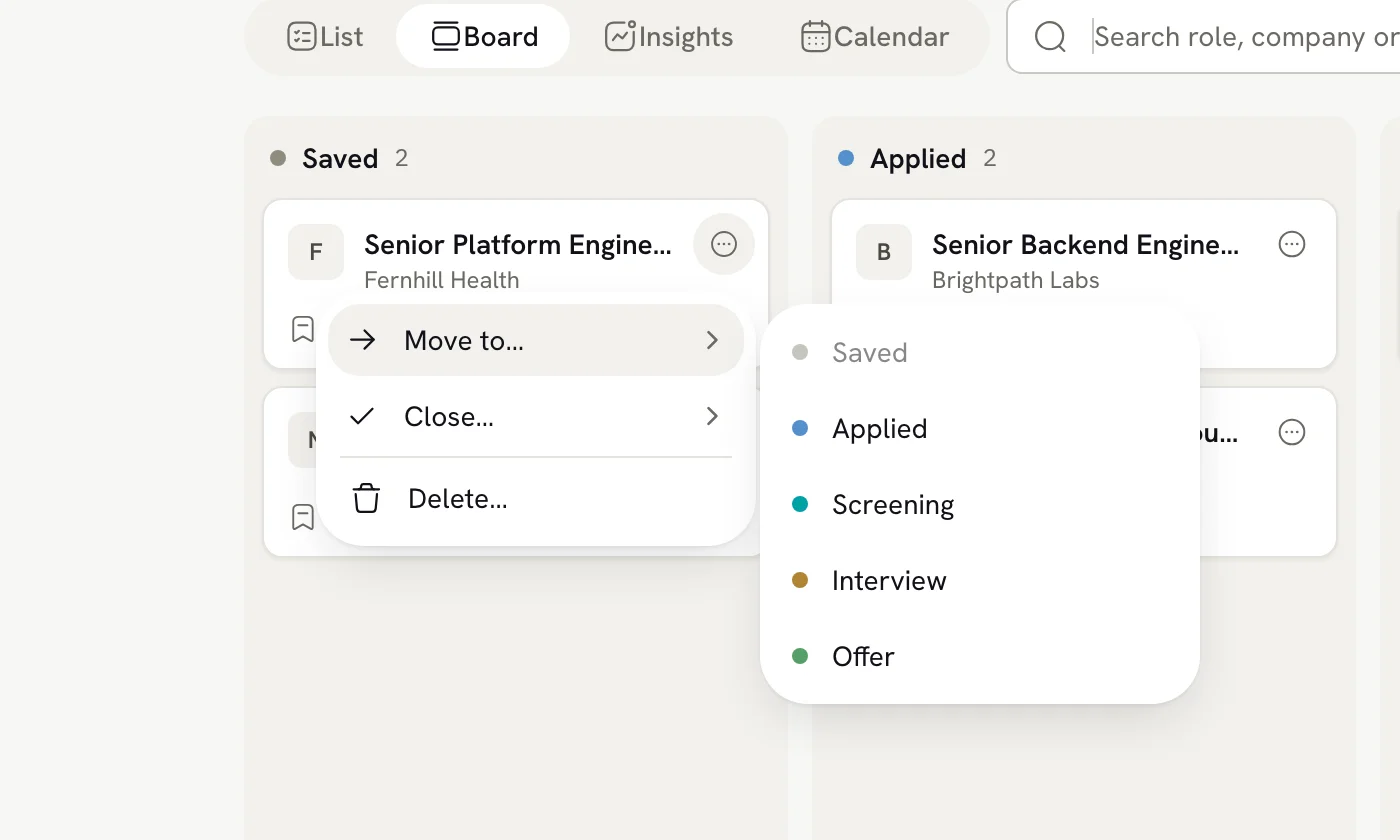
One column per stage, with a card for each application. Drag a card to another column to move it to that stage. Each card also has a **⋯** menu with **Move to…**, **Close…** and **Delete…**, which is handy if you prefer the keyboard. When **Show closed** is on, a **Closed** column appears too. Dragging a card there asks why it ended before closing it, so Insights can use the outcome.
## How stages work [#how-stages-work]
Every application sits in one stage. The first five stages form a pipeline you move through in order:
| Stage | Use it when |
| ------------- | ------------------------------------------------------------------------ |
| **Saved** | You found the job but haven't applied yet. |
| **Applied** | You sent your application. |
| **Screening** | A recruiter or hiring manager got back to you, or you have a first call. |
| **Interview** | You're in the interview process. |
| **Offer** | You received an offer. |
| **Closed** | The application ended, whatever the outcome. |
You can close an application from any stage. Closing asks for a reason (**Not selected**, **I withdrew**, **Accepted another offer** or **No response**), which Insights uses later. Closed applications are hidden until you turn on **Show closed**. See [Managing an application](/docs/applications/managing-an-application#closing-an-application).
When an application with a linked resume or letter reaches **Applied** or a later stage, Hireway saves a copy of each
as a "Sent to *company*" version. You can always open exactly what you sent, even after you keep editing the document.
## Choosing a view [#choosing-a-view]
Use the tabs above the list to switch views. Your choice is kept in the page address, so a bookmark opens the same view.
The default view. Applications are grouped by stage in the order that usually needs you first: **Interview**, **Offer**, **Screening**, **Applied**, **Saved**, then **Closed** when shown.
- Select a group heading to collapse or expand it.
- Select the **Role**, **Next step** or **Updated** column heading to sort within each group. Select it again to reverse the order.
- The **Next step** column shows the next interview, the follow-up you set, or how long you've been waiting. It turns amber when something is overdue or you've had no reply for 10 days or more.
- The **Sent** column shows an icon for a linked resume and a linked letter. It says **None** in amber when an application was sent without a linked document.
- Select a row to open its details.
One column per stage, with a card for each application. Drag a card to another column to move it to that stage. Each card also has a **⋯** menu with **Move to…**, **Close…** and **Delete…**, which is handy if you prefer the keyboard. When **Show closed** is on, a **Closed** column appears too. Dragging a card there asks why it ended before closing it, so Insights can use the outcome.
 Charts about how your applications are going: how far they get, how often and how quickly people reply, and where your applications come from. See [Viewing application insights](/docs/applications/viewing-application-insights).
A month calendar of your interviews, with a list of upcoming ones beside it. See [Scheduling interviews](/docs/applications/scheduling-interviews).
On phones, the page shows **List** and **Insights** only, and list rows show the company and next step on a second line.
## Finding applications [#finding-applications]
Type in **Search role, company or contact** to filter the list as you type. Search looks at the role, company, location, contact names and tags. If nothing matches, select **Clear search**.
**Show closed** adds closed applications to the List, Board and Calendar views. Insights always counts every application.
## Acting on several applications at once [#acting-on-several-applications-at-once]
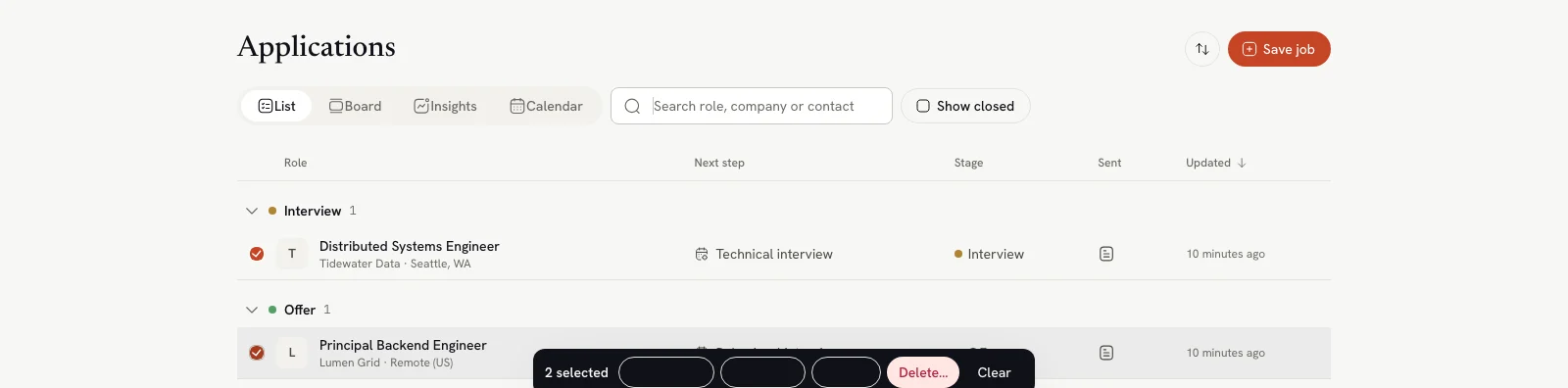
In the List view on a computer or tablet, select the checkboxes next to the applications you want. A bar appears at the bottom of the page with:
- **Move to…** to move them all to one stage
- **Add tag** to add the same tag to each
- **Close…** to close them all with one reason
- **Delete…** to delete them permanently (you're asked to confirm)
- **Clear** to deselect
Charts about how your applications are going: how far they get, how often and how quickly people reply, and where your applications come from. See [Viewing application insights](/docs/applications/viewing-application-insights).
A month calendar of your interviews, with a list of upcoming ones beside it. See [Scheduling interviews](/docs/applications/scheduling-interviews).
On phones, the page shows **List** and **Insights** only, and list rows show the company and next step on a second line.
## Finding applications [#finding-applications]
Type in **Search role, company or contact** to filter the list as you type. Search looks at the role, company, location, contact names and tags. If nothing matches, select **Clear search**.
**Show closed** adds closed applications to the List, Board and Calendar views. Insights always counts every application.
## Acting on several applications at once [#acting-on-several-applications-at-once]
In the List view on a computer or tablet, select the checkboxes next to the applications you want. A bar appears at the bottom of the page with:
- **Move to…** to move them all to one stage
- **Add tag** to add the same tag to each
- **Close…** to close them all with one reason
- **Delete…** to delete them permanently (you're asked to confirm)
- **Clear** to deselect
 ## Follow-up reminders [#follow-up-reminders]
When an application has been at **Applied** for 10 days or more without a reply, a reminder appears above the list for the one that has waited longest, for example "Harborlight Labs: no reply for 17 days." Select **Open** to go to that application, or **×** to dismiss the reminder. Dismissing is remembered in this browser, so that application's reminder doesn't come back here.
## Opening Applications from anywhere [#opening-applications-from-anywhere]
Press ⌘ K (Ctrl K on Windows and Linux) and choose **Applications** to go to the page or to search your applications by company or role. Run **New Application** to open the add dialog. See [Using the command bar](/docs/getting-started/using-the-command-bar).
## Related guides [#related-guides]
Paste a job link or posting and start tracking it.
Stages, next steps, what you sent, notes, contacts and history.
Make a copy of your resume for one application, or write a letter.
Bring in a spreadsheet, or export your applications.
You can also manage applications from an AI client over MCP. See [Managing applications with MCP](/docs/integrations/managing-applications-with-mcp).
## Follow-up reminders [#follow-up-reminders]
When an application has been at **Applied** for 10 days or more without a reply, a reminder appears above the list for the one that has waited longest, for example "Harborlight Labs: no reply for 17 days." Select **Open** to go to that application, or **×** to dismiss the reminder. Dismissing is remembered in this browser, so that application's reminder doesn't come back here.
## Opening Applications from anywhere [#opening-applications-from-anywhere]
Press ⌘ K (Ctrl K on Windows and Linux) and choose **Applications** to go to the page or to search your applications by company or role. Run **New Application** to open the add dialog. See [Using the command bar](/docs/getting-started/using-the-command-bar).
## Related guides [#related-guides]
Paste a job link or posting and start tracking it.
Stages, next steps, what you sent, notes, contacts and history.
Make a copy of your resume for one application, or write a letter.
Bring in a spreadsheet, or export your applications.
You can also manage applications from an AI client over MCP. See [Managing applications with MCP](/docs/integrations/managing-applications-with-mcp).