# Arranging the layout (https://docs.hireway.dev/docs/design/arranging-the-layout)
Every resume has a layout: a list of pages, and on each page a **main** column and a **sidebar**. This guide shows how to change the sidebar, move sections between columns and pages, show a section's entries in several columns, and decide where pages break.
## How the layout works [#how-the-layout-works]
- **Pages.** You decide which sections start on which page. If a page's sections don't fit, the rest runs onto an extra page; see [Fitting content on a page](/docs/design/fitting-content-on-a-page).
- **Main and sidebar.** On a two-column template, the sidebar prints as its own narrow column. On a one-column template, sidebar sections print after the main sections.
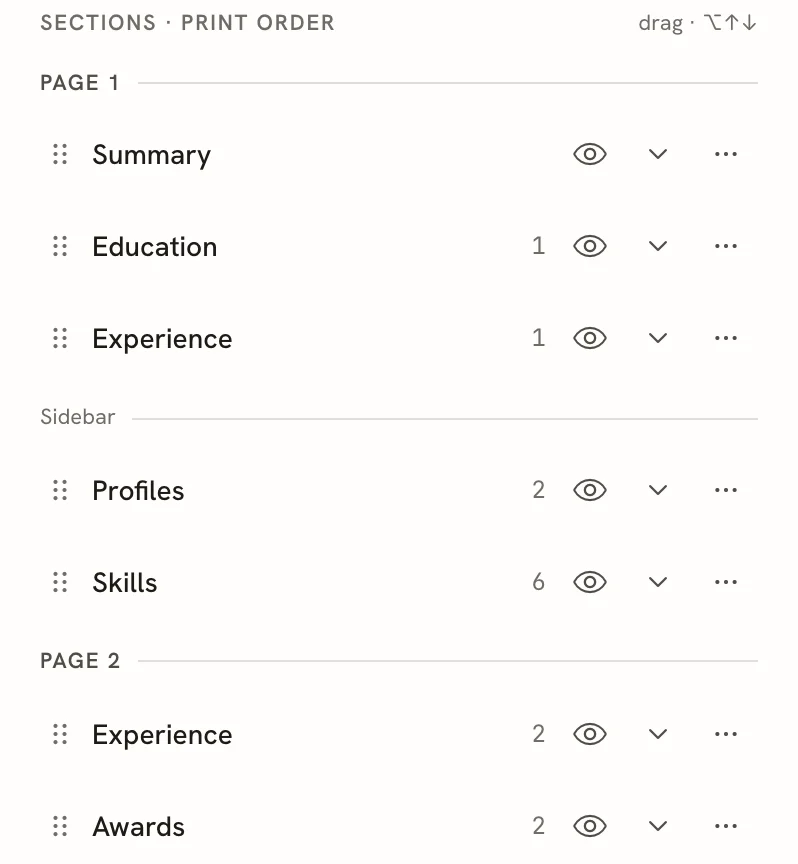
- **Print order.** In Write, the list of sections shows them in the order they print: page by page, the main column first and then the sidebar. Dividers mark where each page and each sidebar starts.
 ## Move the sidebar and change its width [#move-the-sidebar-and-change-its-width]
On a two-column template, a **Sidebar** panel appears under the template gallery in **Design → Template**.
## Move the sidebar and change its width [#move-the-sidebar-and-change-its-width]
On a two-column template, a **Sidebar** panel appears under the template gallery in **Design → Template**.
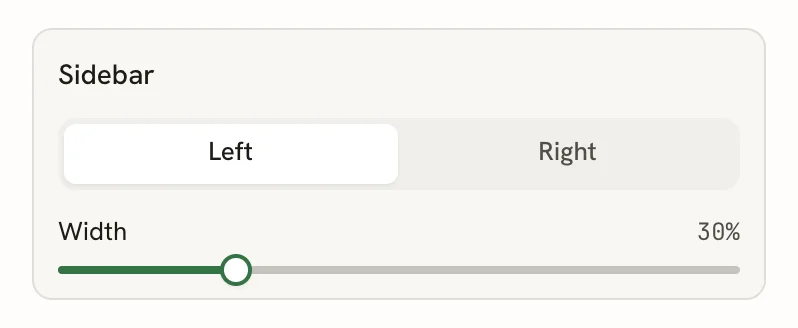 - **Left** / **Right** puts the sidebar on that side, whatever the template's usual side is.
- **Width** sets the sidebar's share of the page, from 10% to 50%.
**Sidebar Width** in **Advanced → Layout** uses the same 10% to 50% range.
## Reorder sections and move them between columns [#reorder-sections-and-move-them-between-columns]
In **Write**:
- Drag a section by its handle (the dotted grip on the left) to a new place in the list. Dragging it below a **Sidebar** divider moves it into the sidebar; dragging it past a **Page** divider moves it to that page.
- Or focus a section's title and press ⌥ ↑ or ⌥ ↓ (Alt ↑ or Alt ↓ on Windows and Linux).
- Or open the section's **⋯** menu and select **Move up** or **Move down**.
For more on the section menu, see [Managing sections](/docs/editor/managing-sections).
## Manage pages in Advanced → Layout [#manage-pages-in-advanced--layout]
**Advanced → Layout** shows every page as a box with its **Main** and **Sidebar** columns. Open **Advanced** at the bottom of the Design panel to find it.
- **Left** / **Right** puts the sidebar on that side, whatever the template's usual side is.
- **Width** sets the sidebar's share of the page, from 10% to 50%.
**Sidebar Width** in **Advanced → Layout** uses the same 10% to 50% range.
## Reorder sections and move them between columns [#reorder-sections-and-move-them-between-columns]
In **Write**:
- Drag a section by its handle (the dotted grip on the left) to a new place in the list. Dragging it below a **Sidebar** divider moves it into the sidebar; dragging it past a **Page** divider moves it to that page.
- Or focus a section's title and press ⌥ ↑ or ⌥ ↓ (Alt ↑ or Alt ↓ on Windows and Linux).
- Or open the section's **⋯** menu and select **Move up** or **Move down**.
For more on the section menu, see [Managing sections](/docs/editor/managing-sections).
## Manage pages in Advanced → Layout [#manage-pages-in-advanced--layout]
**Advanced → Layout** shows every page as a box with its **Main** and **Sidebar** columns. Open **Advanced** at the bottom of the Design panel to find it.
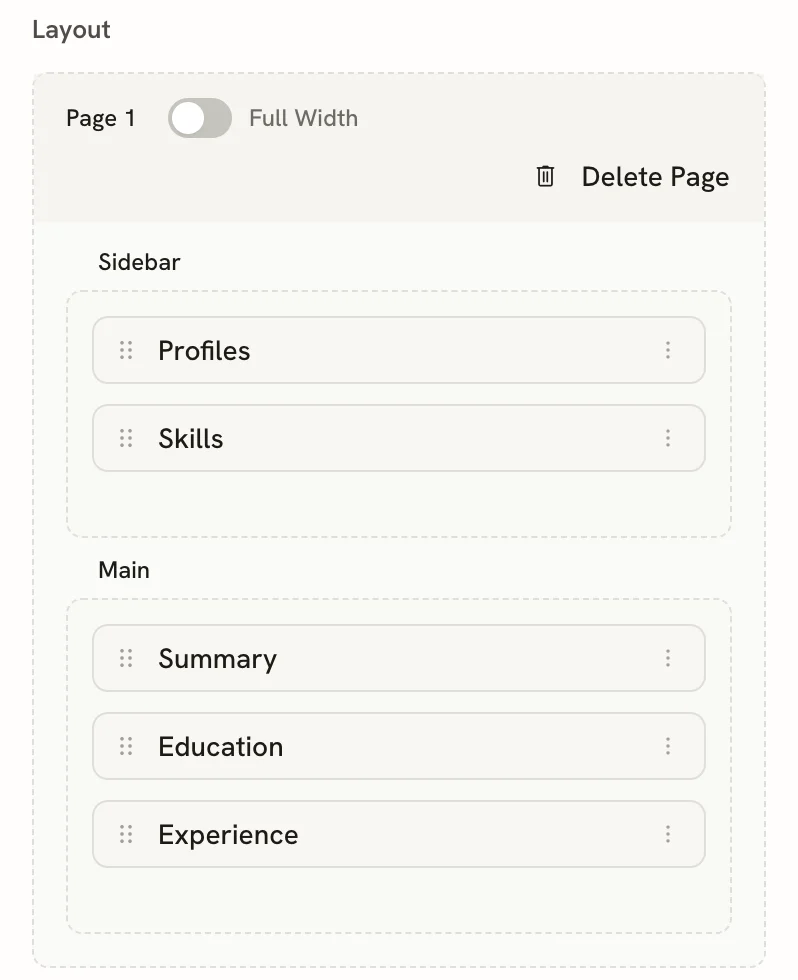 Here you can:
- **Drag** sections between columns and between pages.
- Select **Add Page** (below the last page) to add an empty page.
- Select **Delete Page** to remove a page. Its sections move to the first page (or to the second page, if you delete the first). You can't delete the only page.
- Turn on **Full Width** to print that page in a single column. Its sidebar sections move into the main column.
Each section also has a **⋮** menu:
Here you can:
- **Drag** sections between columns and between pages.
- Select **Add Page** (below the last page) to add an empty page.
- Select **Delete Page** to remove a page. Its sections move to the first page (or to the second page, if you delete the first). You can't delete the only page.
- Turn on **Full Width** to print that page in a single column. Its sidebar sections move into the main column.
Each section also has a **⋮** menu:
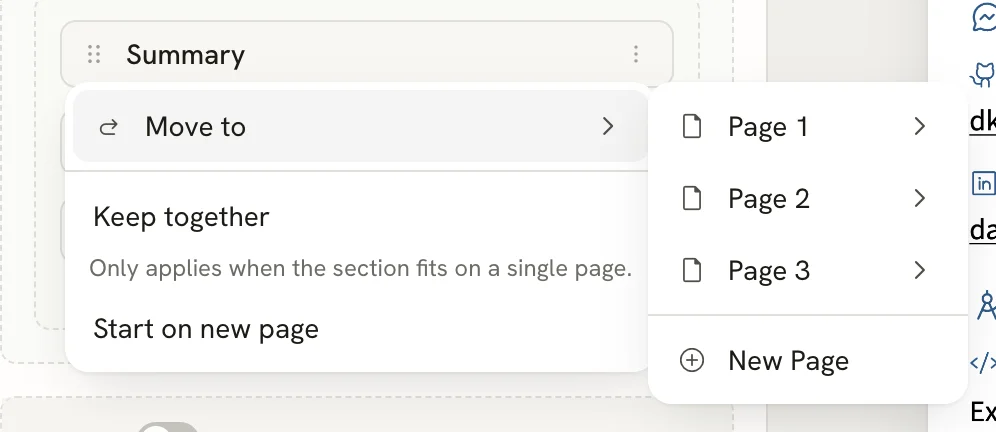 - **Move to** → a page → **Main** or **Sidebar** moves the section there. **New Page** moves it onto a page of its own at the end. Sidebar isn't offered on full-width pages or with one-column templates.
- **Keep together** and **Start on new page** control page breaks, described below.
## Show a section's entries in columns [#show-a-sections-entries-in-columns]
Short entries, such as skills, languages or interests, can sit side by side. In **Write**, open the section's **⋯** menu, point to **Columns** and choose **1 column** to **6 columns**.
- **Move to** → a page → **Main** or **Sidebar** moves the section there. **New Page** moves it onto a page of its own at the end. Sidebar isn't offered on full-width pages or with one-column templates.
- **Keep together** and **Start on new page** control page breaks, described below.
## Show a section's entries in columns [#show-a-sections-entries-in-columns]
Short entries, such as skills, languages or interests, can sit side by side. In **Write**, open the section's **⋯** menu, point to **Columns** and choose **1 column** to **6 columns**.
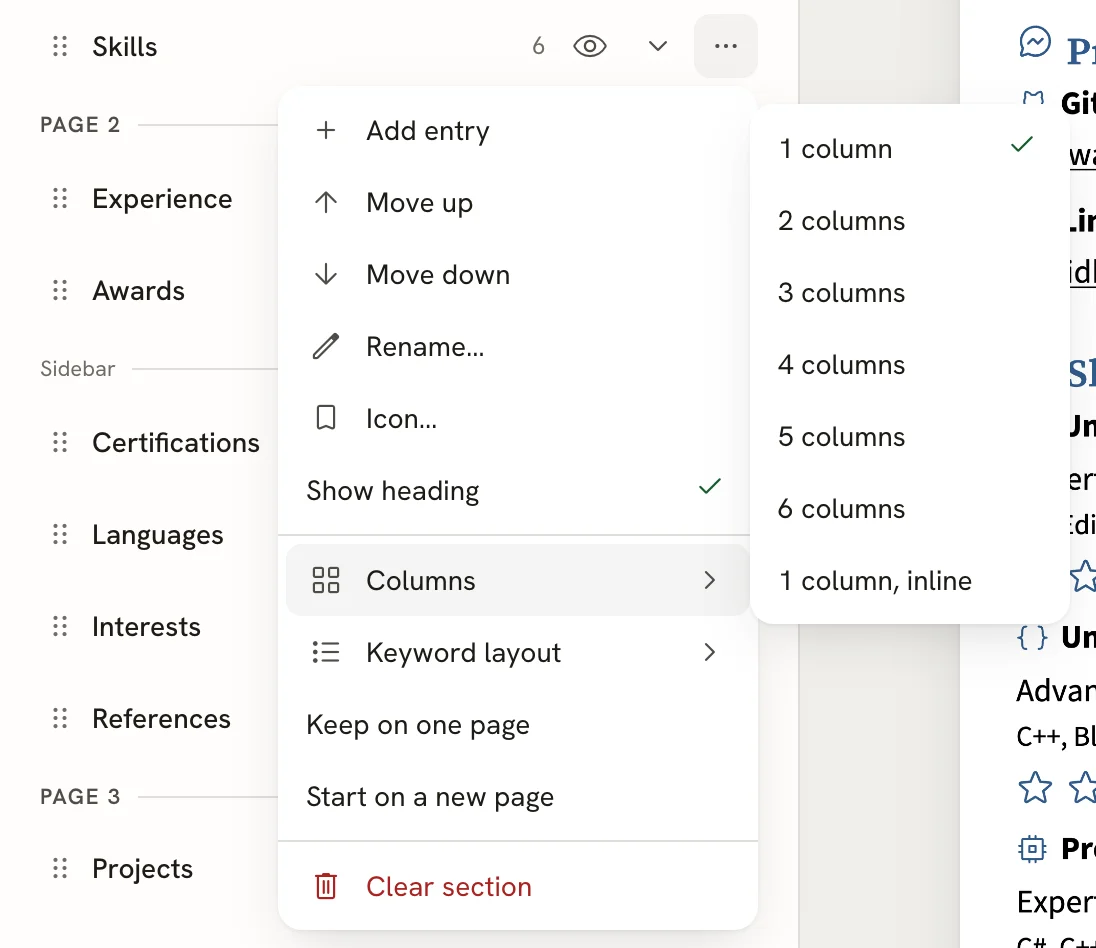 The Skills section has two extra choices:
- **1 column, inline** runs skills together on one line instead of stacking them.
- **Keyword layout** shows each skill's keywords **Inline** (on one line) or as a **Bulleted list**.
## Control page breaks [#control-page-breaks]
Two switches decide how a section behaves at the end of a page. You find them in the section's **⋯** menu in Write and in its **⋮** menu in Advanced → Layout; both places change the same setting.
| In Write | In Advanced → Layout | What it does |
| ----------------------- | --------------------- | ------------------------------------------------------------------------------------------------------------------ |
| **Keep on one page** | **Keep together** | Moves the whole section to the next page instead of splitting it. It only works when the section fits on one page. |
| **Start on a new page** | **Start on new page** | Always begins the section at the top of a new page. |
Keeping a section together can leave a large gap at the bottom of the previous page. If that happens, move a shorter
section into the gap or turn the switch off.
## Related guides [#related-guides]
- [Choosing a template](/docs/design/choosing-a-template): one- and two-column templates.
- [Managing sections](/docs/editor/managing-sections): add, rename, hide and remove sections.
- [Fitting content on a page](/docs/design/fitting-content-on-a-page): keep to the pages you planned.
The Skills section has two extra choices:
- **1 column, inline** runs skills together on one line instead of stacking them.
- **Keyword layout** shows each skill's keywords **Inline** (on one line) or as a **Bulleted list**.
## Control page breaks [#control-page-breaks]
Two switches decide how a section behaves at the end of a page. You find them in the section's **⋯** menu in Write and in its **⋮** menu in Advanced → Layout; both places change the same setting.
| In Write | In Advanced → Layout | What it does |
| ----------------------- | --------------------- | ------------------------------------------------------------------------------------------------------------------ |
| **Keep on one page** | **Keep together** | Moves the whole section to the next page instead of splitting it. It only works when the section fits on one page. |
| **Start on a new page** | **Start on new page** | Always begins the section at the top of a new page. |
Keeping a section together can leave a large gap at the bottom of the previous page. If that happens, move a shorter
section into the gap or turn the switch off.
## Related guides [#related-guides]
- [Choosing a template](/docs/design/choosing-a-template): one- and two-column templates.
- [Managing sections](/docs/editor/managing-sections): add, rename, hide and remove sections.
- [Fitting content on a page](/docs/design/fitting-content-on-a-page): keep to the pages you planned.