# Importing a resume (https://docs.hireway.dev/docs/documents/importing-resumes)
If you already have a resume, you don't need to retype it. Import the file and Hireway builds a new, editable resume from it, section by section. Your original file is never changed.
## Supported files [#supported-files]
Hireway works out the format from the file's contents, so you don't pick a type.
| File | Needs an AI provider? | Notes |
| --------------------------------- | --------------------- | -------------------------------------------------------------------------------------------- |
| **Hireway JSON** | No | Best for backups and moving between accounts or servers. Keeps everything, including design. |
| **Legacy v4 JSON** | No | Exports in the earlier version 4 format. |
| **JSON Resume** (`.json`) | No | Files that follow the open [JSON Resume](https://jsonresume.org) standard. |
| **LinkedIn data export** (`.zip`) | No | Reads your profile, positions, education, skills, languages and certifications. |
| **PDF** | Optional | Read by your AI provider if you've set one up; otherwise read in your browser. |
| **Word** (`.docx`) | Yes | Read by your AI provider. |
A cover letter exported from Hireway as JSON imports as a letter, not a resume.
An AI provider is an AI service you connect in **Settings → AI & developer**. Only a provider that is turned on and
has passed its connection test counts. See [Connecting an AI provider](/docs/ai/using-ai).
## Import a file [#import-a-file]
On Documents, select **New** in the sidebar (or press N), then select **Import a resume** and pick your file. On your first visit, the empty Documents page has a **Choose a file** button that opens the same dialog.
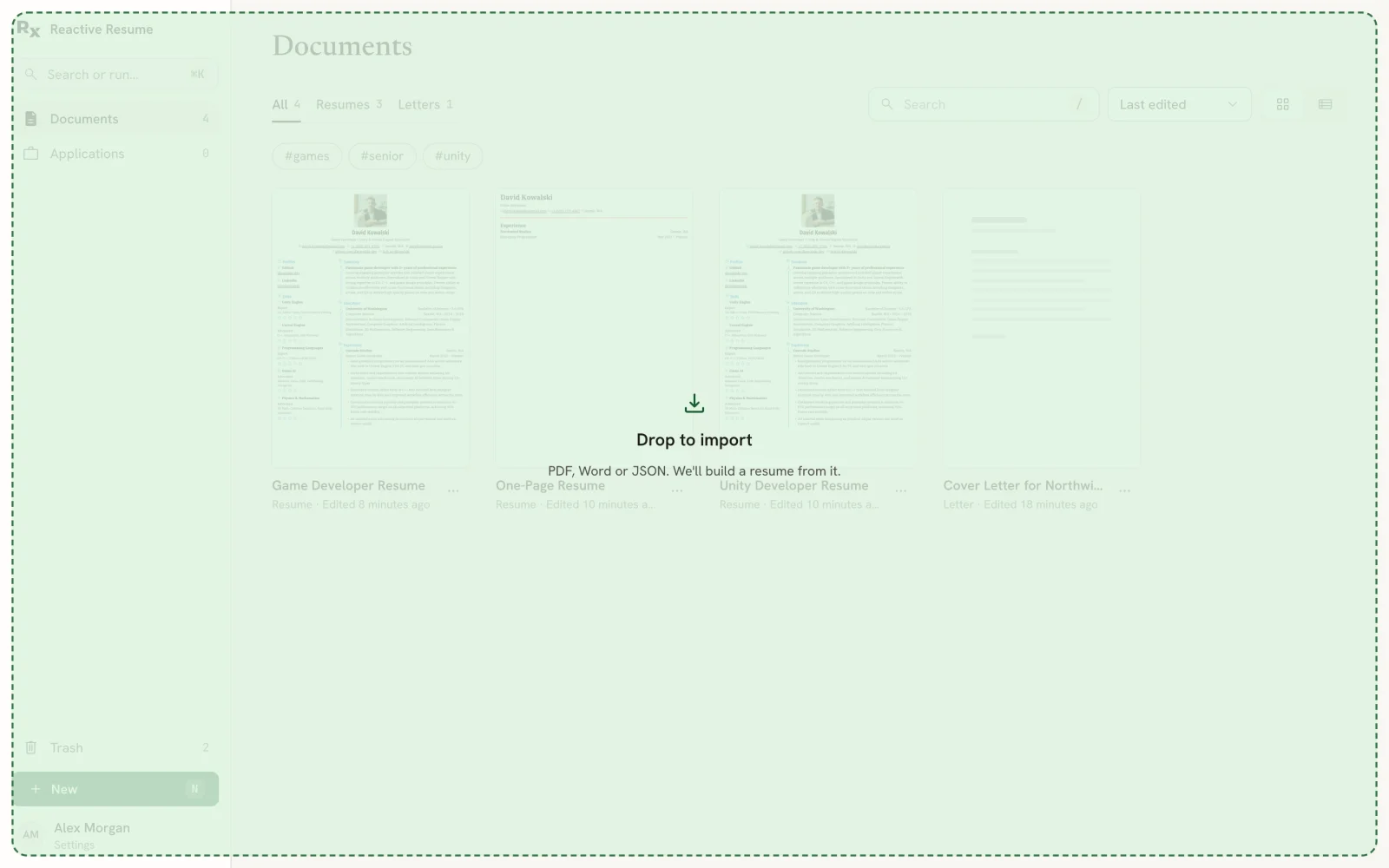
Drag the file from your computer anywhere onto the Documents page. The page shows **Drop to import**; let go and the import starts.
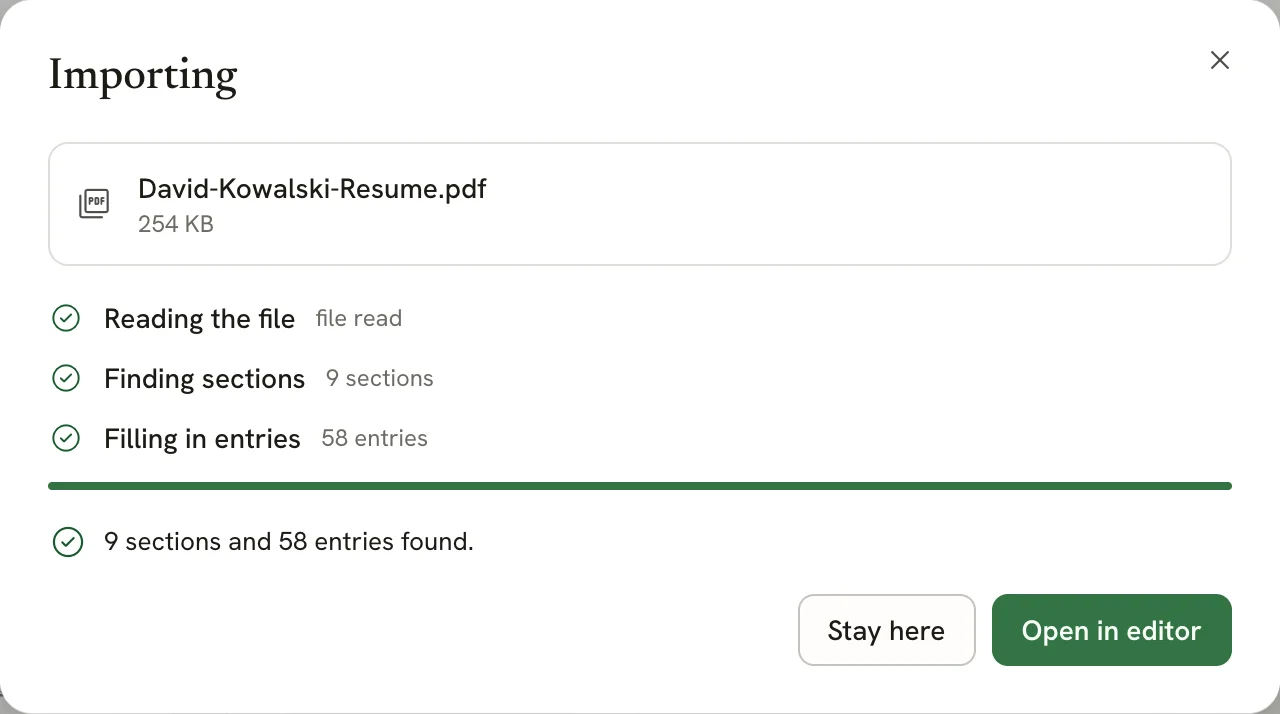
 The dialog shows **Reading the file**, **Finding sections** and **Filling in entries**, with a note beside each as it finishes. JSON and LinkedIn files take a moment; PDF and Word files read by an AI provider can take longer. Select **Cancel** to stop.
When the import finishes, the dialog tells you how many sections and entries it found. Select **Open in editor** to start reviewing, or **Stay here** to keep working on Documents. The new resume has a **New** badge on its card.
The dialog shows **Reading the file**, **Finding sections** and **Filling in entries**, with a note beside each as it finishes. JSON and LinkedIn files take a moment; PDF and Word files read by an AI provider can take longer. Select **Cancel** to stop.
When the import finishes, the dialog tells you how many sections and entries it found. Select **Open in editor** to start reviewing, or **Stay here** to keep working on Documents. The new resume has a **New** badge on its card.
 ## Review what came in [#review-what-came-in]
When you open an imported resume from the dialog, the **Write** panel starts with a note naming the file you imported and counting its sections and entries.
## Review what came in [#review-what-came-in]
When you open an imported resume from the dialog, the **Write** panel starts with a note naming the file you imported and counting its sections and entries.
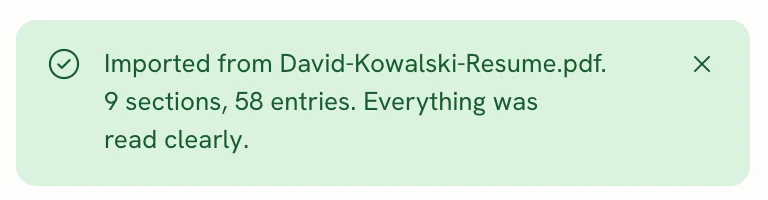 If some dates couldn't be read exactly, the note says how many fields need a look, and each of those date fields shows the text it found, for example _We couldn't read "Summer 2019"_. Pick the right month and year so the entry sorts and prints consistently; the count goes down as you fix them. Close the note with **×** when you're done.
Go through every section before you send the resume. PDF and Word files don't store which text belongs where, so parts can land in the wrong section, lose formatting or come out slightly reworded. Structured files (Hireway JSON, JSON Resume, LinkedIn) come in far more reliably.
## Notes on each format [#notes-on-each-format]
Download it from another resume with **Download** and the JSON format, or extract an individual resume JSON file
from **Export everything** (see [Exporting your resume](/docs/sharing/exporting-your-resume)). Custom styles written
for the older styling system come in converted to the current one. If a version 5 resume contained cover letters,
each one becomes its own letter in Documents, linked to the imported resume.
In LinkedIn's settings, request a copy of your data and download the archive when LinkedIn emails you. Import the
`.zip` file as it is; don't unzip it. Hireway reads `Profile.csv`, `Positions.csv`, `Education.csv`, `Skills.csv`,
`Languages.csv` and `Certifications.csv` and ignores everything else, such as messages. The file never leaves your
browser.
With an AI provider set up, the PDF (up to 10 MB) is sent to that provider, which returns the resume's sections.
Without one, Hireway reads the PDF's text in your browser and sorts it into sections itself. This works best for
simple, one-column resumes. A scanned PDF (a picture of a page) has no text to read and can't be imported this way.
Word files are always read by your AI provider, so set one up first. Use the modern `.docx` format; older `.doc`
files are rejected before parsing. Open them in Word and save as `.docx`. Files can be up to 10 MB.
## Troubleshooting [#troubleshooting]
**"This file type can't be imported."** The file isn't one of the supported types. Export your resume as PDF, Word or JSON, or use your LinkedIn data export.
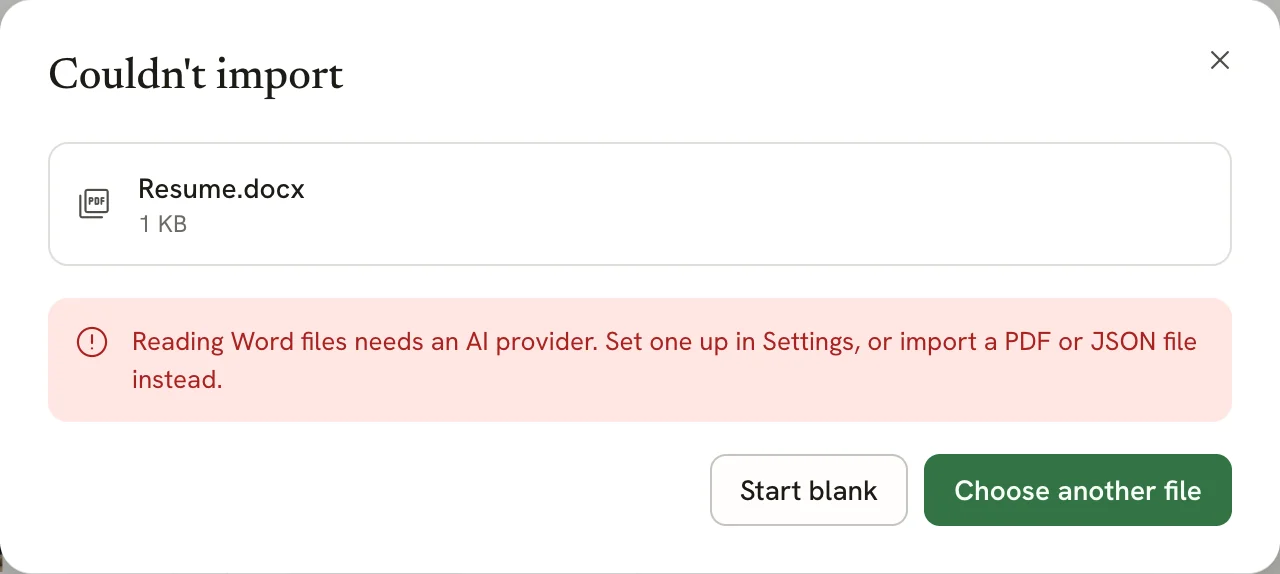
**"Reading Word files needs an AI provider."** Connect a provider in **Settings → AI & developer** and test it, or import a PDF or JSON version instead. **Choose another file** lets you pick a different file without closing the dialog, and **Start blank** gives you an empty resume.
If some dates couldn't be read exactly, the note says how many fields need a look, and each of those date fields shows the text it found, for example _We couldn't read "Summer 2019"_. Pick the right month and year so the entry sorts and prints consistently; the count goes down as you fix them. Close the note with **×** when you're done.
Go through every section before you send the resume. PDF and Word files don't store which text belongs where, so parts can land in the wrong section, lose formatting or come out slightly reworded. Structured files (Hireway JSON, JSON Resume, LinkedIn) come in far more reliably.
## Notes on each format [#notes-on-each-format]
Download it from another resume with **Download** and the JSON format, or extract an individual resume JSON file
from **Export everything** (see [Exporting your resume](/docs/sharing/exporting-your-resume)). Custom styles written
for the older styling system come in converted to the current one. If a version 5 resume contained cover letters,
each one becomes its own letter in Documents, linked to the imported resume.
In LinkedIn's settings, request a copy of your data and download the archive when LinkedIn emails you. Import the
`.zip` file as it is; don't unzip it. Hireway reads `Profile.csv`, `Positions.csv`, `Education.csv`, `Skills.csv`,
`Languages.csv` and `Certifications.csv` and ignores everything else, such as messages. The file never leaves your
browser.
With an AI provider set up, the PDF (up to 10 MB) is sent to that provider, which returns the resume's sections.
Without one, Hireway reads the PDF's text in your browser and sorts it into sections itself. This works best for
simple, one-column resumes. A scanned PDF (a picture of a page) has no text to read and can't be imported this way.
Word files are always read by your AI provider, so set one up first. Use the modern `.docx` format; older `.doc`
files are rejected before parsing. Open them in Word and save as `.docx`. Files can be up to 10 MB.
## Troubleshooting [#troubleshooting]
**"This file type can't be imported."** The file isn't one of the supported types. Export your resume as PDF, Word or JSON, or use your LinkedIn data export.
**"Reading Word files needs an AI provider."** Connect a provider in **Settings → AI & developer** and test it, or import a PDF or JSON version instead. **Choose another file** lets you pick a different file without closing the dialog, and **Start blank** gives you an empty resume.
 **"This PDF is a scanned image."** Try the Word version of the resume, set up an AI provider, or start blank and paste your sections in.
**"This ZIP doesn't look like a LinkedIn data export."** Make sure you're importing the archive LinkedIn sent you, not a ZIP you made yourself.
**"This PDF is password protected."** Save a copy without a password and import that instead.
**"The file couldn't be read as a resume"** (or **"The file could not be read as a valid resume"**, followed by the fields it couldn't read). The JSON file is damaged or isn't a resume. Check that it came from Hireway or follows the JSON Resume standard.
**"Couldn't reach the AI provider."** Your provider didn't answer. Try again in a moment, or test the connection in **Settings → AI & developer**.
## Related guides [#related-guides]
- [Creating your first resume](/docs/documents/creating-your-first-resume): start from scratch instead.
- [Entering dates](/docs/editor/entering-dates): fix dates that need a look.
- [Managing sections](/docs/editor/managing-sections): rename, hide or reorder imported sections.
- [JSON Resume schema](/docs/integrations/json-resume-schema): the structure of Hireway's JSON format.
**"This PDF is a scanned image."** Try the Word version of the resume, set up an AI provider, or start blank and paste your sections in.
**"This ZIP doesn't look like a LinkedIn data export."** Make sure you're importing the archive LinkedIn sent you, not a ZIP you made yourself.
**"This PDF is password protected."** Save a copy without a password and import that instead.
**"The file couldn't be read as a resume"** (or **"The file could not be read as a valid resume"**, followed by the fields it couldn't read). The JSON file is damaged or isn't a resume. Check that it came from Hireway or follows the JSON Resume standard.
**"Couldn't reach the AI provider."** Your provider didn't answer. Try again in a moment, or test the connection in **Settings → AI & developer**.
## Related guides [#related-guides]
- [Creating your first resume](/docs/documents/creating-your-first-resume): start from scratch instead.
- [Entering dates](/docs/editor/entering-dates): fix dates that need a look.
- [Managing sections](/docs/editor/managing-sections): rename, hide or reorder imported sections.
- [JSON Resume schema](/docs/integrations/json-resume-schema): the structure of Hireway's JSON format.