# Using the Trash (https://docs.hireway.dev/docs/documents/using-the-trash)
When you remove a resume or cover letter, it goes to **Trash** instead of disappearing. It stays there for 30 days, so you can bring it back if you change your mind.
## Move a document to Trash [#move-a-document-to-trash]
On Documents, open the document's **⋯** menu and choose **Move to Trash**. In the editor, open the document name menu at the top left and choose **Move to Trash**; you return to Documents.
Hireway doesn't ask you to confirm, because the move can be undone. A message appears at the bottom of the screen. Select **Undo** to put the document back straight away.
 While a resume is in Trash, its public link stops working. Restoring it brings the resume back as it was.
Locked documents can't be moved to Trash. Choose **Unlock** in the document's menu first.
## Open the Trash [#open-the-trash]
Once Trash holds something, a **Trash** item with a count appears at the bottom of the sidebar. Select it to open the Trash page.
While a resume is in Trash, its public link stops working. Restoring it brings the resume back as it was.
Locked documents can't be moved to Trash. Choose **Unlock** in the document's menu first.
## Open the Trash [#open-the-trash]
Once Trash holds something, a **Trash** item with a count appears at the bottom of the sidebar. Select it to open the Trash page.
 You can also open the [command bar](/docs/getting-started/using-the-command-bar) with ⌘ K (Ctrl K on Windows and Linux) and choose **Trash**, or go to `https://hireway.dev/dashboard/trash`.
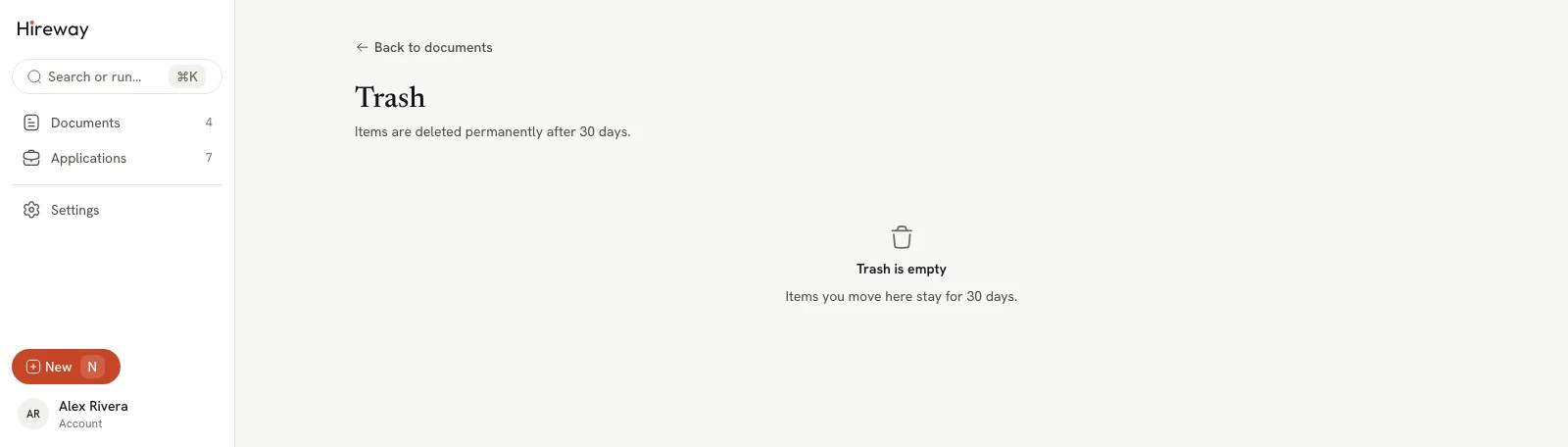
The Trash page lists each document with its **Type**, linked **Application**, and how many days are left under **Deleted in**. When it's empty, it says **Trash is empty**.
## Restore a document [#restore-a-document]
On the Trash page, select **⋯** at the end of the document's row.
You can also open the [command bar](/docs/getting-started/using-the-command-bar) with ⌘ K (Ctrl K on Windows and Linux) and choose **Trash**, or go to `https://hireway.dev/dashboard/trash`.
The Trash page lists each document with its **Type**, linked **Application**, and how many days are left under **Deleted in**. When it's empty, it says **Trash is empty**.
## Restore a document [#restore-a-document]
On the Trash page, select **⋯** at the end of the document's row.
 Select **Restore**. The document goes back to Documents with its content, tags and links intact.
## Delete a document for good [#delete-a-document-for-good]
Documents are deleted permanently 30 days after you moved them to Trash. To delete one sooner:
On the Trash page, open the row's **⋯** menu and choose **Delete now…**.
Select **Delete now** to confirm, or **Keep in Trash** to change your mind.
Select **Restore**. The document goes back to Documents with its content, tags and links intact.
## Delete a document for good [#delete-a-document-for-good]
Documents are deleted permanently 30 days after you moved them to Trash. To delete one sooner:
On the Trash page, open the row's **⋯** menu and choose **Delete now…**.
Select **Delete now** to confirm, or **Keep in Trash** to change your mind.
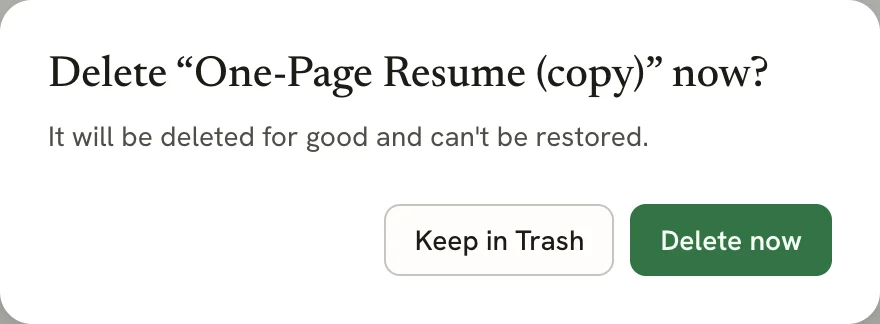 A deleted document can't be restored, and neither can its version history. If you might need it again, download a JSON
copy first (see [Exporting your resume](/docs/sharing/exporting-your-resume)).
## Related guides [#related-guides]
- [Managing your documents](/docs/documents/managing-documents): rename, duplicate and lock documents.
- [Exporting your data](/docs/account/exporting-your-data): keep a copy of everything in your account.
A deleted document can't be restored, and neither can its version history. If you might need it again, download a JSON
copy first (see [Exporting your resume](/docs/sharing/exporting-your-resume)).
## Related guides [#related-guides]
- [Managing your documents](/docs/documents/managing-documents): rename, duplicate and lock documents.
- [Exporting your data](/docs/account/exporting-your-data): keep a copy of everything in your account.