# Sharing your resume with a link (https://docs.hireway.dev/docs/sharing/sharing-your-resume-publicly)
A public link lets anyone you send it to open your resume in a browser, without an account. It always shows your latest changes, so you never have to send a new file after an edit. Links are off by default: until you turn one on, only you can see the resume.
## Before you start [#before-you-start]
- Open the resume in the editor. Links belong to resumes; cover letters don't have one.
- Check your username in **Settings** → **Account**. It's part of every public address, for example `https://hireway.dev/dkowalski/game-developer`. If you host Hireway yourself, your own address replaces `hireway.dev`.
## Turn on the public link [#turn-on-the-public-link]
In the editor bar, select **Share** (or press ⌘ ⇧ S, Ctrl Shift S on Windows and Linux). The **Share & export** sheet opens on its **Link** tab.
 Turn on **Public link**. The link is live at once, and **Share** in the editor bar gains a **Public** badge so you can tell at a glance.
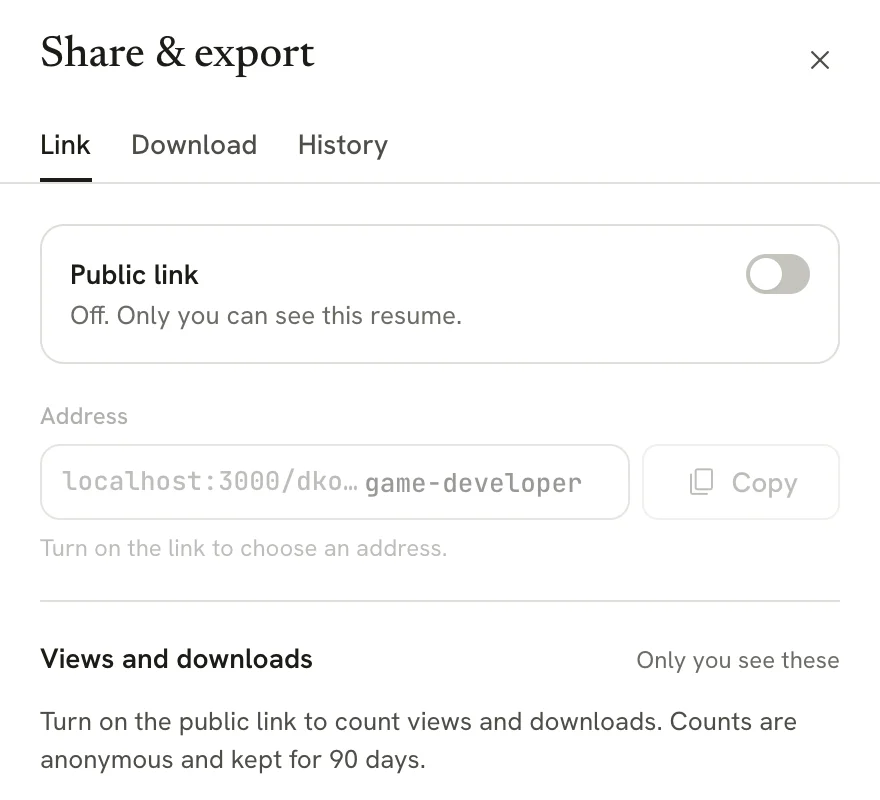 Select **Copy** next to the **Address** field. The button shows **Copied** for a moment. Paste the link into an email, a job application or your LinkedIn profile.
On a phone or tablet, you can also select **Share via…** to send the link through your device's share menu.
Select **Copy** next to the **Address** field. The button shows **Copied** for a moment. Paste the link into an email, a job application or your LinkedIn profile.
On a phone or tablet, you can also select **Share via…** to send the link through your device's share menu.
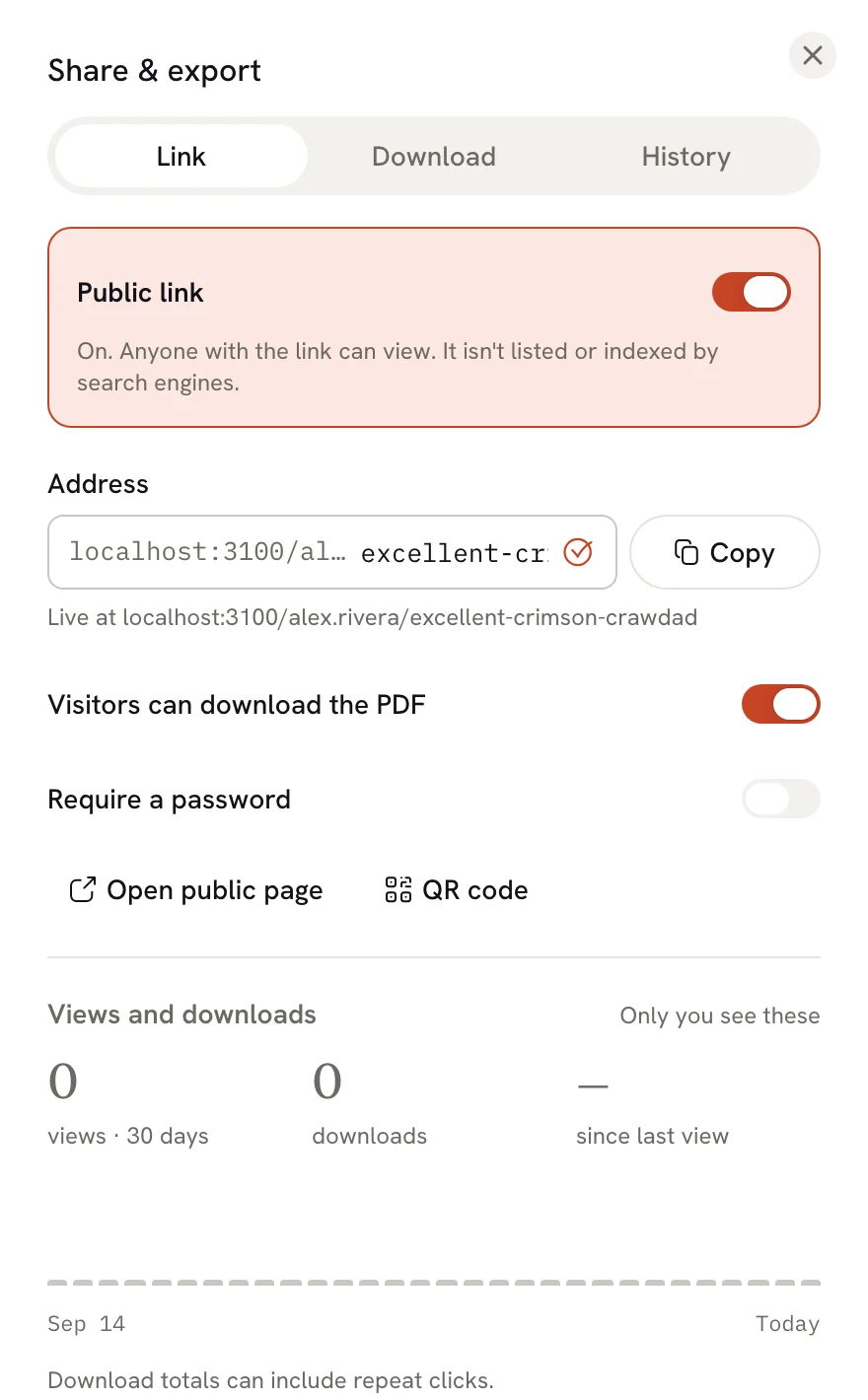 With the link on, the tab also offers:
- **Visitors can download the PDF**: on by default. Turn it off if you want people to read the resume on the page but not save a copy. It also stops visitors from printing the page.
- **Open public page**: opens the resume in a new tab, the way visitors see it.
- **QR code**: shows a code that opens the link, handy for a printed card or a slide.
Public links aren't listed anywhere and ask search engines not to index them. People find your resume only through a link you share.
## Change the address [#change-the-address]
The last part of the address is yours to choose. It starts out based on the resume's name.
With the link on, type a new ending in the **Address** field. Use lowercase letters, numbers and single dashes;
spaces turn into dashes as you type.
Hireway checks the address as you type. When it shows **Available**, the new address is saved on its own. Until
then, the old address keeps working.
With the link on, the tab also offers:
- **Visitors can download the PDF**: on by default. Turn it off if you want people to read the resume on the page but not save a copy. It also stops visitors from printing the page.
- **Open public page**: opens the resume in a new tab, the way visitors see it.
- **QR code**: shows a code that opens the link, handy for a printed card or a slide.
Public links aren't listed anywhere and ask search engines not to index them. People find your resume only through a link you share.
## Change the address [#change-the-address]
The last part of the address is yours to choose. It starts out based on the resume's name.
With the link on, type a new ending in the **Address** field. Use lowercase letters, numbers and single dashes;
spaces turn into dashes as you type.
Hireway checks the address as you type. When it shows **Available**, the new address is saved on its own. Until
then, the old address keeps working.
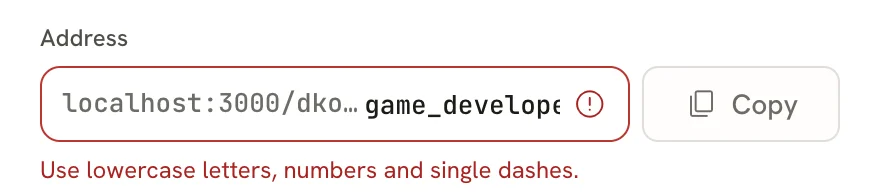 If another of your resumes already uses that address, the message names it and suggests a free one. Select **Try** followed by the suggestion to use it.
While an address change is saving, Copy is unavailable to avoid copying an outdated link. Wait for the saved address before copying.
After a change, the old address still leads to your resume for 30 days, so links you already sent keep working while you update them. Changing your username is different: every public address changes at once, and old links stop working.
## Require a password [#require-a-password]
A password keeps the link private to the people you give it to, for example while you're job hunting and don't want a current employer to stumble on your resume.
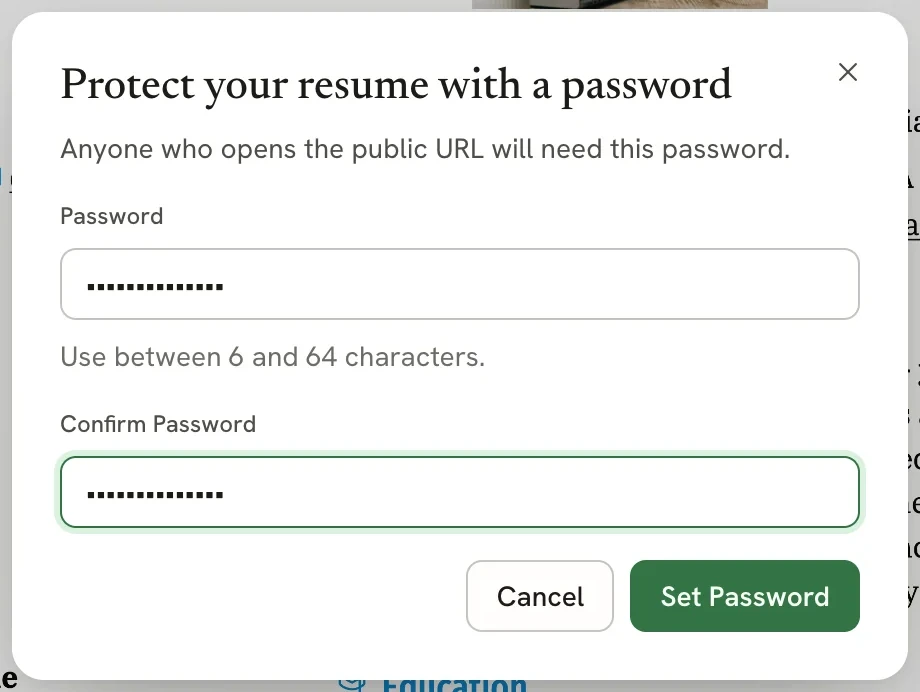
On the **Link** tab, turn on **Require a password**.
Type a password of 6 to 64 characters, type it again in **Confirm Password**, then select **Set Password**.
If another of your resumes already uses that address, the message names it and suggests a free one. Select **Try** followed by the suggestion to use it.
While an address change is saving, Copy is unavailable to avoid copying an outdated link. Wait for the saved address before copying.
After a change, the old address still leads to your resume for 30 days, so links you already sent keep working while you update them. Changing your username is different: every public address changes at once, and old links stop working.
## Require a password [#require-a-password]
A password keeps the link private to the people you give it to, for example while you're job hunting and don't want a current employer to stumble on your resume.
On the **Link** tab, turn on **Require a password**.
Type a password of 6 to 64 characters, type it again in **Confirm Password**, then select **Set Password**.
 Share the password through a different channel than the link, such as a text message. Anyone with both can view and download the resume.
To remove the password, turn off **Require a password** and select **Remove** to confirm. Anyone with the link can then view the resume.
## What visitors see [#what-visitors-see]
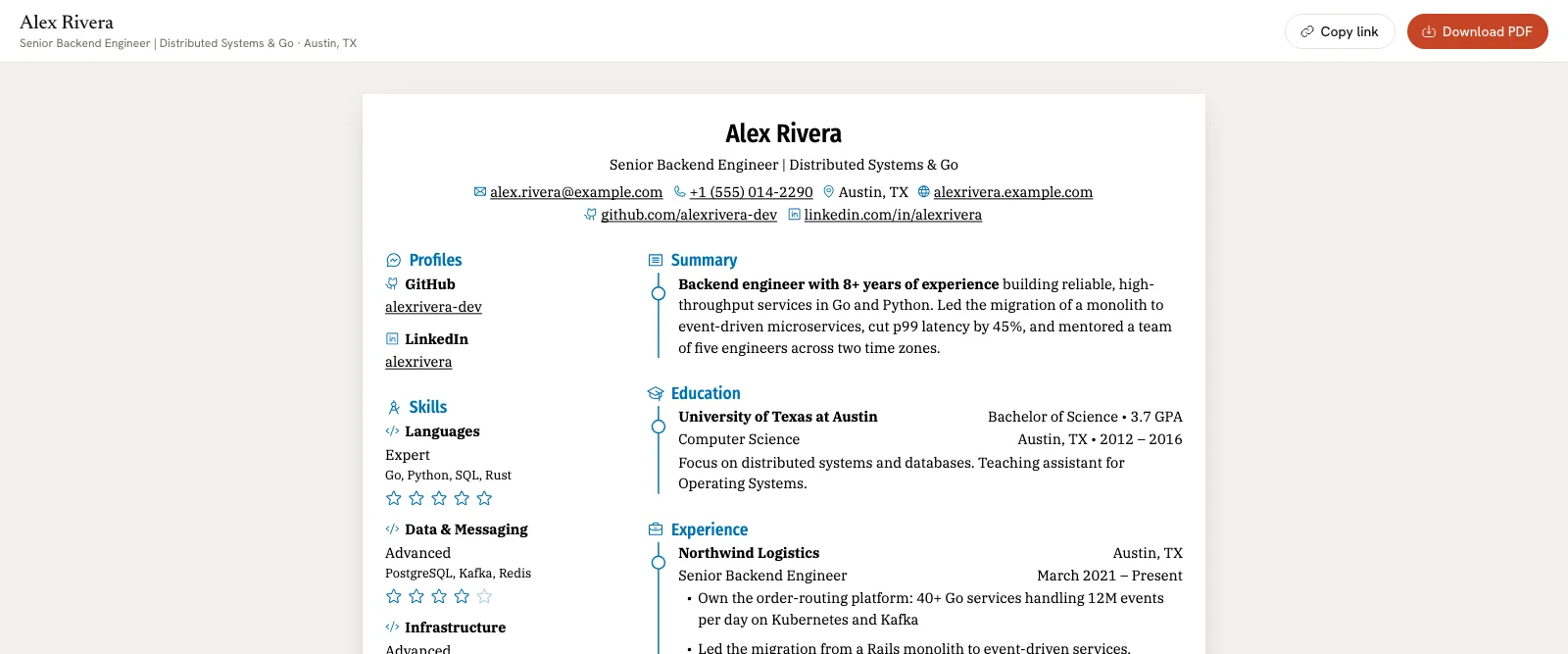
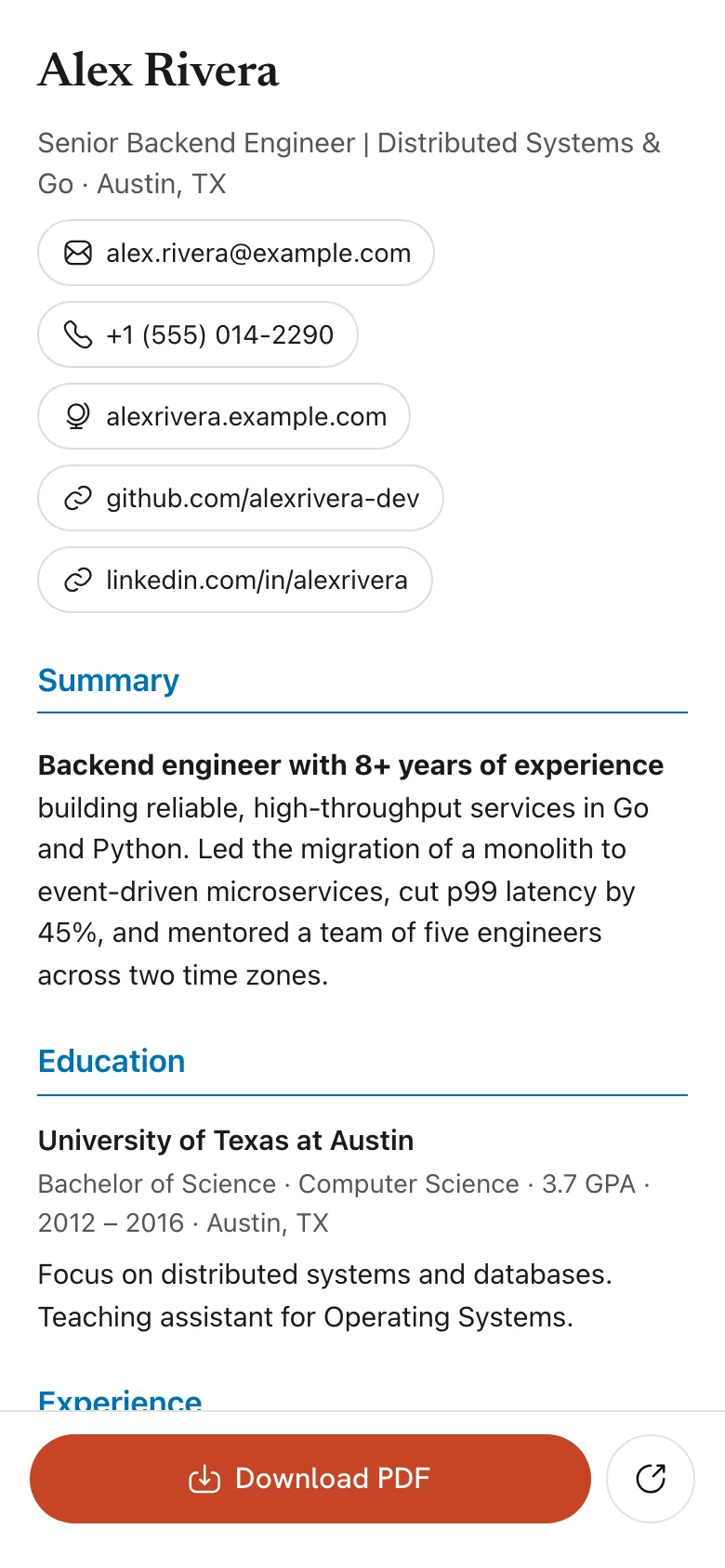
Visitors open your resume on a clean page with no Hireway menus.
- **On a computer**, your name, headline and location sit at the top with **Copy link** and **Download PDF**. Below is the resume, exactly as it prints.
- **On a phone**, the resume reflows into readable text in the same order as the pages, with **Download PDF** and a share button pinned to the bottom of the screen.
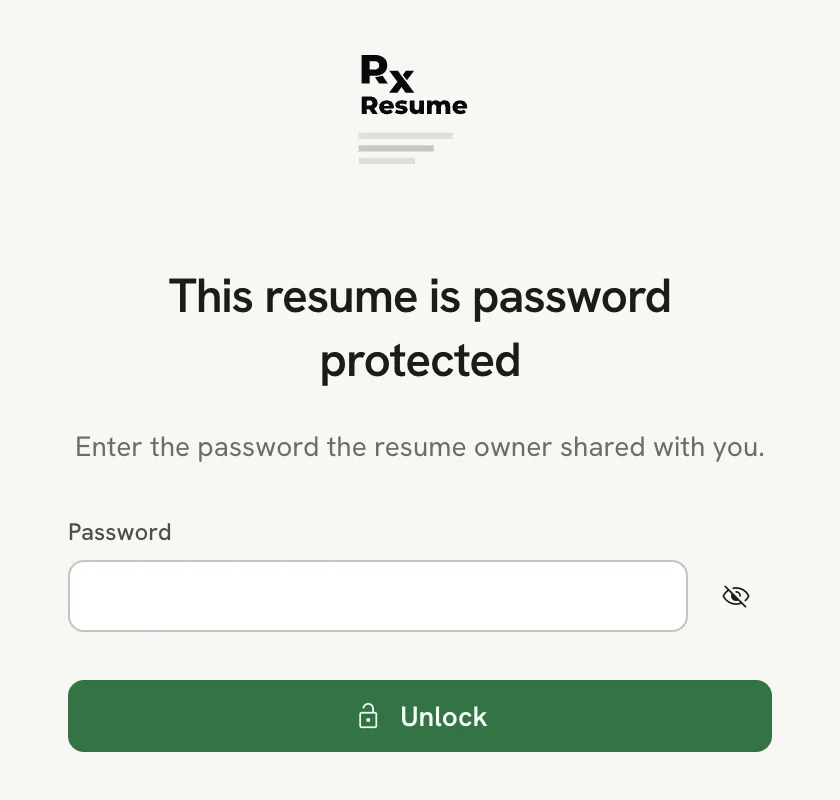
- **With a password**, visitors first see **This resume is password protected** and enter the password you shared, then select **Unlock**. The page stays unlocked for about 10 minutes; after that, they enter it again. While signed in as the owner, you can open your own link without entering its password.
- **When the link is off**, or the resume is in Trash, visitors see **This resume isn't shared right now.** The page gives nothing away about you.
Share the password through a different channel than the link, such as a text message. Anyone with both can view and download the resume.
To remove the password, turn off **Require a password** and select **Remove** to confirm. Anyone with the link can then view the resume.
## What visitors see [#what-visitors-see]
Visitors open your resume on a clean page with no Hireway menus.
- **On a computer**, your name, headline and location sit at the top with **Copy link** and **Download PDF**. Below is the resume, exactly as it prints.
- **On a phone**, the resume reflows into readable text in the same order as the pages, with **Download PDF** and a share button pinned to the bottom of the screen.
- **With a password**, visitors first see **This resume is password protected** and enter the password you shared, then select **Unlock**. The page stays unlocked for about 10 minutes; after that, they enter it again. While signed in as the owner, you can open your own link without entering its password.
- **When the link is off**, or the resume is in Trash, visitors see **This resume isn't shared right now.** The page gives nothing away about you.
 Visitors never see your private notes, or any section or entry you've hidden.
## See views and downloads [#see-views-and-downloads]
The bottom of the **Link** tab shows **Views and downloads**. Only you see these numbers.
| Number | What it counts |
| ------------------- | --------------------------------------------------------------------- |
| **views · 30 days** | Visits to your public page in the last 30 days |
| **downloads** | PDFs visitors downloaded from the page in the last 30 days |
| **since last view** | How long ago someone last opened the page, such as `5m`, `2h` or `3d` |
A bar chart under the numbers shows views for each of the last 30 days.
- Your own visits and downloads don't count while you're signed in.
- Repeat visits from the same visitor within an hour count once. Each completed PDF download counts, including repeat downloads.
- Counts are anonymous. Hireway doesn't record who viewed your resume.
- Counting starts only once the link is on.
## Turn off the public link [#turn-off-the-public-link]
Turn off **Public link** on the **Link** tab. The link stops working immediately, and visitors see **This resume isn't shared right now.** Your address is kept, so turning the link back on brings the same address back. Moving the resume to Trash also stops its link.
While a resume is locked, you can't change its link settings. Select the resume's name in the editor bar, then
**Unlock editing** first. Share and Download are also unavailable while you're offline.
## Related guides [#related-guides]
- [Exporting your resume](/docs/sharing/exporting-your-resume): download a PDF, Word, Markdown or JSON file instead of sending a link.
- [Updating your profile](/docs/account/updating-your-profile): change the username that appears in your public addresses.
- [Checking your resume](/docs/checking/checking-your-resume): review your resume before you share it.
- [Using the Trash](/docs/documents/using-the-trash): what happens to a shared resume you delete.
Visitors never see your private notes, or any section or entry you've hidden.
## See views and downloads [#see-views-and-downloads]
The bottom of the **Link** tab shows **Views and downloads**. Only you see these numbers.
| Number | What it counts |
| ------------------- | --------------------------------------------------------------------- |
| **views · 30 days** | Visits to your public page in the last 30 days |
| **downloads** | PDFs visitors downloaded from the page in the last 30 days |
| **since last view** | How long ago someone last opened the page, such as `5m`, `2h` or `3d` |
A bar chart under the numbers shows views for each of the last 30 days.
- Your own visits and downloads don't count while you're signed in.
- Repeat visits from the same visitor within an hour count once. Each completed PDF download counts, including repeat downloads.
- Counts are anonymous. Hireway doesn't record who viewed your resume.
- Counting starts only once the link is on.
## Turn off the public link [#turn-off-the-public-link]
Turn off **Public link** on the **Link** tab. The link stops working immediately, and visitors see **This resume isn't shared right now.** Your address is kept, so turning the link back on brings the same address back. Moving the resume to Trash also stops its link.
While a resume is locked, you can't change its link settings. Select the resume's name in the editor bar, then
**Unlock editing** first. Share and Download are also unavailable while you're offline.
## Related guides [#related-guides]
- [Exporting your resume](/docs/sharing/exporting-your-resume): download a PDF, Word, Markdown or JSON file instead of sending a link.
- [Updating your profile](/docs/account/updating-your-profile): change the username that appears in your public addresses.
- [Checking your resume](/docs/checking/checking-your-resume): review your resume before you share it.
- [Using the Trash](/docs/documents/using-the-trash): what happens to a shared resume you delete.