

Setting up two-factor authentication
Turn on two-step verification in Hireway with an authenticator app, save your backup codes, and turn it off again when you need to.
Two-step verification adds a second check when you sign in: after your password, you enter a 6-digit code from an authenticator app on your phone or computer. Someone who learns your password still can't get in without it.
Before you start
- Install an authenticator app, such as Google Authenticator, Microsoft Authenticator, 1Password, Bitwarden or Authy.
- Your account needs a password. If you signed up with a social account, the Two-step verification row doesn't appear until you set a password.
Turn on two-step verification
Open Sign-in & security
Select your name at the bottom of the sidebar, then Settings. On the Account page, find Two-step verification under Sign-in & security.
Turn the switch on and enter your password
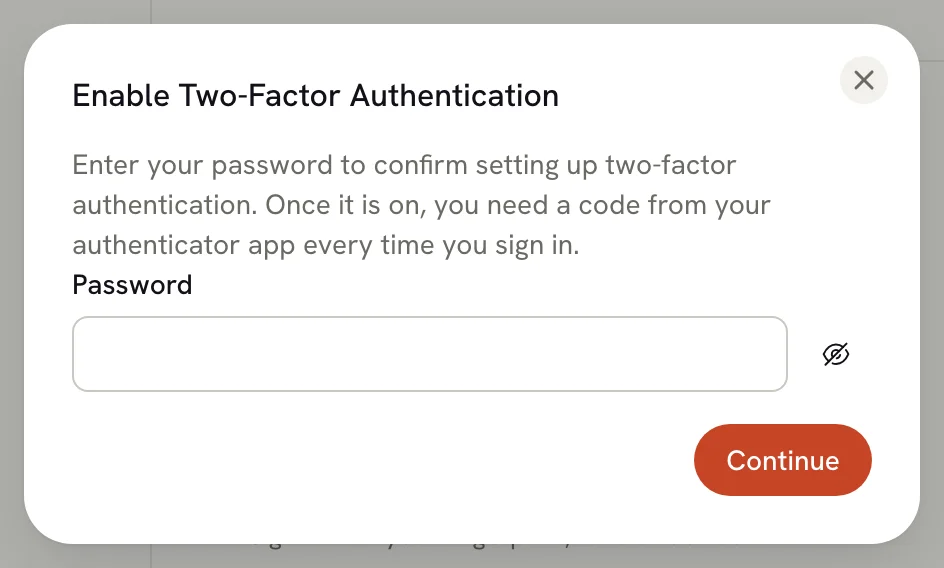
The Enable Two-Factor Authentication dialog asks for your Password. Enter it and select Continue.
Save your backup codes
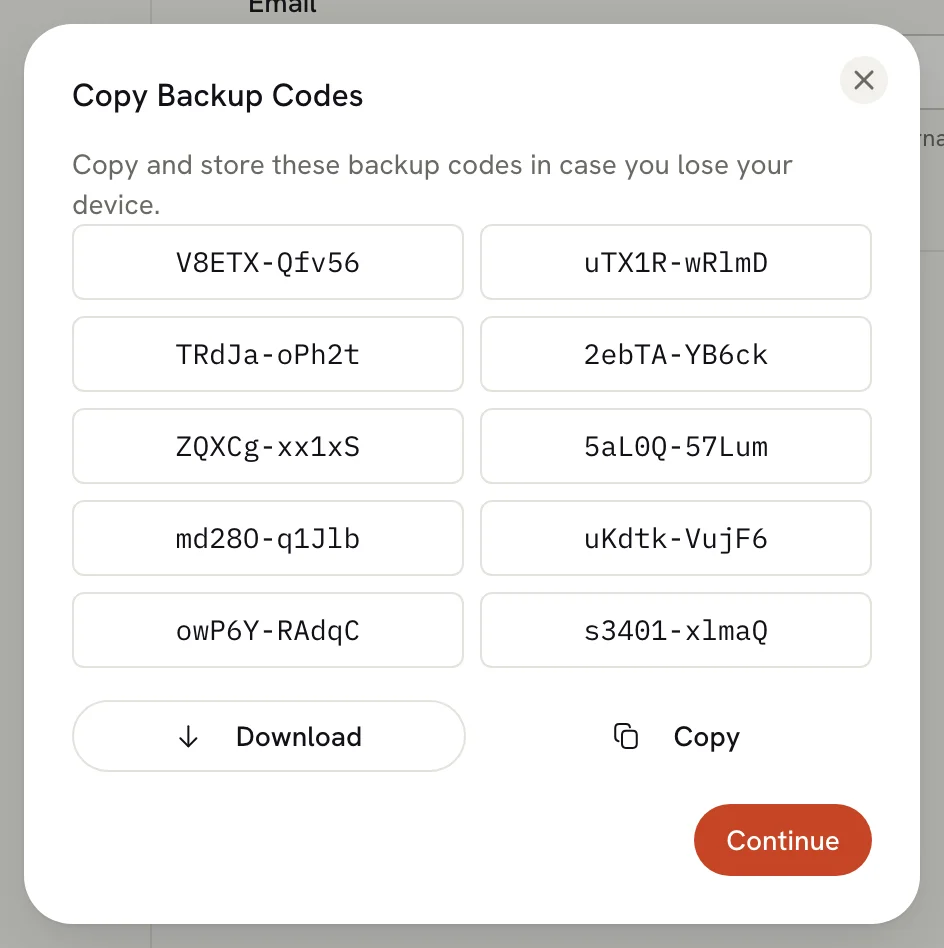
Copy Backup Codes shows 10 one-time codes. Select Download to save them as a text file, or Copy to paste them somewhere safe, such as your password manager. Then select Continue.
Add Hireway to your authenticator app
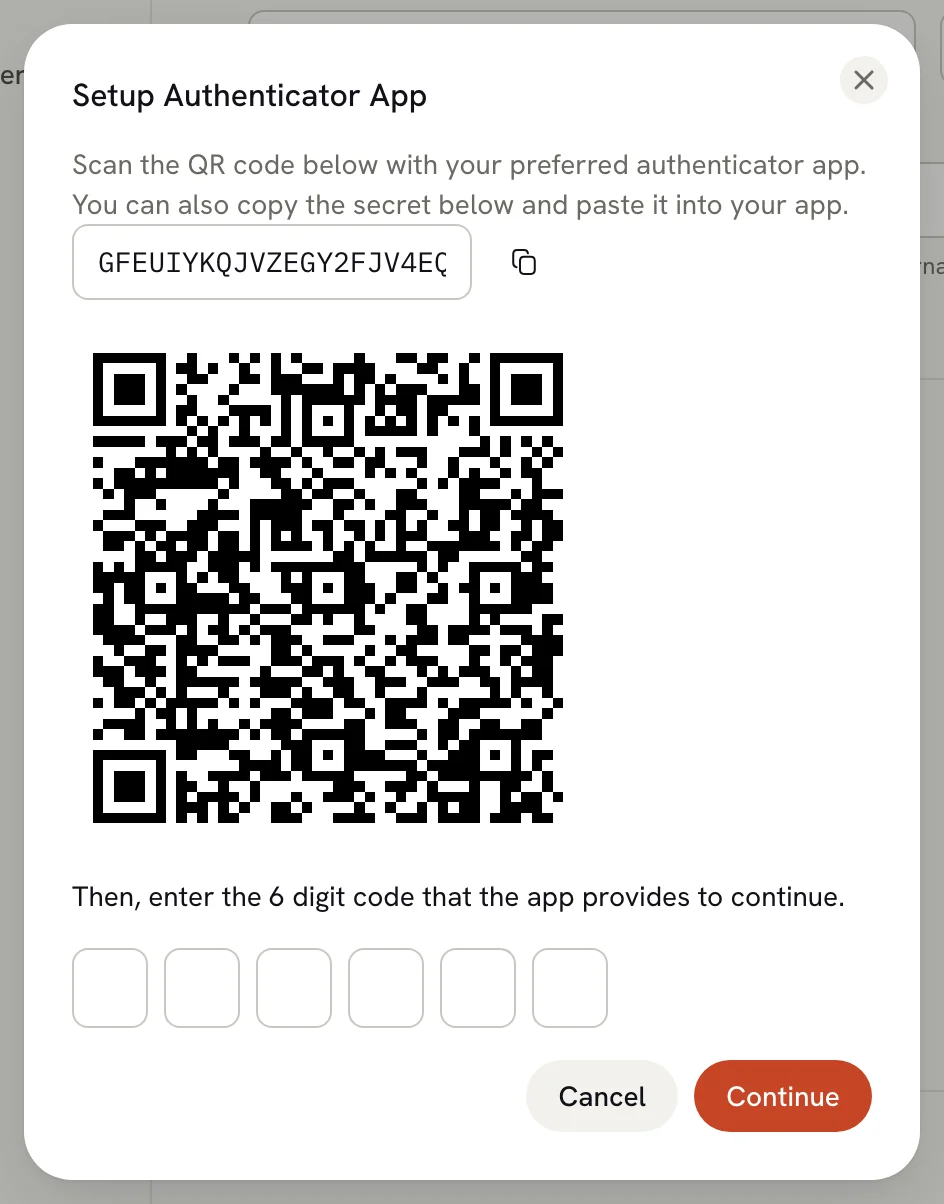
In Setup Authenticator App, scan the QR code with your app. If you can't scan it, select the copy button next to the secret key above the code and paste the key into your app.
Enter the 6-digit code
Type the code your app shows for Hireway. The dialog verifies it as soon as the code is complete, or you can select Continue. An accepted code turns on two-step verification and closes the dialog.
The switch now shows two-step verification is on. From your next sign-in, Hireway asks for a code after your password.

Save the backup codes before continuing to the authenticator step. They are shown only once. Two-step verification stays off until your authenticator code is accepted. If you later lose your authenticator app and have no backup codes, you can't sign in with your password.
Sign in with a code
After your password, enter the code from your app on the Two-Factor Authentication page. If you don't have your app, select Lost access to your authenticator? and enter a backup code. Each backup code works once. See Signing in for details.
Signing in with a passkey or a linked social account doesn't ask for a code.
Turn off two-step verification
Turn the switch off
In Sign-in & security, turn off Two-step verification.
Confirm with your password
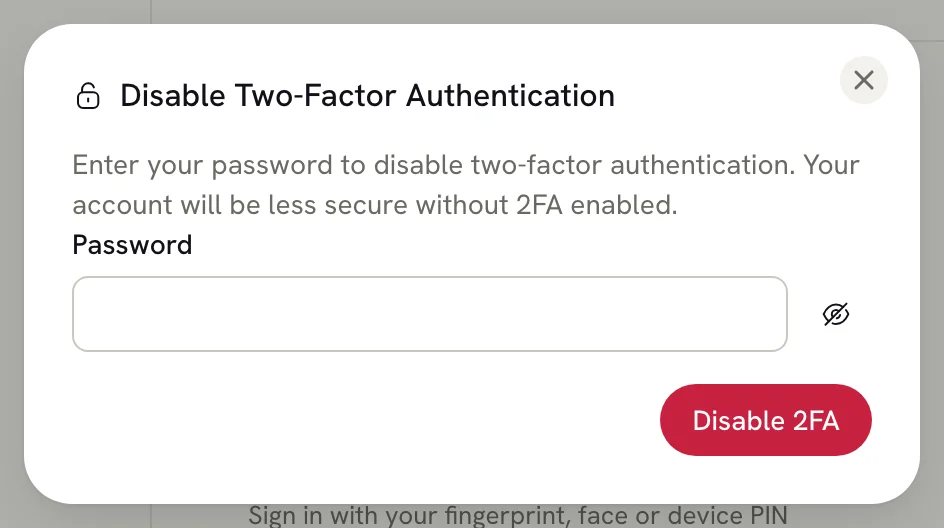
In Disable Two-Factor Authentication, enter your Password and select Disable 2FA.
To move to a new phone, turn two-step verification off and on again, then scan the new QR code on the new device. Your old codes and backup codes stop working.
Related guides
- Setting up passkeys: a faster sign-in that is also resistant to phishing.
- Updating your profile: change or set your password.
Linking social accounts
Connect Google, GitHub or LinkedIn to your Hireway account so you can sign in with them, and disconnect a provider you no longer use.
Setting up passkeys
Add a passkey to your Hireway account to sign in with your fingerprint, face, device PIN or security key instead of a password.