

Organizing documents with tags
Add tags to your resumes and cover letters in Hireway, then filter the Documents page by one or more tags to find the right version.
Tags are short labels you add to documents, such as the kind of role, the industry, or whether you've sent it. Once any document has a tag, Documents shows a row of tag chips you can use as filters.
Add or remove tags
Open the Tags dialog
On Documents, open the document's ⋯ menu and choose Tags….
Type a tag
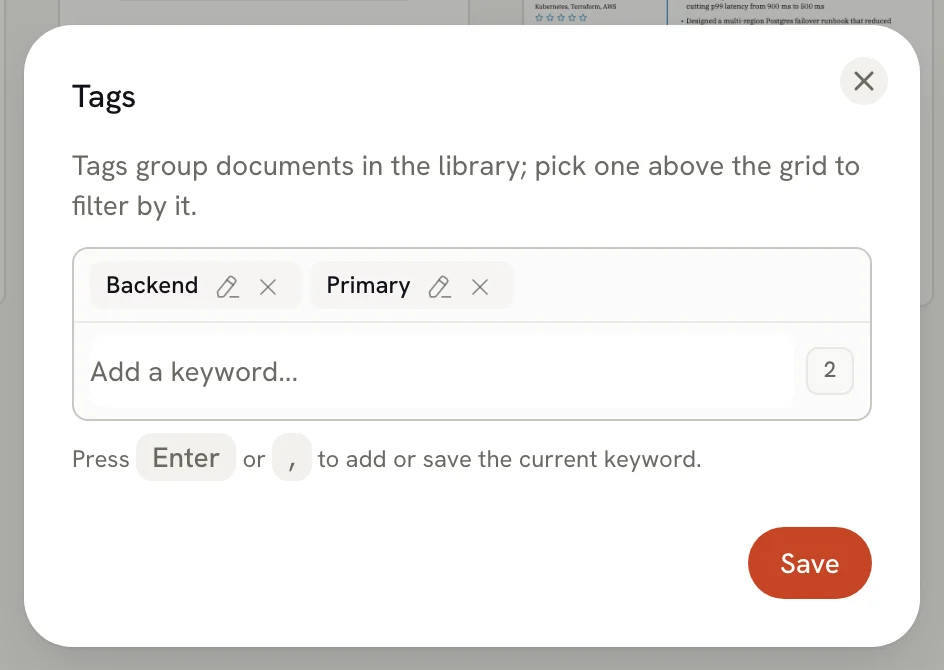
Type in the Add a keyword... field and press Enter or type a comma , to add it. Add as many as you like.
Edit or remove a tag
Select the pencil next to a tag to change it, or the × to remove it. You can drag tags to reorder them.
Save
Select Save. Closing the dialog without saving discards your changes.
Tags are unavailable while a document is locked. Unlock it first (see Managing your documents).
Filter by tag
Select a chip above your documents, for example #unity, to show only documents with that tag. The chip turns green while it's active. Select more chips to narrow the list further: a document must have every selected tag to appear. Select an active chip again to turn it off.

Tag filters work together with the All, Resumes and Letters tabs and with search. The search field also matches tag names, so typing a tag finds its documents too.
Ideas for tags
- the kind of role:
frontend,product,teaching; - the stage:
draft,sent; - the market or language:
uk,german; - a version:
one-page,long.
Related guides
- Managing your documents: search, sort, rename and duplicate.
- Tracking job applications: follow each application from saved to closed.