

Sharing your resume with a link
Turn on a public link for your resume, choose its address, add a password, and see how many people viewed and downloaded it.
A public link lets anyone you send it to open your resume in a browser, without an account. It always shows your latest changes, so you never have to send a new file after an edit. Links are off by default: until you turn one on, only you can see the resume.
Before you start
- Open the resume in the editor. Links belong to resumes; cover letters don't have one.
- Check your username in Settings → Account. It's part of every public address, for example
https://hireway.dev/dkowalski/game-developer. If you host Hireway yourself, your own address replaceshireway.dev.
Turn on the public link
Open the Share sheet
In the editor bar, select Share (or press ⌘ ⇧ S, Ctrl Shift S on Windows and Linux). The Share & export sheet opens on its Link tab.

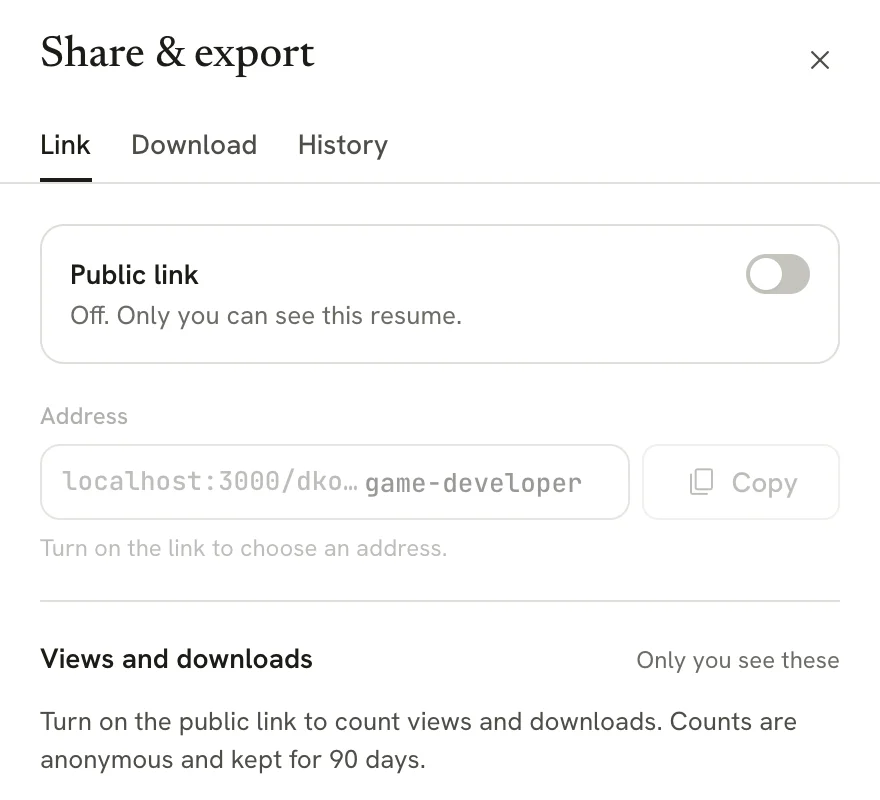
Switch on Public link
Turn on Public link. The link is live at once, and Share in the editor bar gains a Public badge so you can tell at a glance.
Copy the address
Select Copy next to the Address field. The button shows Copied for a moment. Paste the link into an email, a job application or your LinkedIn profile.
On a phone or tablet, you can also select Share via… to send the link through your device's share menu.
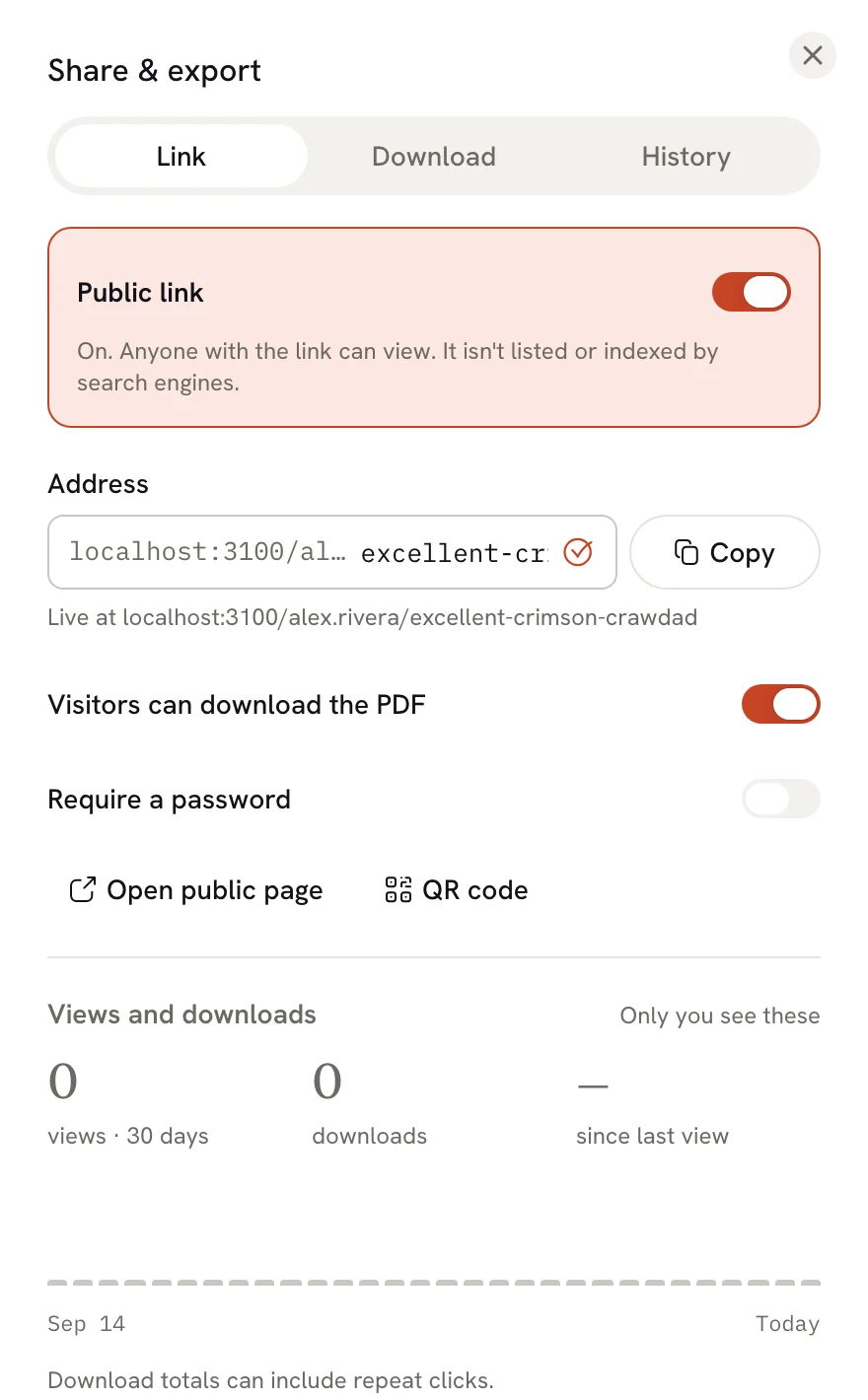
With the link on, the tab also offers:
- Visitors can download the PDF: on by default. Turn it off if you want people to read the resume on the page but not save a copy. It also stops visitors from printing the page.
- Open public page: opens the resume in a new tab, the way visitors see it.
- QR code: shows a code that opens the link, handy for a printed card or a slide.
Public links aren't listed anywhere and ask search engines not to index them. People find your resume only through a link you share.
Change the address
The last part of the address is yours to choose. It starts out based on the resume's name.
Edit the Address field
With the link on, type a new ending in the Address field. Use lowercase letters, numbers and single dashes; spaces turn into dashes as you type.
Wait for the check
Hireway checks the address as you type. When it shows Available, the new address is saved on its own. Until then, the old address keeps working.
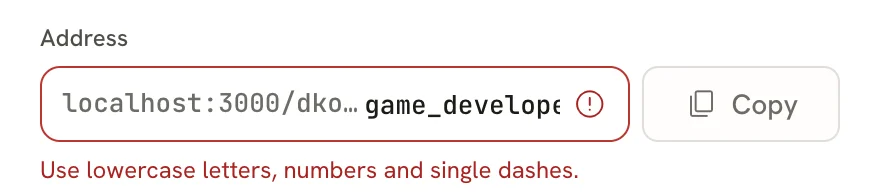
If another of your resumes already uses that address, the message names it and suggests a free one. Select Try followed by the suggestion to use it.
While an address change is saving, Copy is unavailable to avoid copying an outdated link. Wait for the saved address before copying.
After a change, the old address still leads to your resume for 30 days, so links you already sent keep working while you update them. Changing your username is different: every public address changes at once, and old links stop working.
Require a password
A password keeps the link private to the people you give it to, for example while you're job hunting and don't want a current employer to stumble on your resume.
Turn on Require a password
On the Link tab, turn on Require a password.
Enter the password twice
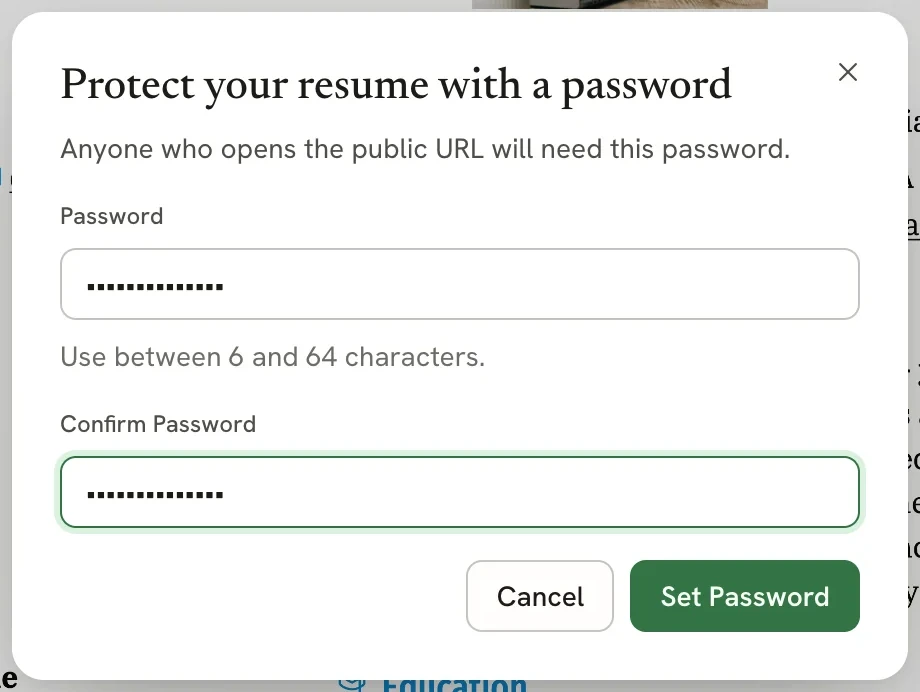
Type a password of 6 to 64 characters, type it again in Confirm Password, then select Set Password.
Send the password separately
Share the password through a different channel than the link, such as a text message. Anyone with both can view and download the resume.
To remove the password, turn off Require a password and select Remove to confirm. Anyone with the link can then view the resume.
What visitors see
Visitors open your resume on a clean page with no Hireway menus.
- On a computer, your name, headline and location sit at the top with Copy link and Download PDF. Below is the resume, exactly as it prints.
- On a phone, the resume reflows into readable text in the same order as the pages, with Download PDF and a share button pinned to the bottom of the screen.
- With a password, visitors first see This resume is password protected and enter the password you shared, then select Unlock. The page stays unlocked for about 10 minutes; after that, they enter it again. While signed in as the owner, you can open your own link without entering its password.
- When the link is off, or the resume is in Trash, visitors see This resume isn't shared right now. The page gives nothing away about you.
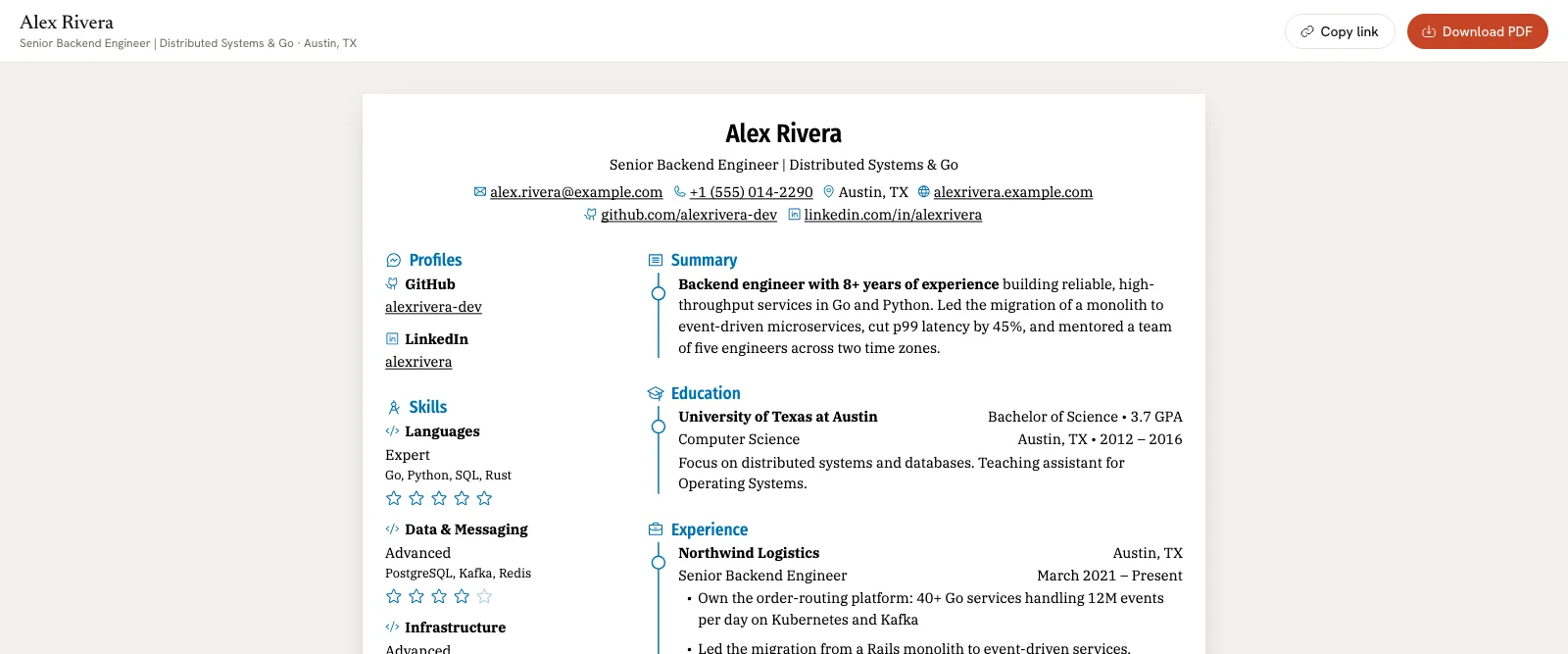
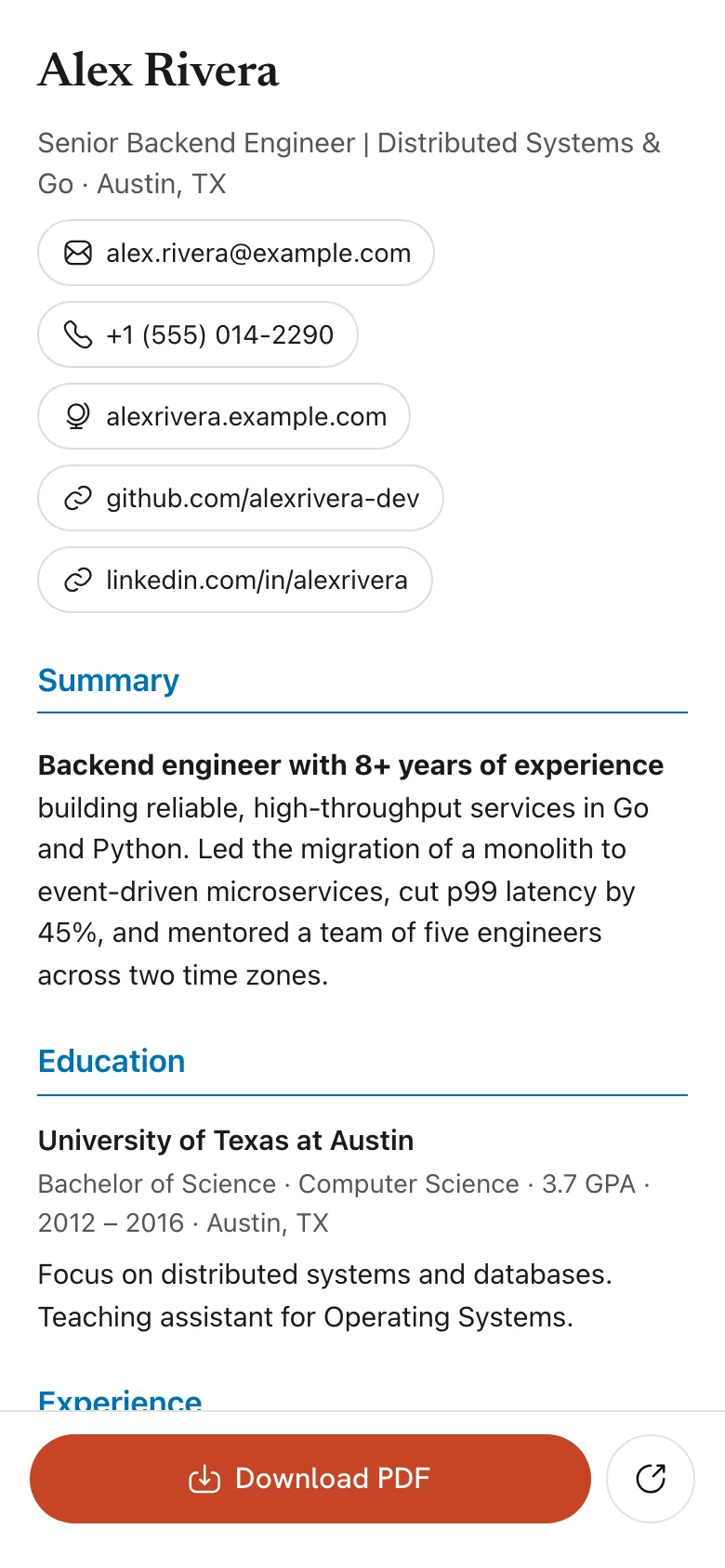
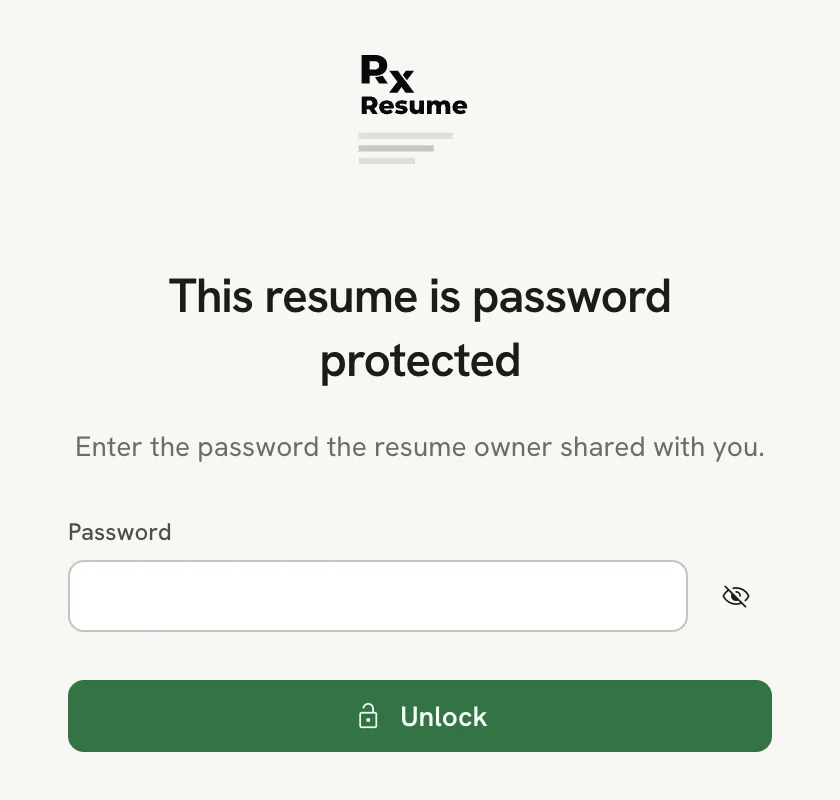
Visitors never see your private notes, or any section or entry you've hidden.
See views and downloads
The bottom of the Link tab shows Views and downloads. Only you see these numbers.
| Number | What it counts |
|---|---|
| views · 30 days | Visits to your public page in the last 30 days |
| downloads | PDFs visitors downloaded from the page in the last 30 days |
| since last view | How long ago someone last opened the page, such as 5m, 2h or 3d |
A bar chart under the numbers shows views for each of the last 30 days.
- Your own visits and downloads don't count while you're signed in.
- Repeat visits from the same visitor within an hour count once. Each completed PDF download counts, including repeat downloads.
- Counts are anonymous. Hireway doesn't record who viewed your resume.
- Counting starts only once the link is on.
Turn off the public link
Turn off Public link on the Link tab. The link stops working immediately, and visitors see This resume isn't shared right now. Your address is kept, so turning the link back on brings the same address back. Moving the resume to Trash also stops its link.
While a resume is locked, you can't change its link settings. Select the resume's name in the editor bar, then Unlock editing first. Share and Download are also unavailable while you're offline.
Related guides
- Exporting your resume: download a PDF, Word, Markdown or JSON file instead of sending a link.
- Updating your profile: change the username that appears in your public addresses.
- Checking your resume: review your resume before you share it.
- Using the Trash: what happens to a shared resume you delete.
Writing a cover letter
Create a cover letter as its own document, link it to a resume and a job application, match your resume's design, and download it.
Downloading your resume
Download your resume as a PDF in one click, or as Word, Markdown or JSON from the Share sheet. Learn which format to use and how to print.