

Creating your first resume
Start a blank resume in Hireway, add your name and contact details, fill in your first section, and download it as a PDF.
This guide takes you from an empty account to a first resume you can download. It takes a few minutes. If you already have a resume as a PDF, Word or JSON file, you can import it instead of starting blank.
Before you start
You need a Hireway account. If you don't have one yet, see Creating an account. Sign in at hireway.dev, or at your own address if you host Hireway yourself.
Start a blank resume
Open Documents
After you sign in, you land on Documents, the page that lists all your resumes and cover letters. On your first visit it's empty and offers three ways to begin.
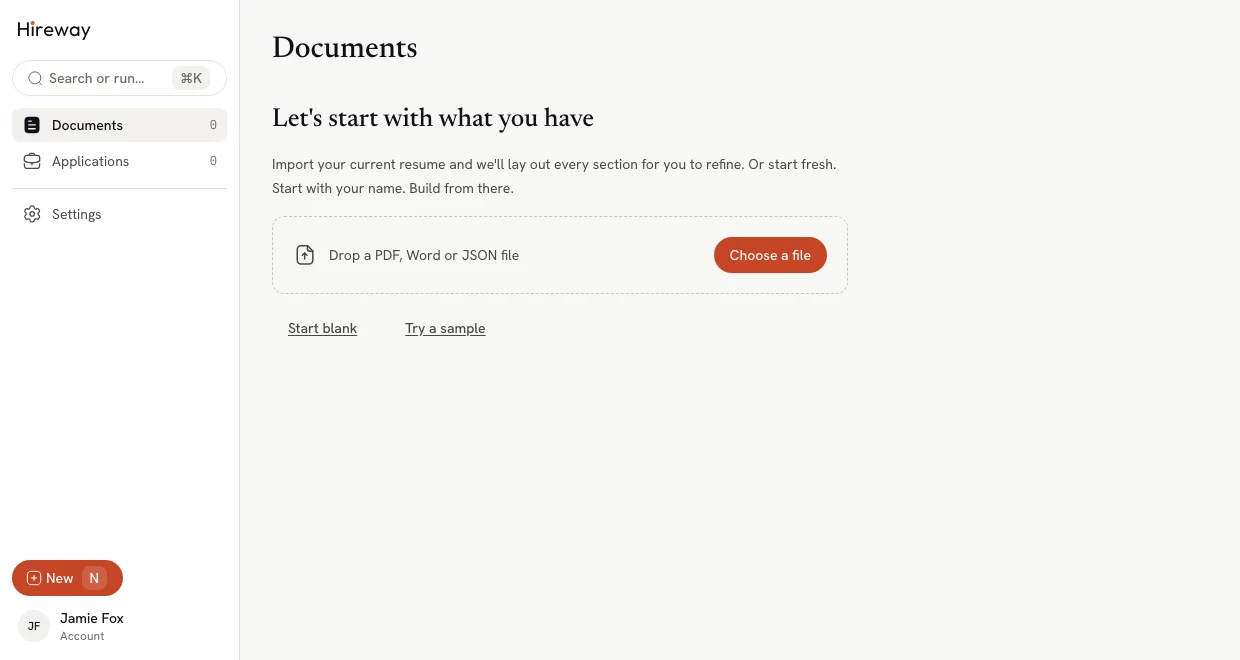
Choose Start blank
Select Start blank. You can also select New in the sidebar (or press N) and choose Start blank in the New document dialog.
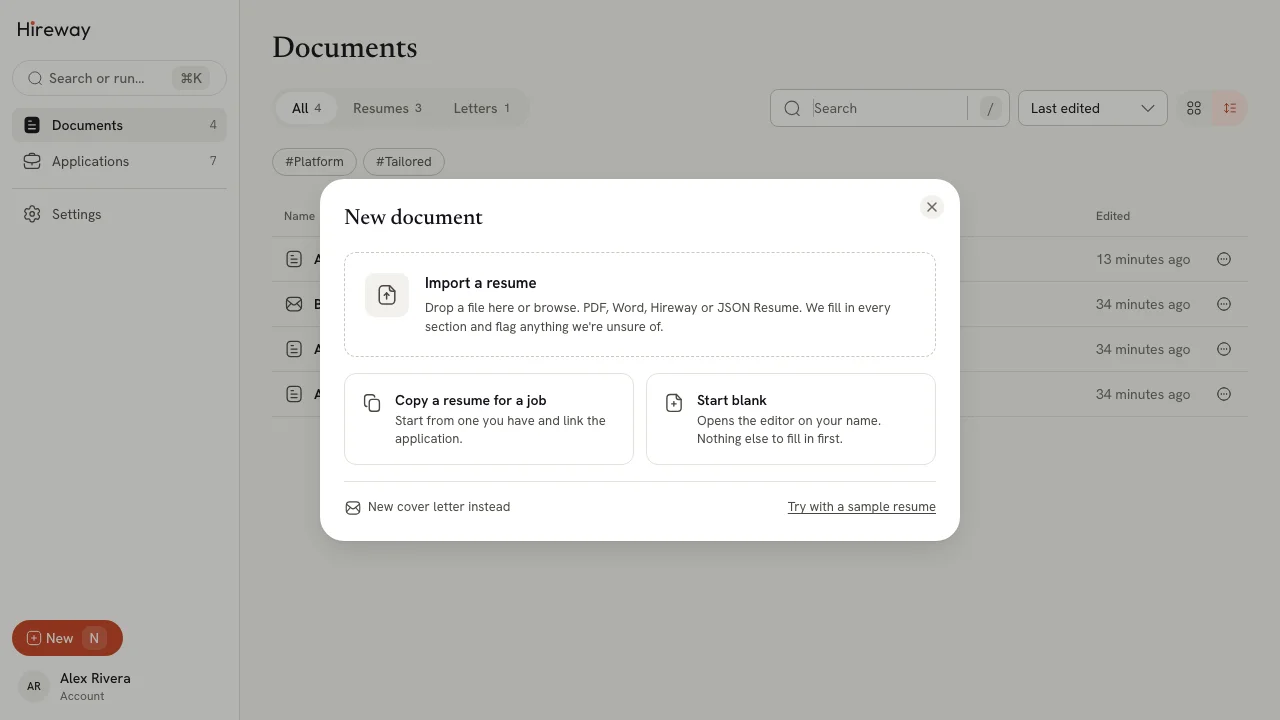
Hireway creates the resume straight away and opens it in the editor. There's no name or address to fill in first.
Want to look around before typing anything? Choose Try a sample (or Try with a sample resume in the dialog) to get a filled-in resume you can explore and delete later.
Add your name and contact details
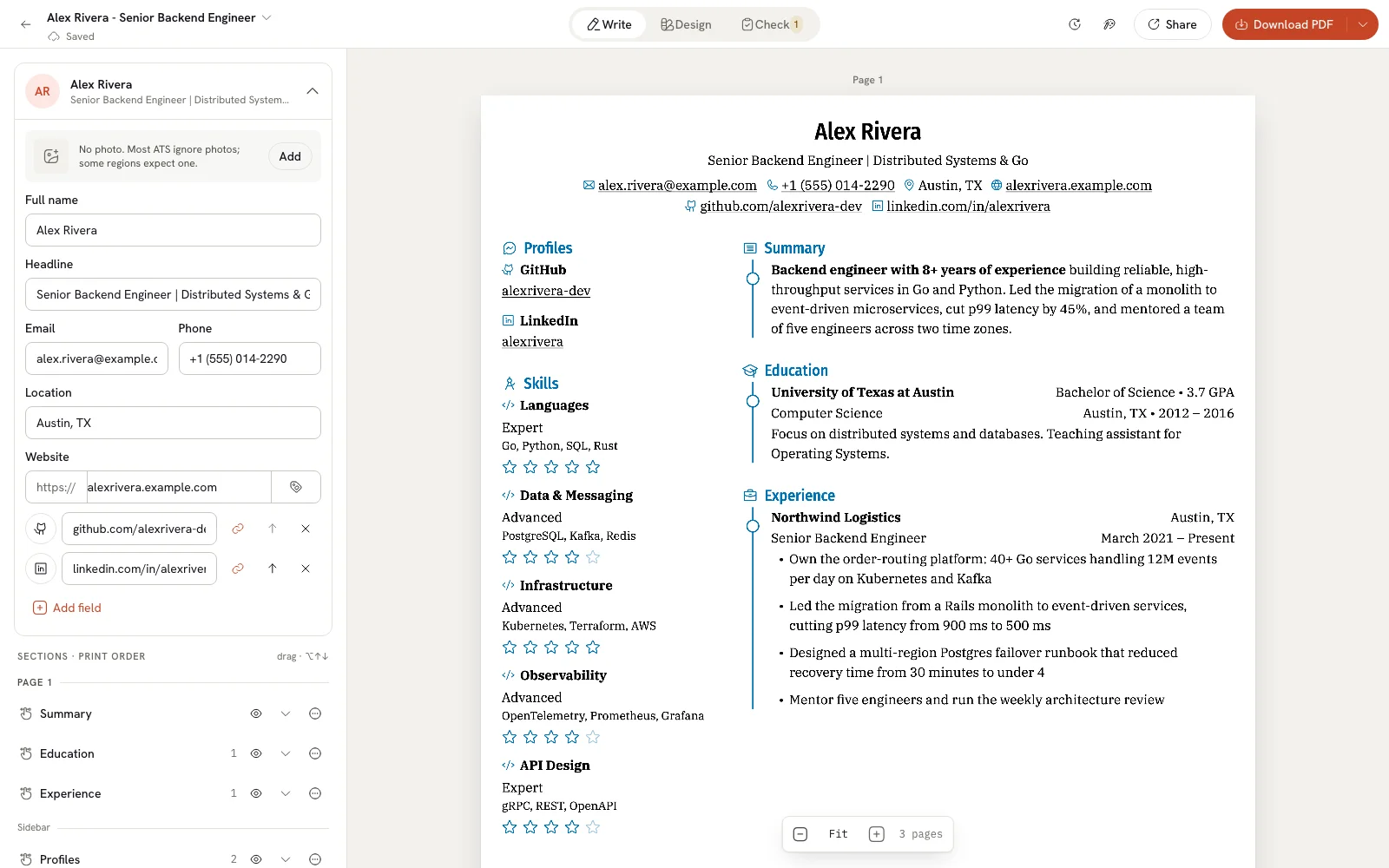
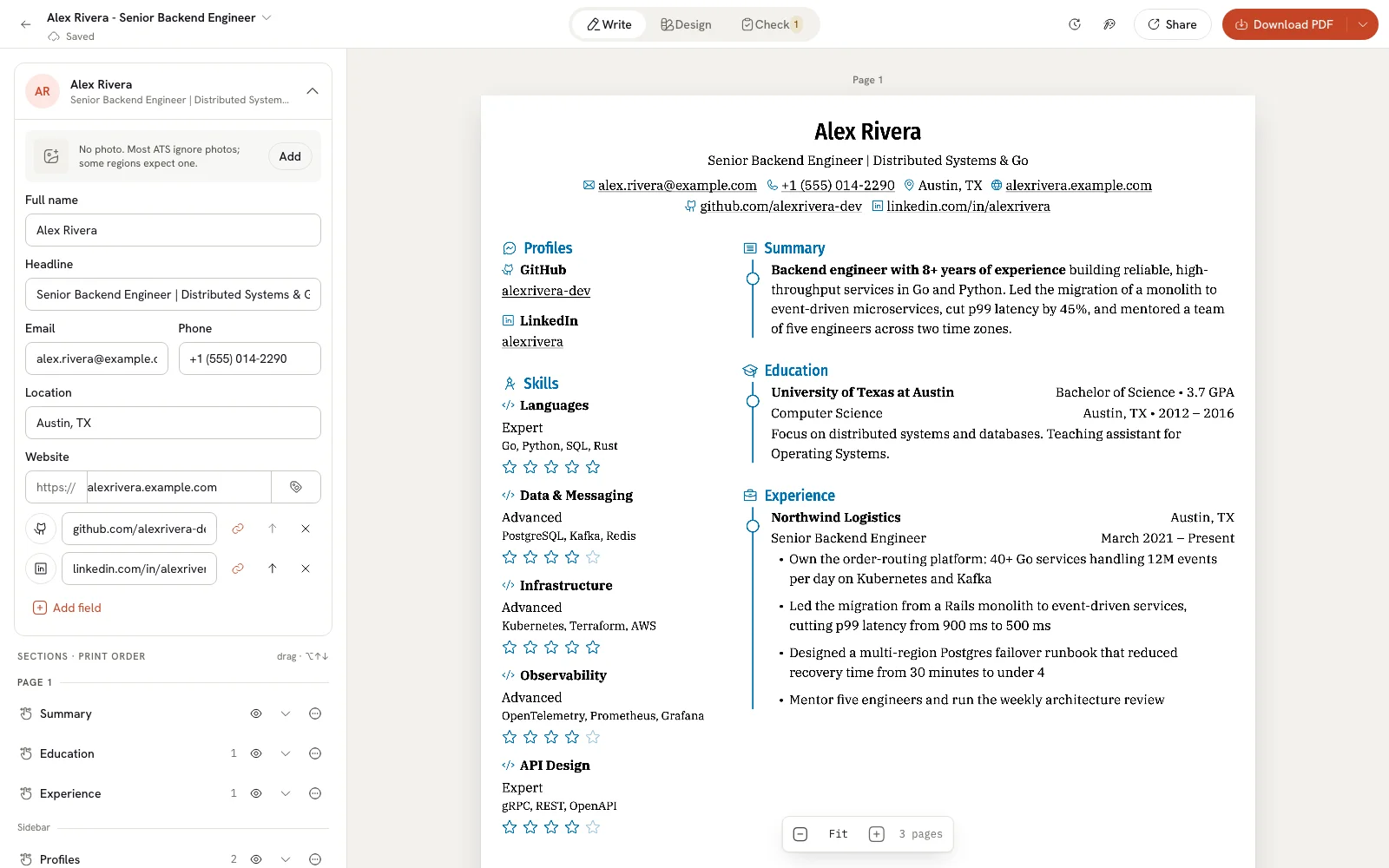
The editor opens in Write mode with the cursor in Full name. The page on the right updates as you type, and every change saves on its own. The editor bar shows Saved under the document name.
Fill in the basics
Type your Full name, then a Headline (for example, the job title you're aiming for), your Email, Phone and Location. Add a Website if you have one.
Check the document name
A new blank resume is called "Untitled resume". Until you name it yourself, it takes its name from your Headline, so it's easy to find later. To pick your own name, open the document name menu at the top left and choose Rename…, or rename it from Documents.
Add your first section
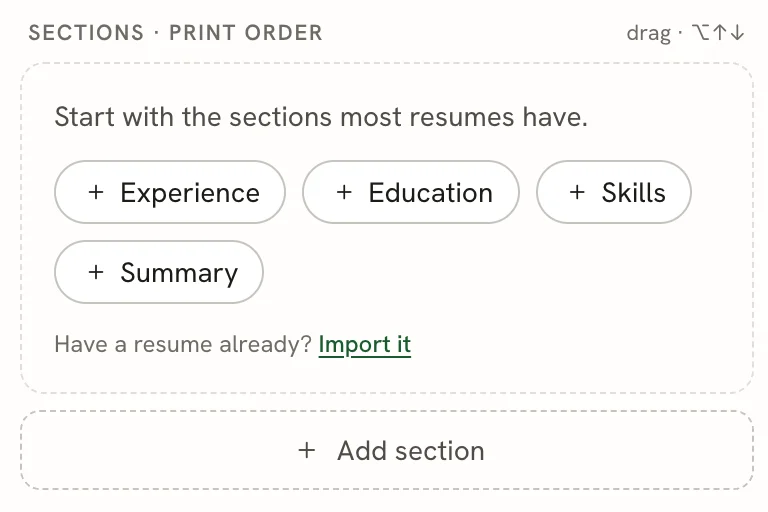
Below your details, under Sections · print order, Hireway suggests the sections most resumes have.
Add a section
Select Experience (or any other suggestion). For anything else, select Add section.
Fill in the entry
The section opens with an empty entry. Fill in Position and Company, then Location and Dates. Turn on Present if you still work there. An experience entry appears on the page once it has a company.
Add more
Select Add experience below the entry for your next job, or add more sections the same way.
Download your resume
When you're happy with it, select Download PDF in the top right corner of the editor. The arrow next to it opens other formats.

To come back later, select the arrow at the top left of the editor to return to Documents, where your resume now has its own card.