

Importing applications from CSV
Move job applications from a spreadsheet into Hireway with CSV import, check how columns are matched, and export your applications back to CSV.
If you've been tracking your job search in a spreadsheet, you can bring it into Applications in one go. Save the sheet as CSV, paste or upload it, check how the columns were matched, and import. You can also export your applications to CSV at any time.
Import applications
Open Import from CSV
In Applications, select the import/export button (Import or export CSV, next to Save job), then Import from CSV…. If you have no applications yet, select Import from CSV on the empty page.
Add your rows
Select Upload .csv to choose a file, or paste rows into CSV data. The first row must be the column headings. Select Use sample to see an example.
Check the column matches
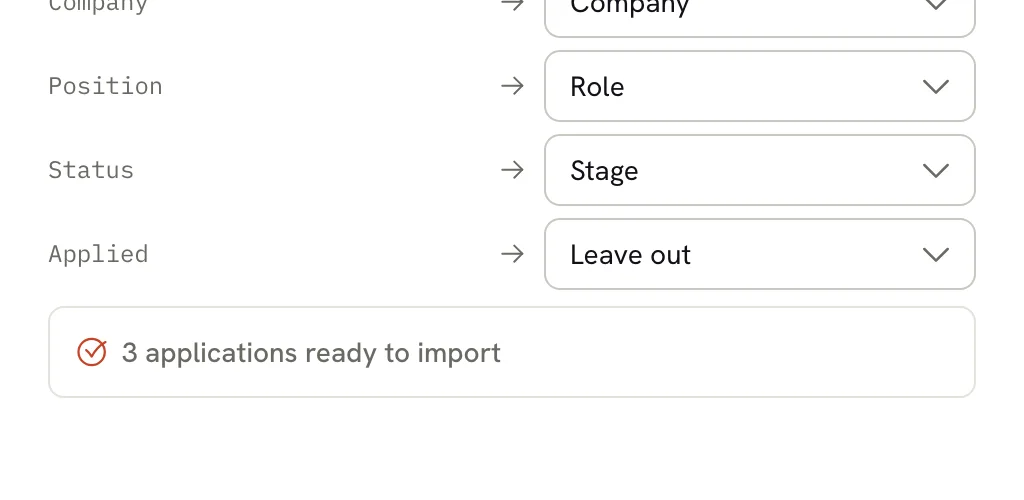
Under Columns, each heading from your file points to the field it goes into. Hireway matches common headings automatically. Change any match with its menu, or choose Leave out to skip a column.
Review the summary
The summary says how many applications are ready to import, and how many rows or contacts will be skipped.
Import
Select Import n applications. They're added to your Applications right away.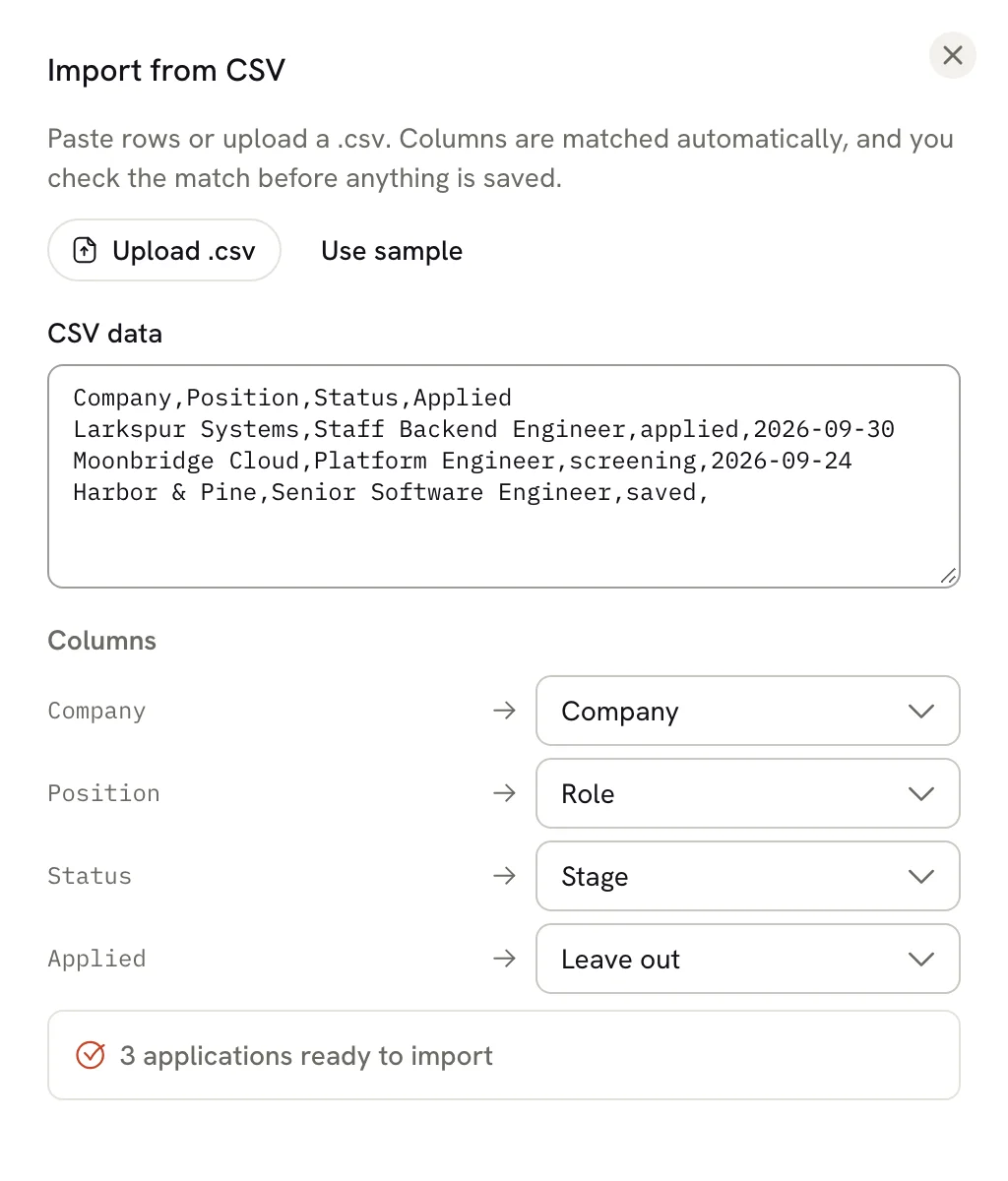
Prepare your spreadsheet
Each row becomes one application. Only Company and Role are required; rows missing either are skipped. Select Download them in the summary to get the skipped rows as a CSV file, fix them, and import them again.
These are the fields you can match columns to, with the headings that match automatically (capitals and extra spaces don't matter):
| Field | Headings matched automatically | Notes |
|---|---|---|
| Company | Company, Employer, Organization | Required. |
| Role | Role, Title, Position, Job Title | Required. |
| Stage | Stage, Status | One of saved, applied, screening, interview, offer or closed. rejected is read as closed. Other values are ignored, and rows without a stage import as Saved. |
| Stage date | Applied Date, Stage Date, Stage Entered At | The date the application entered its stage, as YYYY-MM-DD. Other formats are ignored and today's date is used. |
| Location | Location | |
| Salary | Salary, Salary Range, Compensation | |
| Source | Source | Shows in the Insights sources chart. |
| Link | URL, Link, Job URL, Job Posting | The job posting's address. |
| Notes | Notes, Note | |
| Tags | Tags | Separate tags with commas, semicolons or vertical bars, such as remote;unity. |
| Contact name, Contact role, Contact label, Contact email, Contact phone | Contact Name, Contact Role, Contact Type, Contact Email, Contact Phone | One contact per row. |
| Archived (closes it) | Archived | For files exported from older versions: true imports the application as closed. |
A contact needs a name, and its email must be a valid address. If not, the summary counts it as skipped and the application imports without it.
Here's a small example:
Company,Role,Stage,Stage Date,Location,Source,Tags,Contact Name,Contact Email
Orchard Lane Games,Gameplay Programmer,applied,2026-09-02,Remote,LinkedIn,remote;unity,Nadia Brooks,nadia@orchardlane.example
Silverpine Interactive,AI Programmer,screening,2026-08-28,Stockholm,Referral,ai,,
Import large files
Up to 500 applications import at a time. If your file has more, the summary says how many were left out. Split the file and import the rest separately.
After importing, use the List view's checkboxes to tag, move or close many applications at once. See Tracking job applications.
Export applications to CSV
Open Export to CSV
Select the import/export button, then Export to CSV….Choose what to export
Under Applications to export, choose Current filters (the applications matching your current search, closed ones included) or All applications (including closed).
Limit by date, if you like
Set Application date from and Application date to to export only applications from that period. Leave them empty to include every date.
Download
Check the count of applications to export, then select Download CSV.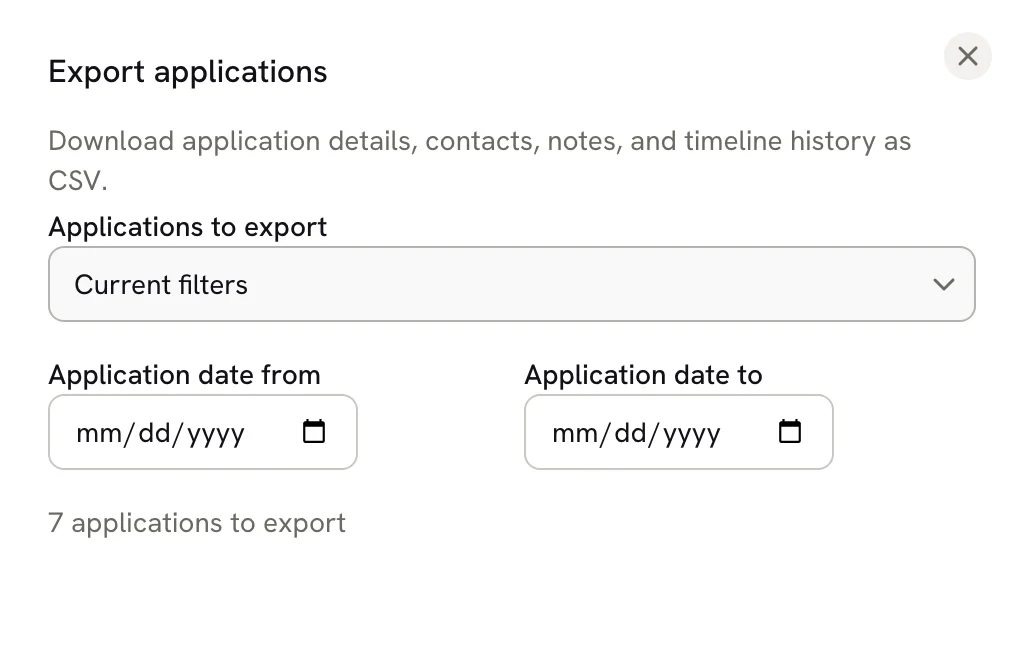
The file is named applications-YYYY-MM-DD.csv and opens in any spreadsheet app. It has these columns: Company, Role, Stage, Stage Date, Application Date, Location, Salary, Source, URL, Tags, Contacts, Notes, Closed Reason, Stage History, Timeline, Created At and Updated At.
You can import an exported file again; most columns match automatically. To download everything in your account, including documents, see Exporting your data.
Troubleshooting
Every row needs a company and a role. Check that those columns are matched under Columns, then fill in the missing values. Download them gives you the skipped rows.
Pick the right field from the column's menu under Columns, or rename the heading in your file to one from the table above.
Use one of the stage values listed above, and write dates as YYYY-MM-DD, for example 2026-09-02.
Separate tags with commas, semicolons or vertical bars. If you use commas, put the whole cell in double quotes, such
as "remote,unity", so the commas aren't read as new columns.
MCP clients can import applications too. See Managing applications with MCP.
Viewing application insights
See how far your applications get, how often and how fast people reply, whether tailored resumes do better, and export a picture of your job search pipeline.
Using the API
Create a Hireway API key, send authenticated REST requests to read and edit your resumes, and revoke keys you no longer need.