

Writing a cover letter
Create a cover letter as its own document, link it to a resume and a job application, match your resume's design, and download it.
In Hireway, a cover letter is a document of its own. It sits next to your resumes in Documents, under the Letters tab. A letter can take your name, contact details and design from one of your resumes, and its recipient from a job application, so you only write the body.
Create a letter
You can start a letter from an application or from Documents.
Starting from the job you're applying for is quickest, because the letter is set up for that job.
Open the application
In Applications, select the application to open its details.
Select Write a letter
Under What you sent, select Write a letter. The button shows only while the application has no letter.
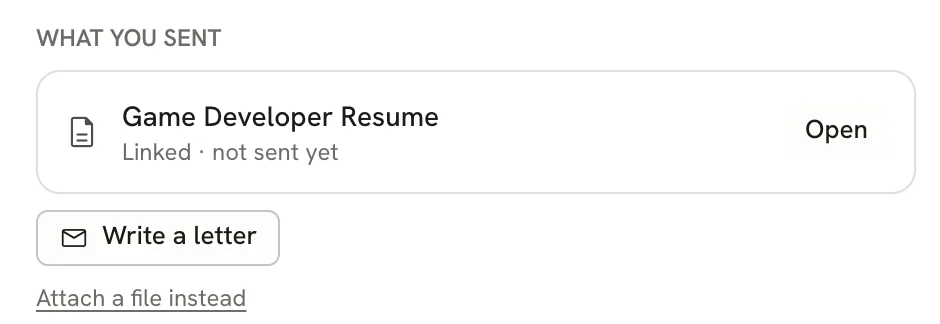
The new letter is named after the company, for example "Cover letter — Northwind Games". It becomes this application's letter, takes its recipient from the application (the company, and the first contact's name if there is one), and takes your details and design from the application's resume, if it has one.
To bring back a letter you downloaded as JSON from Hireway, import the file from the New dialog as you would a resume; it comes back as a letter. See Importing resumes.
Fill in the letter
The letter editor looks like the resume editor, with two modes: Write and Design. The panel on the left holds the letter's details, and the page on the right shows the letter as it will print, updating as you type.
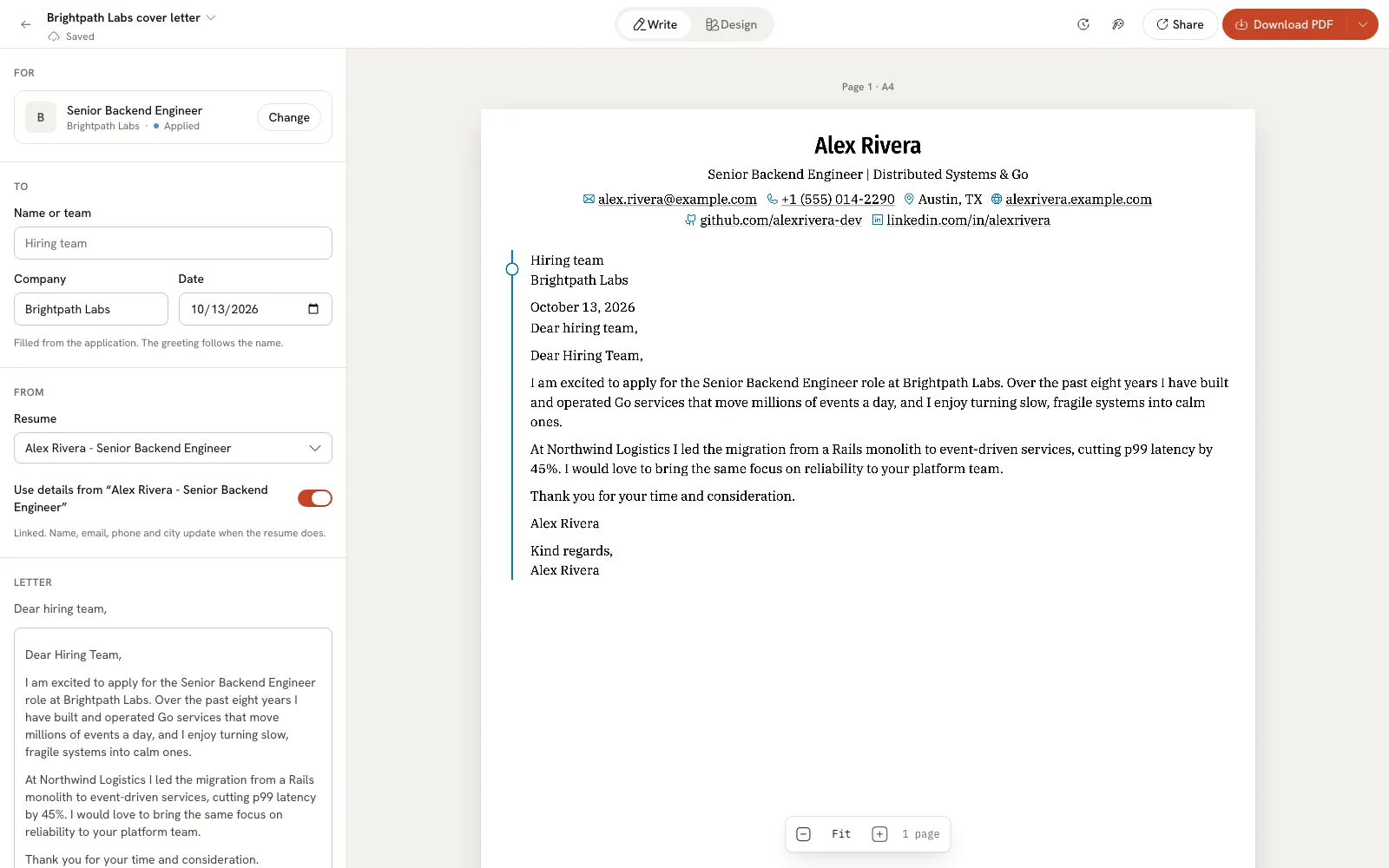
For: the application
Under For, select Link an application to choose the job the letter is for, or Change to pick another. Closed applications aren't listed. Linking fills the recipient's company and name. Choose No application to unlink it. Without an application, you fill in the recipient yourself.
To: the recipient
Under To, check Name or team, Company and Date. The greeting follows the name: "Dear Priya," for Priya Shah, or a greeting to the hiring team when the name is empty.
From: your details
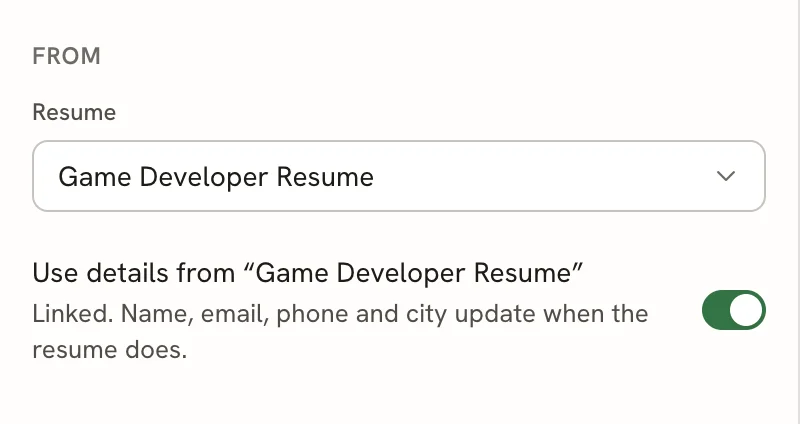
Under From, choose the Resume your details come from. With Use details from that resume turned on, your name, headline, email, phone and location stay linked: when you change them on the resume, the letter changes too, and tells you the next time you open it.
Turn the switch off to keep a copy of your details in the letter instead. The copy doesn't change when the resume does.
Letter: the body
Under Letter, select Write it myself and type the body. The greeting and sign-off are added around it for you. The editor has the same formatting tools as the resume; see Formatting text.
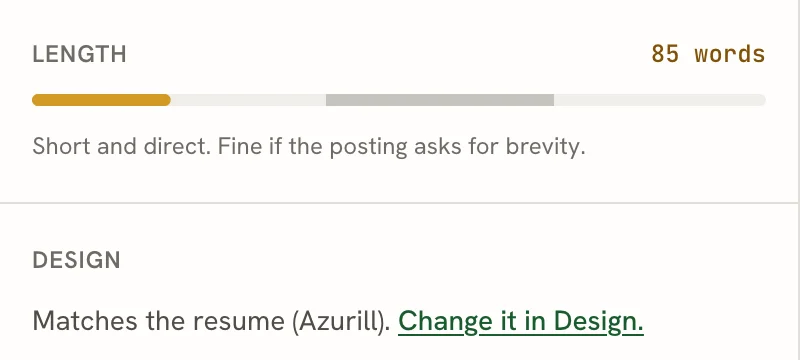
Below the body, Length counts your words against the 180 to 320 words most recruiters read, and says whether the letter is short, comfortable or getting long. It's a guide, not a rule.
Changes save automatically. The status under the letter's name in the editor bar shows Saving…, Saved or, if something went wrong, Not saved with Retry.
Draft the body with AI
If you've connected an AI provider, an empty body offers a first draft. See Connecting an AI provider to set one up.
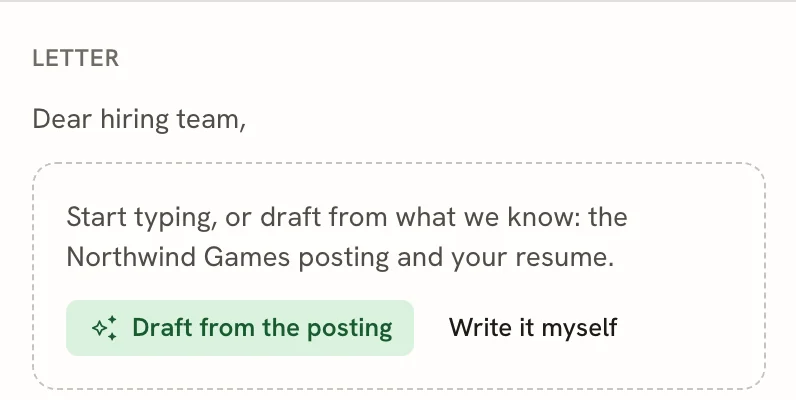
Start the draft
Select Draft from the posting when the letter is linked to an application, or Draft from your resume when it only has a resume. The draft uses only what the letter is linked to: the posting, your resume, or both. Select Stop to cancel it while it's being written.
Refine it
When the draft is ready, ask for Shorter or More personal versions, or select Discard to drop it.
Keep it
Select Keep to put the draft in the body. Until you do, the draft never replaces anything, and you can edit it freely afterwards.
To draft, a letter needs a linked resume or application. You can also open the Assistant with ⌘ J (Ctrl J on Windows and Linux) to rework the letter; see Using the Assistant.
Match your resume's design
By default, a letter linked to a resume uses the resume's template, type and colors, so the two always look like a pair. When you change the resume's design, the letter follows.
Open Design
Select Design in the editor bar, or press 2.
Keep it matching, or give it its own design
With Match turned on, the letter follows the resume. Select Change the resume's design to open the resume in Design.
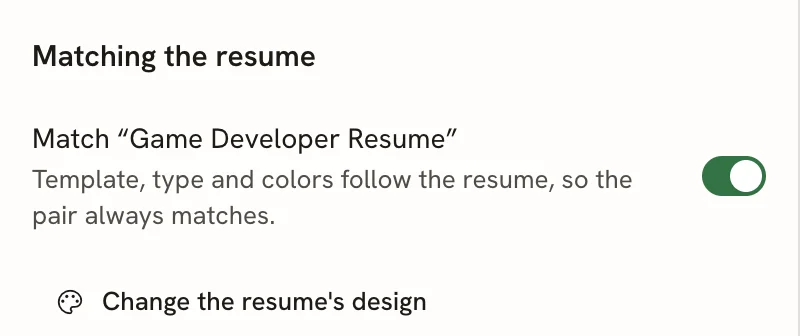
Turn Match off to give the letter a design of its own. It keeps the current design as a starting point, and Template, Type, Color and Page settings appear for the letter alone. Hover over a template to preview it on the page.
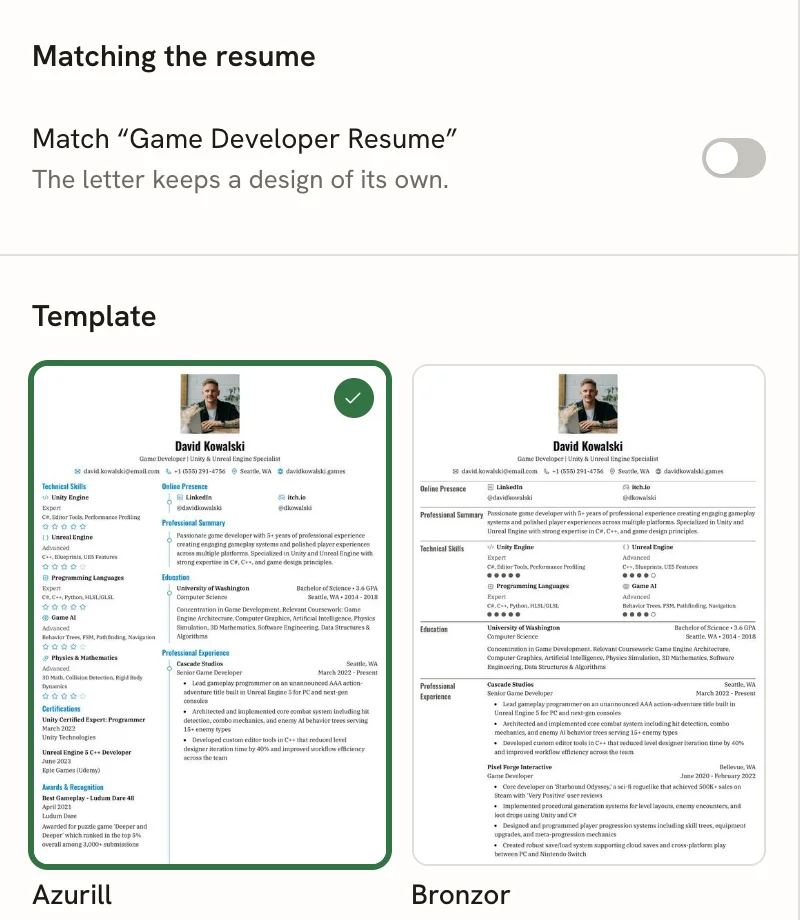
Turn Match back on at any time to follow the resume again. A letter with no resume chosen under From always has its own design.
When updating a letter through the API, setting template or metadata gives it its own design and turns matching off. Set designLinked: true in a later update to resume matching.
Download the letter
Select Download PDF in the editor bar, or press ⌘ P (Ctrl P). The PDF includes the header with your name and contact details, and is named after you, for example David-Kowalski-Cover-Letter.pdf.
For other formats, select Share, or press ⌘ Shift E (Ctrl Shift E). The Share & export sheet opens on Download:
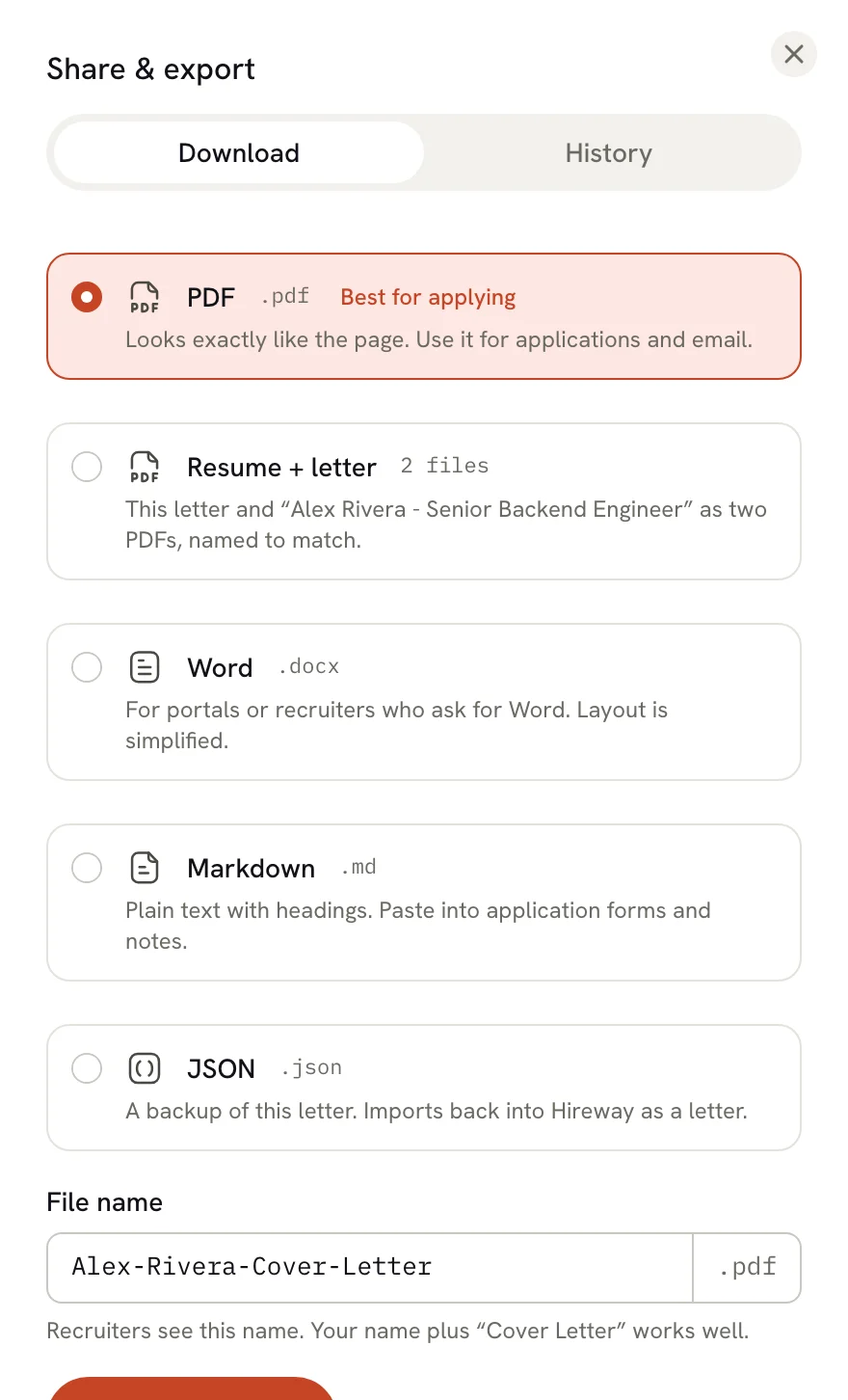
| Option | What you get |
|---|---|
| The letter exactly as it looks on the page. Best for applying. | |
| Resume + letter | The linked resume and this letter as two PDFs, named to match. Shows only when the letter has a resume. |
| Word | A .docx file with simplified layout, for portals that ask for Word. |
| Markdown | Plain text with headings, to paste into application forms. |
| JSON | A backup of the letter that imports back into Hireway as a letter. |
Edit File name if you like, then select the download button.
Letters have no public link. To share one, download it and attach the file.
When you download a resume from its own Share sheet and the resume's application has a letter, you can also tick Also download the … cover letter (the label names the company) to get both files at once. See Exporting your resume.
Letters and applications
- Each application has one letter. If you link a letter to an application that already has one, the new letter takes its place.
- When the application moves to Applied or a later stage, the letter as it reads then is saved in its History as the version you sent. The application shows it under What you sent as "Version sent" with the date.
- In Documents, a letter's menu has Link to application… to link or unlink it without opening it.
To see earlier versions of a letter, open History in the editor bar (the clock icon) or the History tab in Share & export. It works like resume history; see Undoing changes and version history.
Manage a letter
Select the letter's name in the editor bar to Rename…, Duplicate, Lock editing or Move to Trash. A locked letter can't be edited until you select Unlock editing. A letter in Trash can be restored for 30 days; see Using the trash.
In earlier versions, a cover letter could be a section inside a resume. Those letters are now letters of their own in Documents, named after the resume and the letter (for example "Frontend Resume — Cover Letter"), still linked to the resume's details and design. The resume no longer contains them. These older letters keep their recipient block as you wrote it under To, instead of separate name, company and date fields.
Related guides
Tailoring a resume for a job
Copy a resume for an application and write its letter.
Managing an application
Track stages, what you sent and next steps.
Choosing a template
Pick the design your resume and letter share.
Checking your resume before you apply
Make sure software can read the resume you send with your letter.
Checking any resume PDF with the ATS checker
Find out whether applicant tracking software can read your resume PDF. Free, no account needed, and the file never leaves your browser.
Sharing your resume with a link
Turn on a public link for your resume, choose its address, add a password, and see how many people viewed and downloaded it.