

Entering dates
Type start and end dates, year-only dates and current roles in Hireway, fix dates that need a look, and choose how every date prints.
Dates in Hireway are structured: you type a month and year (or only a year), and the resume prints every date in one consistent format that you choose. This keeps your resume tidy, lets Sort by date work, and helps applicant tracking systems read your timeline.
Enter dates for an entry
Experience, Education, Projects and Volunteer entries have a start and an end date. Each job role has its own pair too.
Open the entry
In Write mode, open the entry you want to date. See Editing entries if you're not sure how.
Type the start date
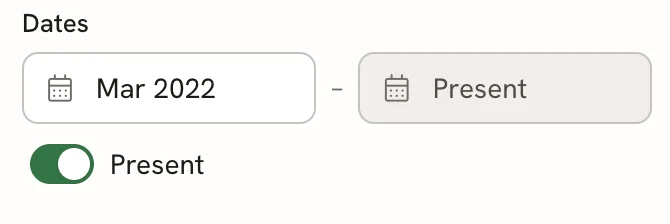
In the first box under Dates, type the date the way you normally write it, for example Mar 2022, March 2022,
03/2022, 2022-03, or only 2022. A date that can be read saves as you type. When you leave the box, it switches
to your resume's date format.
Type the end date, or turn on Present
Type the end date in the second box. If you're still in the role or still studying, turn on Present instead. The end box then shows the word "Present" and can't be edited.
Awards, Certifications and Publications have a single Date box and no Present switch.
Year-only dates
If you don't remember the month, or prefer not to show it, type only the year, such as 2014. Year-only dates are exact, not guesses: they print as the year alone whatever date format you choose, for example "2014 – 2018".
How dates print
The page shows the start and end joined by a dash. If there's only a start date, only that date prints; with Present on, the end reads "Present".

Month names and the word "Present" follow the resume's language, which you set in Design → Page → Language. For example, a resume in German prints "März 2022 – Heute". You can also type month names in the resume's language.
Choose the date format
Open Advanced in Design mode
Select Design in the editor bar, then open Advanced at the bottom of the panel.
Pick a date format
Choose one of the four formats in Date format. Every date on the resume changes at once.
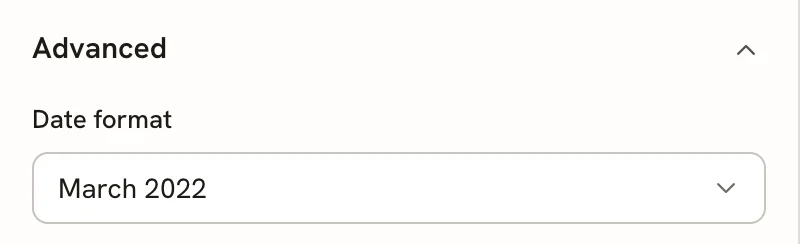
| Option | Prints as |
|---|---|
| Mar 2022 | Short month name and year (the default) |
| March 2022 | Full month name and year |
| 03/2022 | Month number and year |
| 2022-03 | Year and month number (ISO) |
Resumes brought over from an earlier version of Hireway start with whichever of these formats is closest to how their dates were typed. Reset design defaults in the same panel doesn't change your date format.
Fix dates that need a look
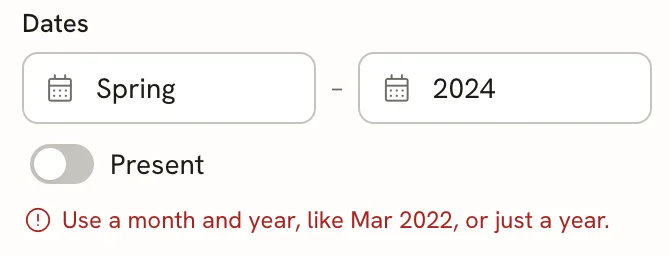
The Dates field tells you when something is off.
- "This date has not been saved." The text you typed cannot be read. Correct it using a month and year, such as Mar 2022, or only a year. The page keeps the last readable date until then.
- "The end is before the start." The two dates are the wrong way round. Swap them, or the entry sorts to the end when you use Sort by date.
Dates from imports and older resumes
When you import a resume, or open one made before dates were structured, Hireway converts each date from its text. Dates it can't read exactly, such as "Summer 2016", are flagged:
- The section's row in the list shows a to check badge with the number of entries to look at.
- The entry's Dates field explains what happened, for example: We read "Summer 2016". Pick a month so it sorts and prints consistently.
- Until you edit the dates, the entry prints the original text as it was written.
Type the dates, or change any part of them, and the note clears.
Check mode also flags entries without dates, dates that can't be read, dates that run backwards and dates in the future. See Checking your resume.
Related guides
- Editing entries: the other fields in each entry, including job roles.
- Managing sections: sort Experience and Education by date from the section menu.
- Importing resumes: bring in an existing resume and review what was read.
Editing entries
Add, reorder, duplicate, hide, move and delete the entries in your resume sections, and learn the fields each kind of entry has, including job roles.
Undoing changes and version history
Undo recent edits in the Hireway editor, save named versions, and preview or restore an earlier version of a resume or cover letter.