

Tailoring a resume for a job
Copy your resume for one job, write a matching cover letter, and use Prepare for next step to get help with fit, follow-ups and interviews.
A resume written for one job usually does better than a general one. From any application you can make a copy of your resume that's linked to that job, write a cover letter for it, and later ask the assistant to help you prepare for the next step. Because the copy is linked to the application, Check and the assistant can compare it with the saved job posting.
Before you start
- Add the job to Applications, ideally with its posting. See Adding an application.
- Have a resume to copy, or import or create one during preparation. See Creating your first resume.
- Copying and manual editing work without AI. If you already have a usable AI connection, the assistant can also suggest changes.
Make a copy of your resume for the job
Open the application
In Applications, select the application to open its details.Select Prepare resume
It's at the bottom of a saved job's details. Prepare a resume appears under Documents for this job when no resume is linked. Save and prepare resume when saving a job opens the same preparation flow.
Choose the resume to start from
Under Start from, pick the resume to copy. Usually that's your main, general resume.
Check the job and the name
Under For which job?, the application is already picked. Name is suggested from the resume and the company, such as "Game Developer Resume — Maple & Moss". Change it if you like.
Create the copy
Select Create and open.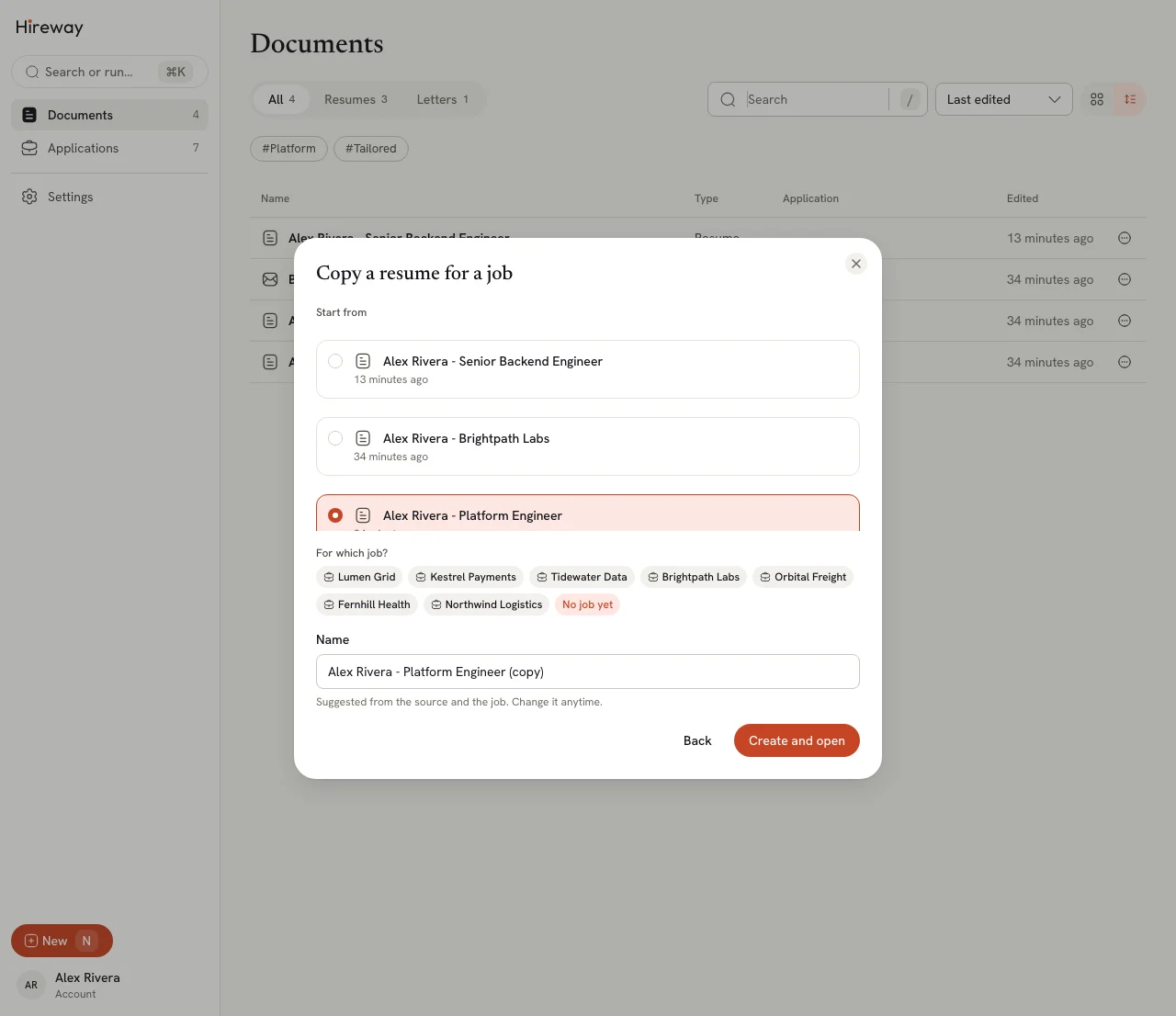
Hireway makes the copy, links it to the job, and opens it in the editor. For a saved job, the copy becomes its prepared resume. Your original resume stays unchanged. The assistant opens automatically only when you already have a usable AI connection.
If you have no resume yet, select Import or create a resume, then import a file or select Start blank. The imported or blank resume stays linked to this saved job, so you can continue editing it without re-entering the posting.
To tailor the copy:
- Edit the resume manually to emphasize experience relevant to the saved posting, then review and download it.
- With a usable AI connection, pick Tailor to the company posting in the assistant. It reads the resume and posting, and suggests edits you accept or reject one at a time. See Using the assistant.
- Switch to Check mode to see how well the resume matches the posting. See Checking your resume.
You can also start a copy from Documents: open a resume's ⋯ menu and select Copy for a job…, or select New and then Copy a resume for a job. Pick the application under For which job?, or No job yet for a plain copy.

Write a cover letter for the job
In the application's details, under Documents for this job (or What you sent after submission), select Write a letter. Hireway creates a cover letter named "Cover letter — company", fills in the recipient from the application, links it to the application and to the application's resume (if it has one), and opens it in the letter editor.
To link a letter you already have, go to Documents, open the letter's ⋯ menu and select Link to application…. See Writing a cover letter.
Use Open application to visit the original link and submit. Preparing documents or opening the link leaves the job Saved. After submitting, select Mark as applied, confirm the date and the documents or attached PDFs you actually sent. The selected document versions are kept for later. See Managing an application.
Prepare for the next step
After submission, Prepare for next step at the bottom of the details opens the linked resume or letter. With a usable AI connection, it also opens the assistant with suggestions for this job:
- How well do I fit this role? compares your resume with the posting.
- Draft a follow-up email writes a short, polite note for the recruiter.
- Prepare me for the interview lists likely questions, based on the posting and your resume.
- Tailor to the company posting suggests edits to fit the posting.
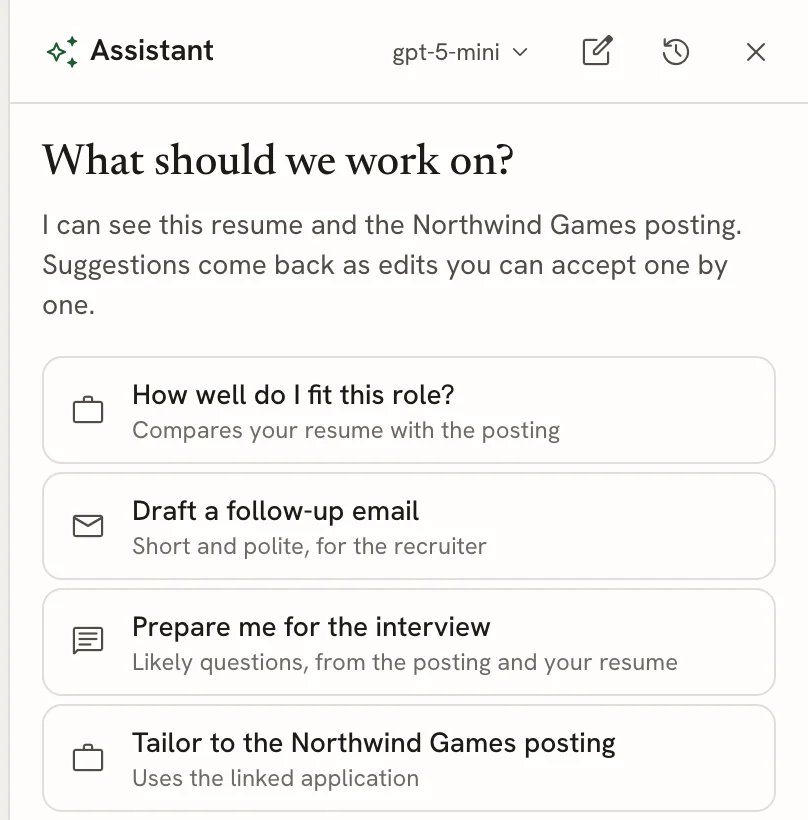
Pick a suggestion, or type your own request. If the application has both a resume and a letter, the resume opens. Without AI, the document opens for manual editing. If no document is linked, the button opens resume preparation instead.
Preparing from an application's details gives the assistant that application's posting. When you open a general resume directly, it may use the most recently updated linked application. A copy made for one job keeps that job's context clear.
Related guides
- Using the assistant: how suggestions, accepting and rejecting work.
- Checking your resume: see how your resume matches a job.
- Viewing application insights: compare replies for tailored and general resumes.
Scheduling interviews
Add interviews and follow-up reminders to your applications, see them on the Calendar view, and add them to your own calendar with an .ics file.
Viewing application insights
See how far your applications get, how often and how fast people reply, whether tailored resumes do better, and export a picture of your job search pipeline.