

Downloading your resume
Download your resume as a PDF in one click, or as Word, Markdown or JSON from the Share sheet. Learn which format to use and how to print.
When a job application asks for a file, download your resume from the editor. A PDF takes one click. Word, Markdown and JSON files are one step further, in the Share & export sheet.
Choose a format
| Format | Use it for |
|---|---|
PDF (.pdf) | Applying for jobs and emailing recruiters. It looks exactly like the page in the editor. |
Word (.docx) | Job portals or recruiters who ask for a Word document. The layout is simplified, so it won't match the PDF exactly. |
Markdown (.md) | Plain text with headings, for pasting into application forms, notes or AI tools. See Exporting a resume to Markdown. |
JSON (.json) | A complete backup of the resume that you can import back into Hireway later. |
If you're unsure, choose PDF. It's the format most employers expect.
Download a PDF
In the editor bar, select Download PDF, or press ⌘ P (Ctrl P on Windows and Linux). The button shows Preparing… while the file is made, then your browser saves it.
The file is named after the full name on your resume, such as David-Kowalski-Resume.pdf. If the resume has no name yet, the document's name is used.
In the editor, ⌘ P downloads the PDF instead of opening your browser's print dialog. To print, use Print in the document menu (see Print your resume).
Download another format
Open the Download tab
Select the arrow beside Download PDF (More download formats), or press ⌘ ⇧ E (Ctrl Shift E). The Share & export sheet opens on its Download tab.
On a phone, select Share in the editor bar, then the Download tab.
Pick a format
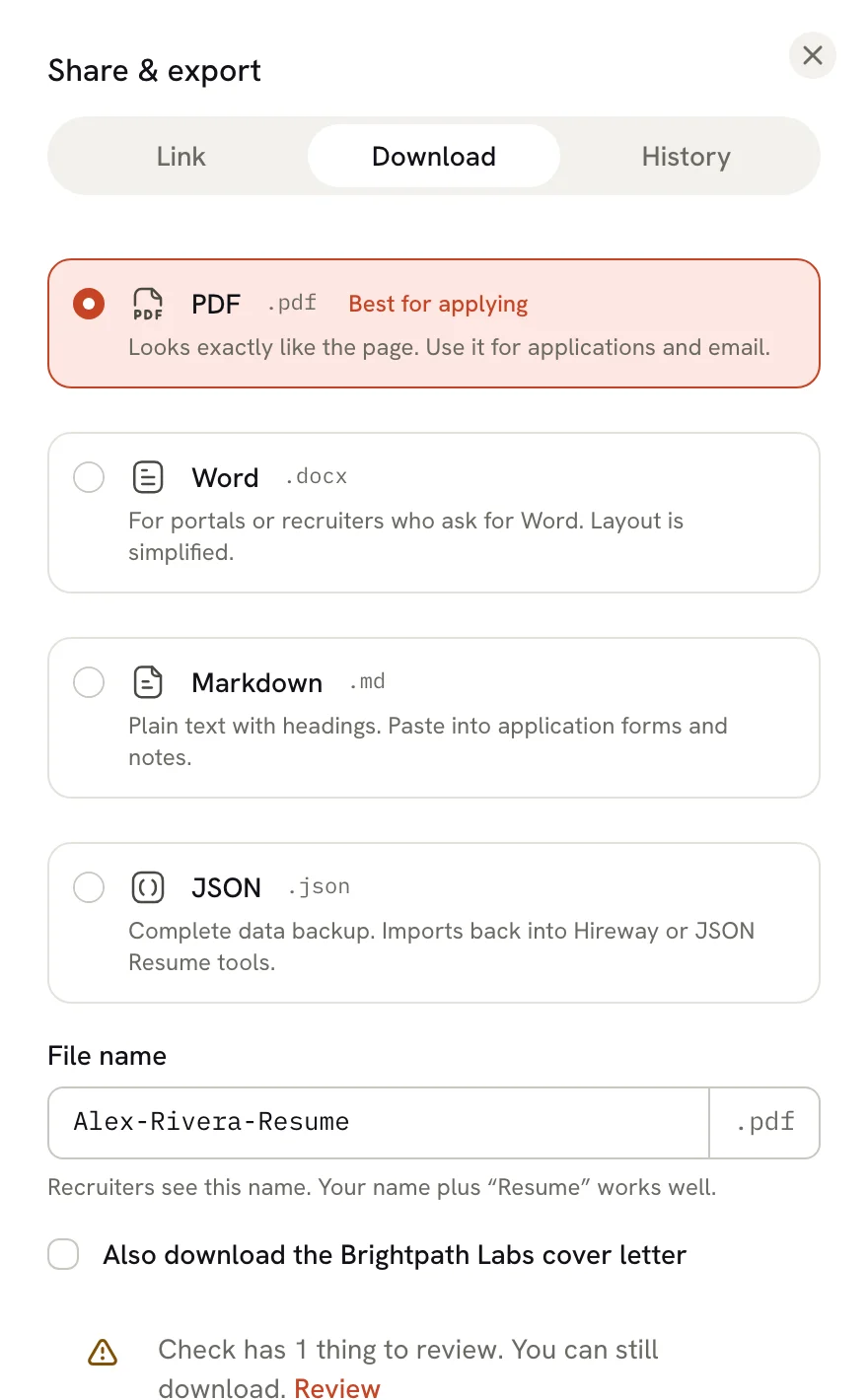
Select PDF, Word, Markdown or JSON. Each option says what it's best for.
Check the file name
The File name field shows the name recruiters will see. Change it if you like; the extension is added for you. Characters that computers don't allow in file names, such as / or :, are removed as you type.
Download
Select the download button at the bottom, for example Download Word. It shows its progress, and a message confirms the file name once it's saved.
A few things you may see on this tab:
- Check has n things to review. You can still download. Check mode found issues on your resume. They never block a download; select Review to see them first.
- Also download the company cover letter appears when this resume belongs to a job application that has a cover letter. Tick it to get both files at once, in the same format.
- If a Word, Markdown or JSON file can't be made, the tab says so. Select Try again, or Download PDF instead.
What each file contains
- PDF keeps your template, fonts, colors, layout and page breaks. Hidden sections and entries are left out.
- Word keeps your content, headings and lists in an editable document. Visual details such as columns, colors and icons are simplified, your photo isn't included, and hidden content is left out.
- Markdown keeps headings, lists, links, bold and italic text. It leaves out hidden content and all visual design.
- JSON keeps everything: every section and entry, hidden ones included, your design settings and your private notes. To restore it, select New, then Import a resume, and choose the file. Importing creates a new resume; it doesn't overwrite one.
A JSON file includes your private notes and hidden entries. Treat it as a backup for yourself, not a file to send to employers.
Print your resume
Open the document menu
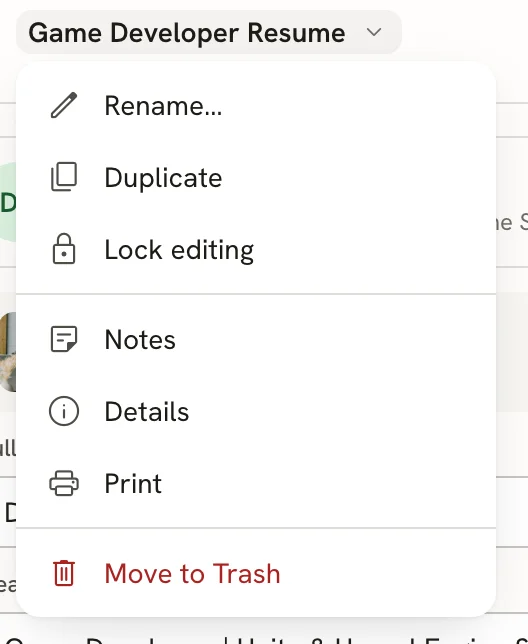
In the editor bar, select the resume's name.Select Print
Select Print. Hireway prepares the same PDF you'd download and opens your browser's print dialog. If your browser blocks that, the PDF opens in a new tab so you can print it from there.
Printing uses the PDF, so the printout matches the file recruiters receive.
Downloads by visitors
If your resume has a public link, visitors can download the PDF from the public page, unless you turn off Visitors can download the PDF. These downloads show up in your statistics. See Sharing your resume with a link.
Download PDF, Share and their shortcuts are unavailable while you're offline. They come back when your connection does.
Related guides
- Exporting a resume to Markdown: what the Markdown file looks like and where it's useful.
- Writing a cover letter: letters have their own Download tab in their Share sheet.
- Fitting content on a page: tidy up page breaks before you download.
- Exporting your data: download everything in your account at once.
- Importing resumes: bring a JSON backup back into Hireway.
Sharing your resume with a link
Turn on a public link for your resume, choose its address, add a password, and see how many people viewed and downloaded it.
Exporting a resume to Markdown
Download your resume as a Markdown file: plain text with headings for application forms, AI tools, notes, websites and version control.