

Assistant tools
Reference for the tools the Hireway assistant can call: reading your document and attachments, proposing edits, asking questions and searching the web.
The assistant works through a small, fixed set of tools. You never call them yourself: the assistant picks one when your request needs it, and the conversation shows a short status line for each step. This page lists every tool, what it does, and when it's available.
Tools
| Tool | What it does | Shown in the conversation as | Available when |
|---|---|---|---|
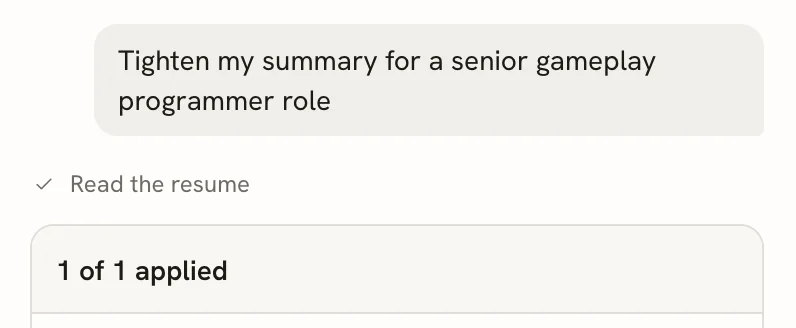
read_resume | Reads the open resume: its full text, plus every passage an edit can target (each paragraph of the summary, each bullet or paragraph of an entry's description), each with an ID. Hidden sections and entries are left out. | Read the resume | You're in a resume and the document chip is included in your message. |
read_letter | Reads the open cover letter's body, sender and recipient, plus the text of the resume it's linked to, if any. The greeting and sign-off aren't editable through the assistant. | Read the letter | You're in a letter and the document chip is included in your message. |
propose_edits | Proposes a set of up to 12 edits with a short title. Each edit either rewrites one passage or adds a new passage after it, and comes with a one-line reason. Nothing changes until you accept. | Preparing edits…, then the proposed edits card | Same as the read tool. |
ask_user_question | Asks you a short question, with up to four suggested answers, before the assistant continues. | A blue question card | Always. |
read_attachment | Reads a file attached to a message. Text, Markdown and JSON files return their content (up to 40,000 characters). | Read the attachment | Always; useful only when the message has attachments. |
search_web | Searches with your selected Firecrawl, Tavily or Exa web connection. | Searching the web…, then Searched the web and Sources | An optional web connection is configured. It takes precedence over native model search. |
read_page | Reads a supplied public URL with your selected reader, falling back to the built-in reader when enhanced reading fails. | Reading page…, then Read the page, with clipping warnings when detected | Available with the assistant's custom document tools, including without a web connection. |
web_search / google_search | Searches through the AI provider's native tool and returns sources. | Searching the web…, then Searched the web, with Sources | No external web connection, and a supported direct OpenAI, Anthropic or Gemini configuration. |
How edits are placed
Every edit targets one passage by the ID the read tool returned. When you accept, the new text replaces that passage (or is added after it) in your document, as a single step you can undo.
If you or another change edits a passage after the assistant read it, the edit can no longer be placed. The card then says, for example, "1 edit couldn't be placed: its text changed. Ask again to redo it." Edits that were placed but whose passage changed afterwards show Out of date: the text has changed since.
The assistant is instructed to rewrite only what your document already says: it doesn't add employers, titles, dates, numbers, skills or achievements that aren't in the document or the conversation. When a job posting asks for something your document doesn't mention, it uses ask_user_question first, and only drafts it from your answer.
What the assistant also sees
Besides what the tools return, each message can include:
- The job posting: the role, the company, the job description (or its requirements list) and your notes from the linked application. A resume uses the application it was made for, or else the most recently updated application it's linked to. A letter uses only the application it was made for. Removing the posting chip leaves it out.
- Attachments: images, PDFs and MP3 or WAV audio are passed to the model directly, when the provider supports them. Other types are only listed by name.
- The conversation so far: earlier messages, tool results and your answers.
Web search support
A selected Web access connection always supplies search through search_web, regardless of which AI provider you use. Only one search mechanism is offered per reply. Reading a supplied link uses read_page; built-in reading needs no commercial web account.
With no external web connection, these direct configurations support native search alongside the assistant's document tools:
| AI provider | Direct base URL | Supported model IDs |
|---|---|---|
| OpenAI | https://api.openai.com/v1 | gpt-5.5-pro, gpt-5.5, gpt-5.4, gpt-5.4-pro, gpt-5.4-mini, gpt-5.4-nano, gpt-5, gpt-5-mini, gpt-5-nano, gpt-4.1, gpt-4.1-mini, o4-mini, and the explicitly supported published snapshots (for example, gpt-5-mini-2025-08-07 or gpt-4.1-2025-04-14). Arbitrary dated model IDs are excluded. Uses the Responses API. |
| Anthropic | https://api.anthropic.com/v1 | claude-sonnet-4-6, claude-opus-4-6. Uses basic web_search_20250305; your organization must permit search. |
| Gemini | https://generativelanguage.googleapis.com/v1beta | gemini-3.8-flash, gemini-3.1-pro-preview. Combining native grounding and custom tools is a preview capability. |
Unknown models and custom gateways do not inherit native search from their provider label. Gemini 2.x cannot combine native grounding with the document tools: use an explicitly configured external web connection instead. If search is unavailable, supply a public URL for reading or paste the relevant text. Native search charges apply to your AI account.
The source list combines validated native source parts and successful search/read results, deduplicates links, and survives reopening the conversation. Links invented in the reply text are not added as retrieved sources. Failed or interrupted web tools show that outcome; they do not show a successful search. Changing AI or web connections preserves the conversation and replays historical native searches as portable source evidence.
See Anthropic web search and Gemini tool combination for provider enablement and compatibility requirements.
Limits
| Limit | Value |
|---|---|
| Edits per proposal set | 12 |
| Tool steps per reply | 30 |
| Combined custom search/read calls per reply | 6 |
| Page text returned to the model | 20,000 characters; clipping is reported |
| Length of one reply | About 4 minutes, then "Time limit reached. Your progress is saved. Ask me to continue." |
| Attachments per message | 10 |
| Size per attachment | 25 MB |
| Attachments per conversation | 100 MB in total |
| Text read from one attachment | 40,000 characters |
Anthropic searches are capped at six per provider request, and OpenAI built-in tool calls use a six-call provider limit per request. The assistant loop and four-minute deadline also apply. Gemini does not expose a comparable internal-query cap here; the application does not claim to count native provider queries it cannot observe. Stopping a reply cancels outstanding custom retrieval as well as the model request.
Earlier conversations
Before v6, the AI agent changed resumes directly with an apply_resume_patch tool. Conversations from that time still open. Those steps show as Changed the resume directly (an earlier conversation), and the assistant no longer has that tool.
The assistant's tools are separate from the MCP server, which lets outside AI clients such as Claude or Cursor work with your resumes. See Using the MCP server.
Related guides
Using the assistant
Ask the AI assistant to improve your resume or cover letter, then accept or reject each edit it proposes. Nothing changes until you accept.
Tracking job applications
Keep every job you apply for in one place: see what needs you next, move applications through stages, and switch between List, Board, Insights and Calendar.