

Connecting an AI provider
Add your own AI provider key in Hireway, test the connection, and choose which provider the assistant and other AI features use.
Hireway doesn't include an AI model of its own. To use the assistant, AI imports, drafting and the other AI features, connect a provider such as OpenAI, Anthropic or Google Gemini. Everything else in the app works without AI.
Settings then show that AI is enabled globally, and personal provider controls are hidden. You can use AI features without entering your own key. The steps below apply when personal providers are available.
Before you start
- Get an API key from your provider's dashboard. You pay the provider directly for what you use. A local Ollama server can connect without a key.
- Know which model you want to use, such as
gpt-4.1orclaude-3-5-sonnet-latest. Hireway suggests a default for each provider, but your account may not have access to every model.
Add a provider
Open AI settings
Select your name at the bottom of the sidebar, choose Settings, then choose AI & developer. You can also go to https://hireway.dev/dashboard/settings/ai directly.
Start adding a provider
Under AI providers, select Add provider (the dashed button below your saved providers).
Choose the provider and fill in the fields
Pick your provider from the Provider list. Hireway fills in that provider's usual Model and Base URL for you. Paste your key into API key, and change the model if you want a different one.
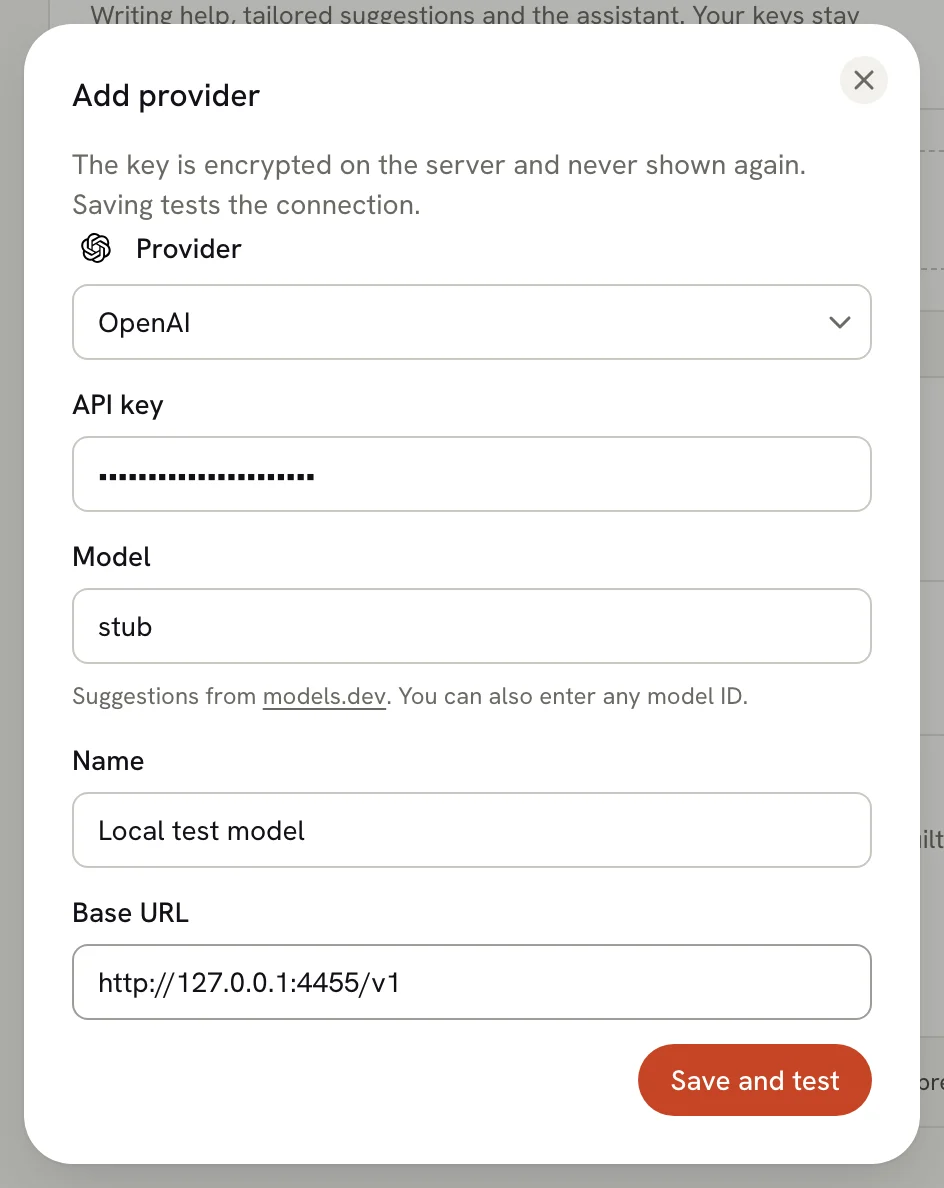
Save and test
Select Save and test. Hireway saves the provider, then sends it a tiny request to check that the key, model and address work. If the test passes, the dialog closes and the provider is ready to use.
If the test fails, the dialog shows the provider's own error message, such as an invalid key or an unknown model. The provider is still saved, so you can fix it later with Edit instead of starting again.
The fields
| Field | What to enter |
|---|---|
| Provider | The company or service that runs the model. |
| API key | The key from your provider's dashboard. Required except for Ollama, where you can leave it empty for a local server that doesn't require authentication. |
| Model | The model name exactly as your provider writes it. Required. |
| Name | A label you'll recognize, such as "Work OpenAI". If you leave it empty, the provider's name is used. |
| Base URL | The address requests go to. Leave the default unless you use a gateway, a proxy or an OpenAI-compatible service. |
Supported providers
| Provider | Default model | Default base URL |
|---|---|---|
| OpenAI | gpt-4.1 | https://api.openai.com/v1 |
| Anthropic Claude | claude-3-5-sonnet-latest | https://api.anthropic.com/v1 |
| Google Gemini | gemini-2.0-flash | https://generativelanguage.googleapis.com/v1beta |
| Vercel AI Gateway | openai/gpt-4.1 | https://ai-gateway.vercel.sh/v3/ai |
| OpenRouter | openai/gpt-4.1 | https://openrouter.ai/api/v1 |
| Mistral AI | mistral-large-latest | https://api.mistral.ai/v1 |
| Cohere | command-a-03-2025 | https://api.cohere.com/v2 |
| xAI Grok | grok-4 | https://api.x.ai/v1 |
| Groq | llama-3.3-70b-versatile | https://api.groq.com/openai/v1 |
| DeepSeek | deepseek-chat | https://api.deepseek.com/v1 |
| Together.ai | meta-llama/Meta-Llama-3.3-70B-Instruct-Turbo | https://api.together.xyz/v1 |
| Fireworks | accounts/fireworks/models/llama-v3p3-70b-instruct | https://api.fireworks.ai/inference/v1 |
| Cerebras | llama3.3-70b | https://api.cerebras.ai/v1 |
| Perplexity | sonar-pro | https://api.perplexity.ai |
| Ollama | llama3.1 | https://ollama.com/api |
| OpenAI-compatible | none, enter your own | none, enter your own |
Choose OpenAI-compatible for any other service that speaks the OpenAI API, such as a company gateway or LiteLLM. It needs both a model and a base URL.
The base URL must start with https:// and point to a public address. That means a model running on your own computer (for example, a local Ollama) can't be connected.
Test a provider again
Each saved provider appears as a row under AI providers, showing its name, model and the last four characters of the key. The row shows Off next to the name when the provider isn't in use.

Select Test on a row to check it again. The button changes to Connected with the round-trip time (for example, Connected · 420 ms), or to Failed with the provider's error message underneath. A passed test turns the provider on; a failed test turns it off, so the app never uses a provider that isn't answering.
Edit, turn off or delete a provider
Select Edit on a provider's row.
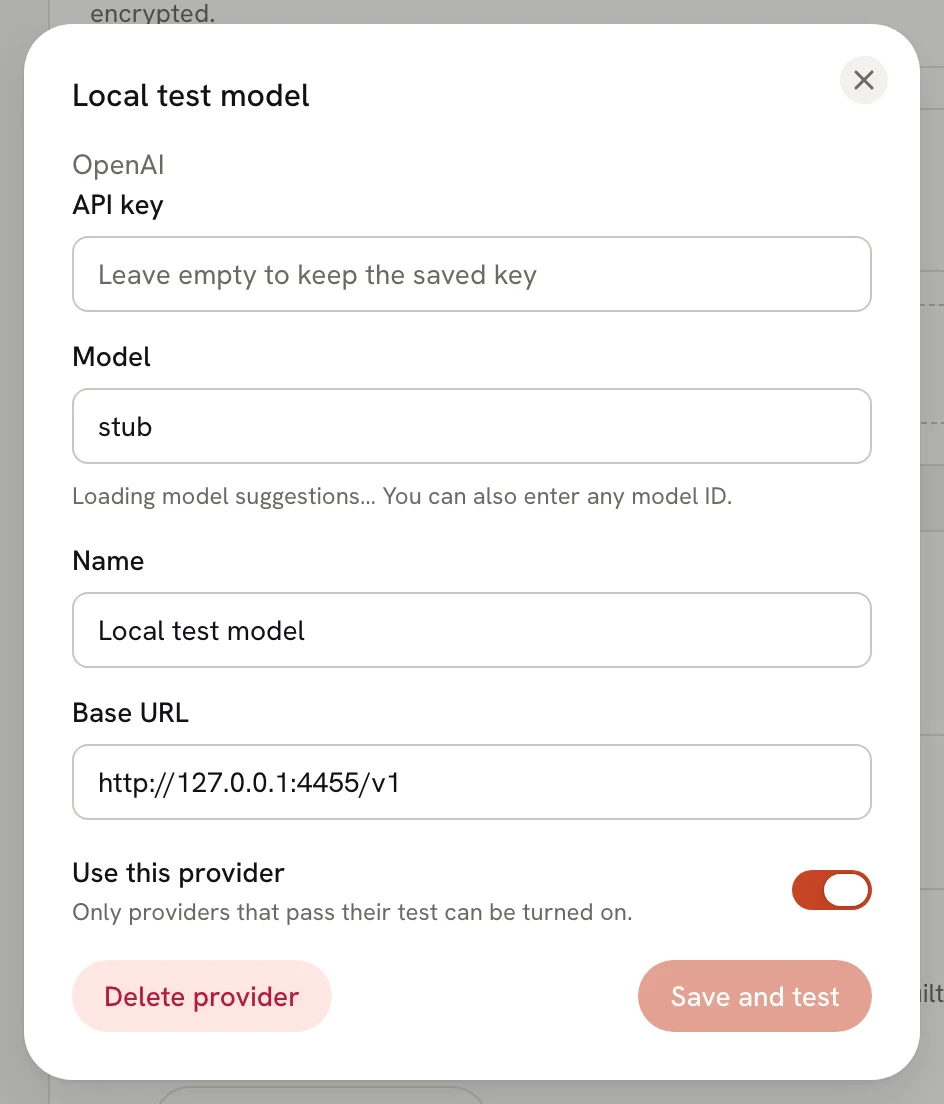
- Change the key, model, name or base URL, then select Save and test. Leave API key empty to keep the saved key. Changing the key, model or base URL turns the provider off until the new test passes.
- Turn it on or off with Use this provider. Only a provider that passed its test can be turned on. A provider that is off stays saved but isn't offered anywhere in the app.
- Delete it with Delete provider, then confirm. The provider and its stored key are removed.
Deleting a provider can't be undone. Assistant conversations that used it become read-only until you pick another model in the conversation. Documents and edits you already accepted aren't affected.
Which provider is used
You can save several providers, for example one per account or one per model.
- AI features default to the enabled provider you used most recently. If you haven't used one yet, they choose the oldest enabled provider you added.
- The assistant lets you switch models from the model menu in its header at any time. See Using the assistant.
- Check → Writing lets you pick the provider for each review.
Connect from the assistant instead
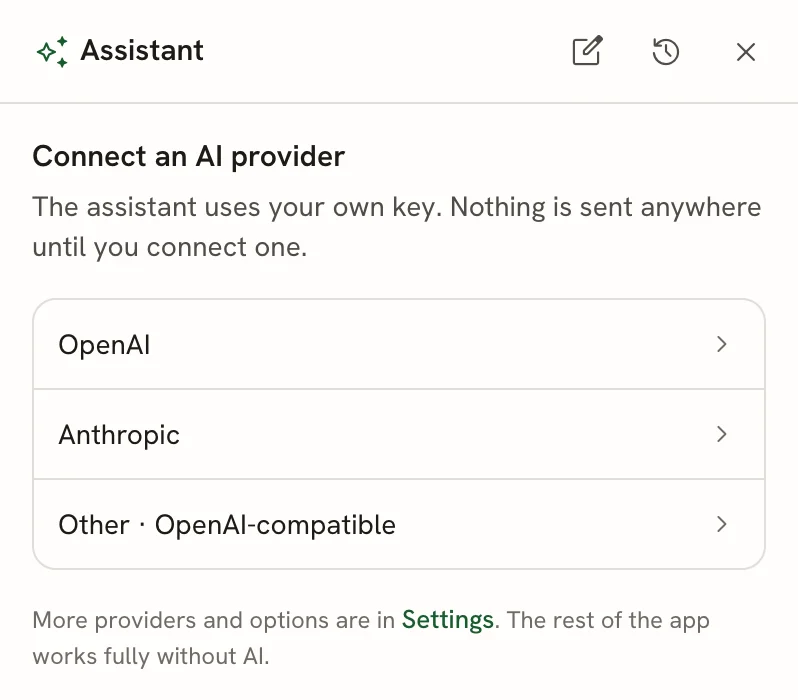
If no provider is connected yet, opening the assistant in the editor shows Connect an AI provider with OpenAI, Anthropic and Other · OpenAI-compatible. Enter your key and model there and select Connect. It saves and tests the provider the same way as settings. For the other providers, use AI & developer.
How your key is stored
Your personal API key is encrypted on the Hireway server with AES-256-GCM before it's saved, and it's never shown again. Settings only ever show the last four characters. When a feature needs the key, the server decrypts it just long enough to call your provider.
What is sent to your provider
Requests go from the Hireway server to the provider you chose, using your key. Nothing is sent until you use an AI feature, and each feature sends only what it needs:
| Feature | What is sent |
|---|---|
| Assistant | Your message, the open resume or letter (unless you remove it from the message), the job posting and your notes on the linked application (unless you remove the posting), attachments you add, and the earlier messages in the conversation. |
| Improve selected line | The line you're improving and the rest of that field. |
| Check → Writing | The text of your resume. |
| Importing a PDF or Word file | The file you import. |
| Drafting a letter | The linked resume and the application's job posting. |
| Adding an application | Job posting text you paste or import from a URL. |
Your provider handles that data under its own terms and privacy policy. Hireway keeps assistant conversations and their attachments in your account until you delete the conversation.
Related guides
Exporting a resume to Markdown
Download your resume as a Markdown file: plain text with headings for application forms, AI tools, notes, websites and version control.
Using the assistant
Ask the AI assistant to improve your resume or cover letter, then accept or reject each edit it proposes. Nothing changes until you accept.