

Choosing a template
Browse the 17 Hireway templates drawn with your own content, preview one on the page, and apply it without losing any of your work.
A template decides the layout of your resume: where the header sits, whether there is a sidebar, and how headings and entries look. You can switch templates at any time. Your content, fonts and colors stay the same.
Open the template gallery
Open your resume
From Documents, open the resume you want to change.Switch to Design
Select Design at the top of the editor, or press 2 while you are not typing in a field.
Find the Template group
Template is the first group in the Design panel. Use the row of links at the top of the panel (Template, Type, Color, Page, Advanced) to jump between groups.
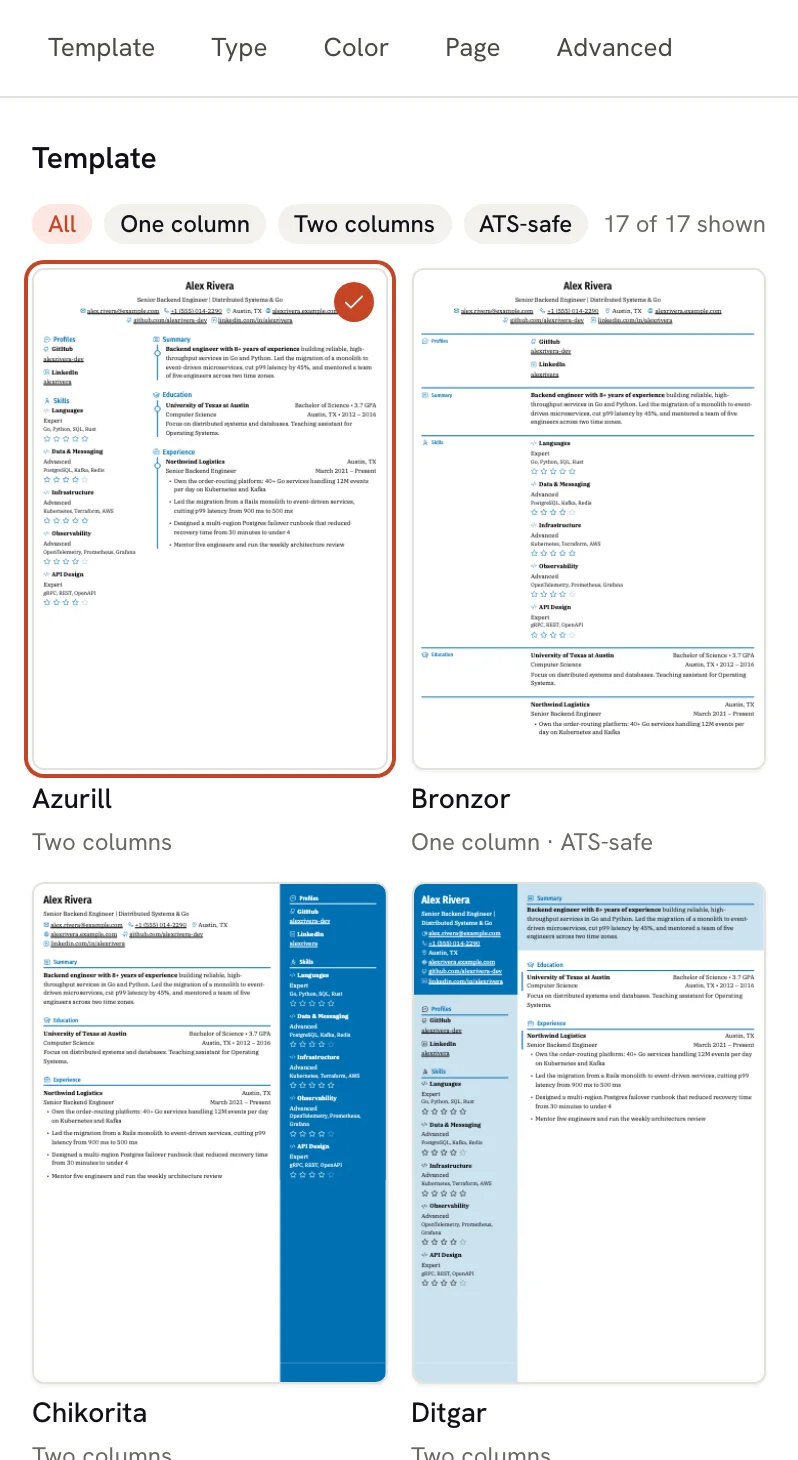
Each thumbnail shows the first page of your resume in that template, so you can judge it with your real content. While the thumbnails are being drawn, you briefly see a sample image instead.
Filter the gallery
The chips above the thumbnails narrow the list:
| Filter | Shows |
|---|---|
| All | All 17 templates. |
| One column | Templates that read top to bottom in a single column. |
| Two columns | Templates with a separate sidebar column. |
| ATS-safe | Templates with one reading order and plain text headings, which applicant tracking systems read cleanly. |
The counter on the right (for example "7 of 17 shown") tells you how many templates match.
Preview and apply a template
Preview it on the page
Hover over a thumbnail, or move to it with Tab. The page on the right redraws in that template, and a label above it reads "Previewing name · click to apply". Nothing is saved yet.
Apply it
Click the thumbnail. The template is applied and a message confirms the change, with an Undo button if you change your mind.
Or go back
Move the pointer away from the thumbnails, or press Esc, to return to your current template.
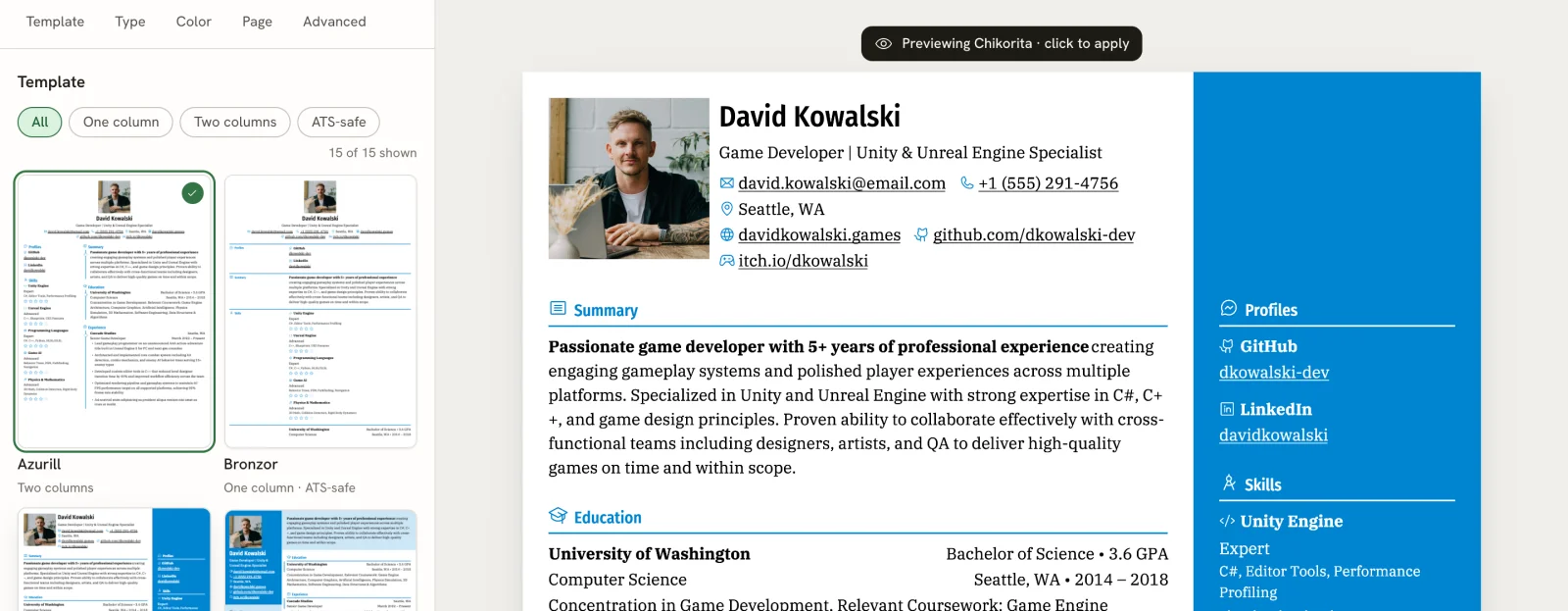
On a phone or tablet, press and hold a thumbnail to preview it, then tap it to apply it. On phones, Design opens as a sheet over the lower half of the page and the templates scroll sideways in a strip.
The 17 templates
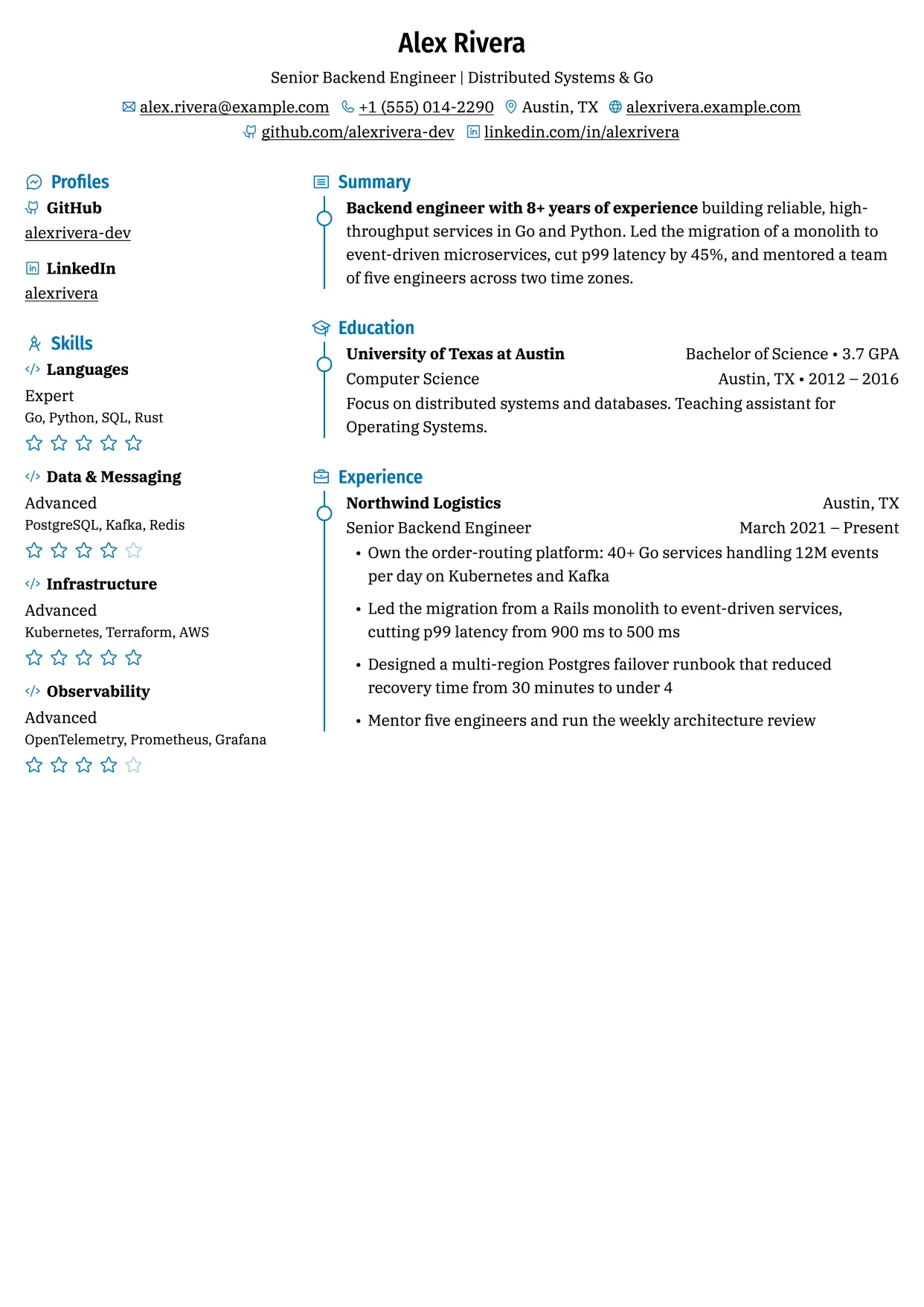
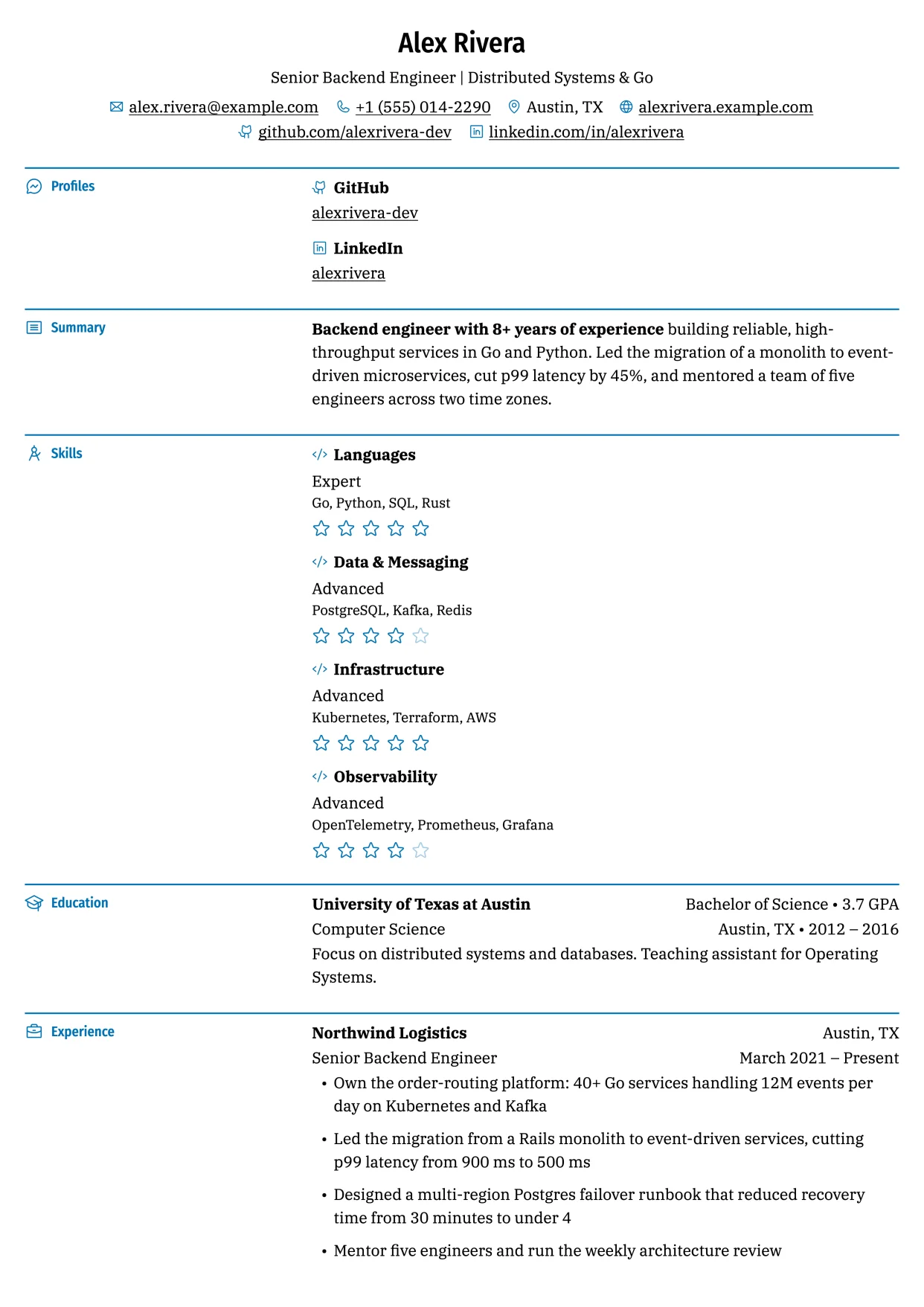
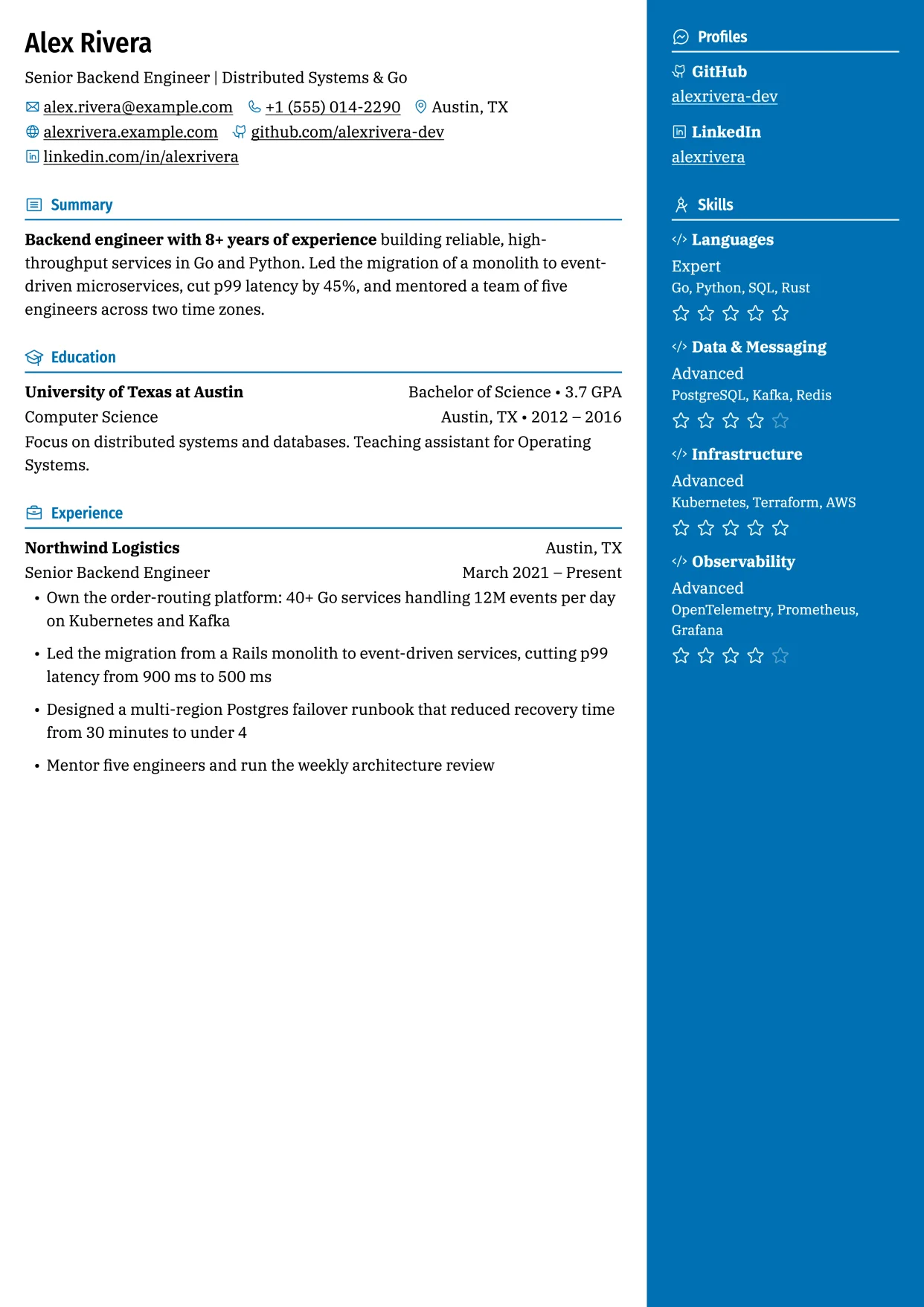
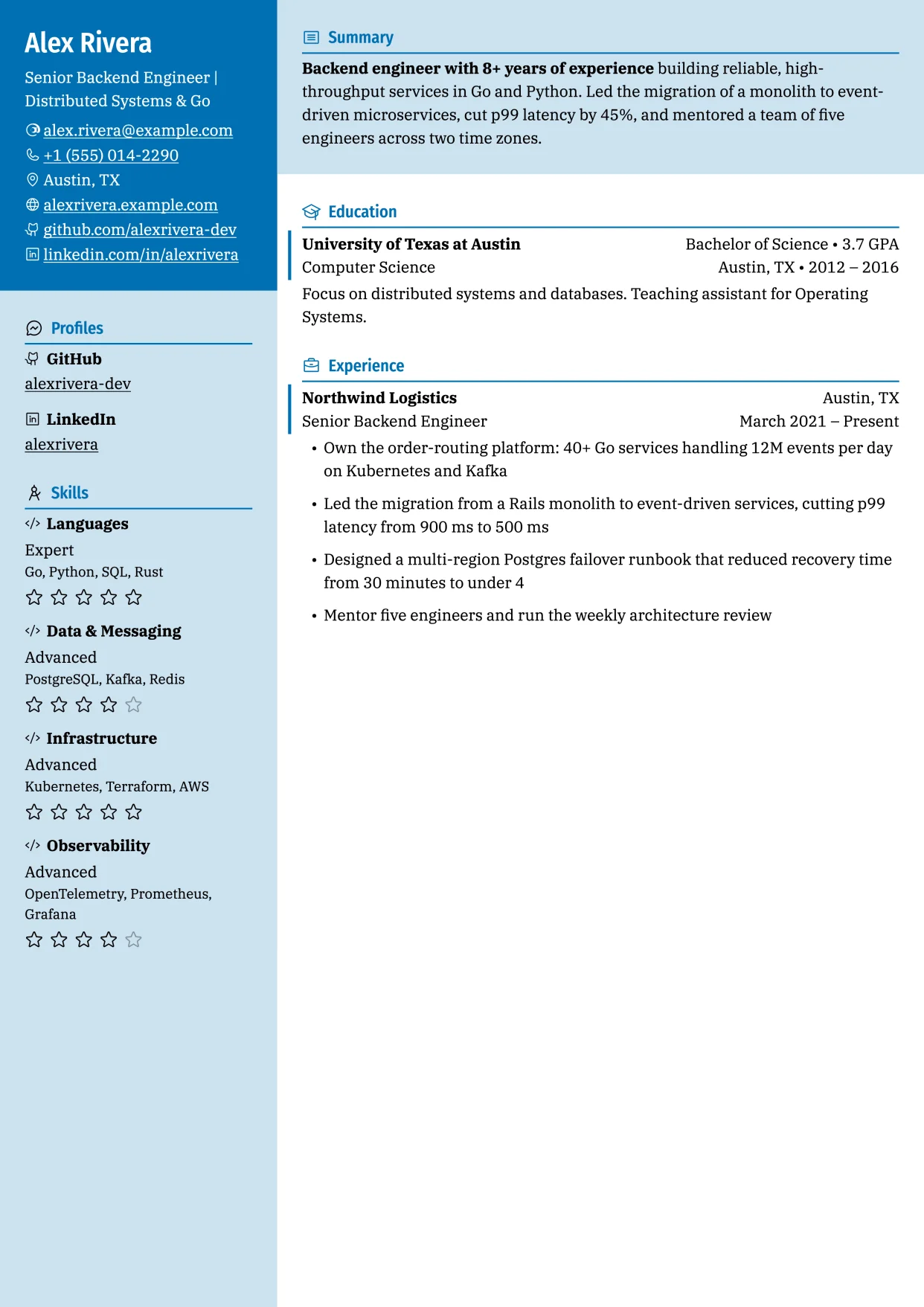
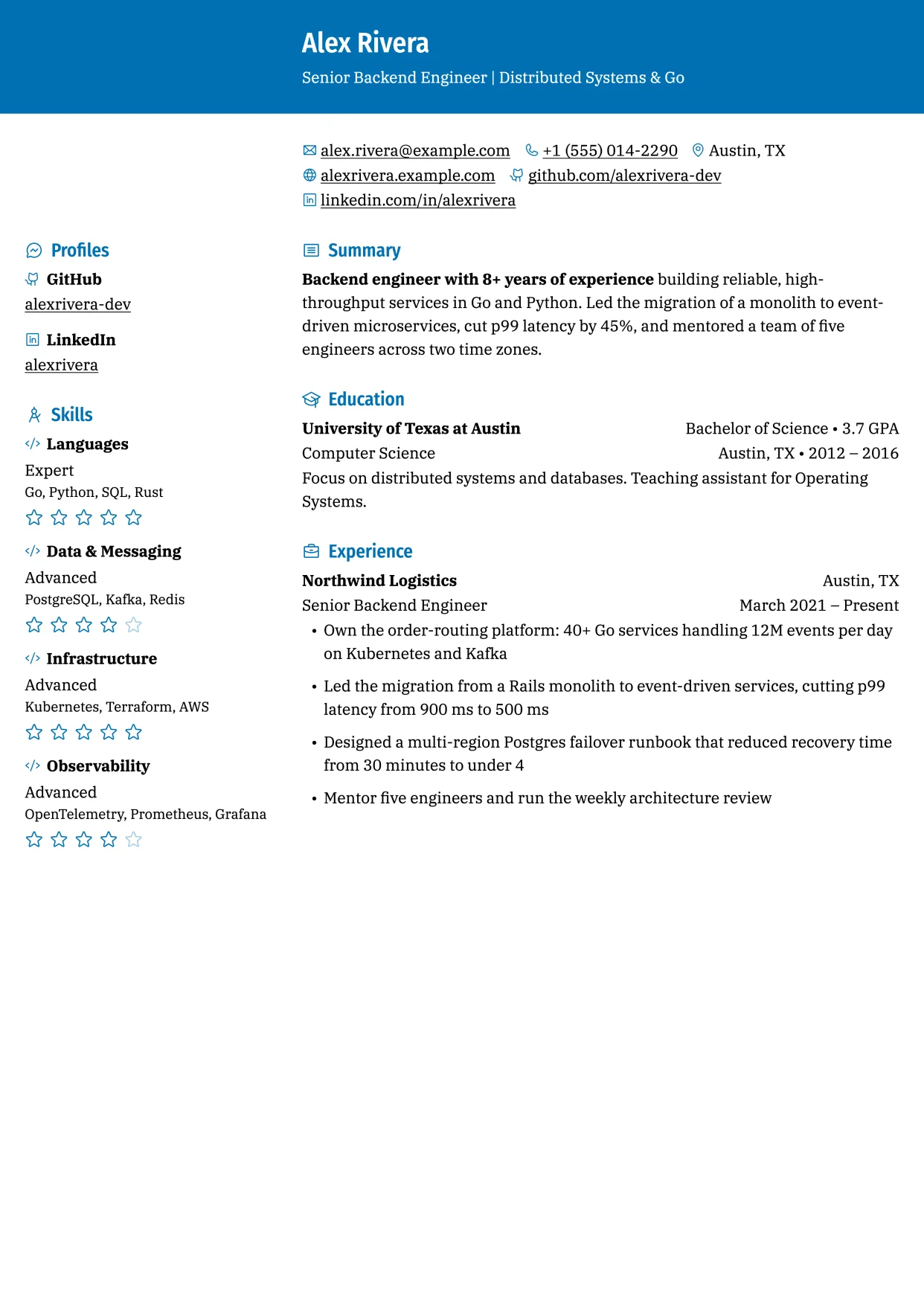
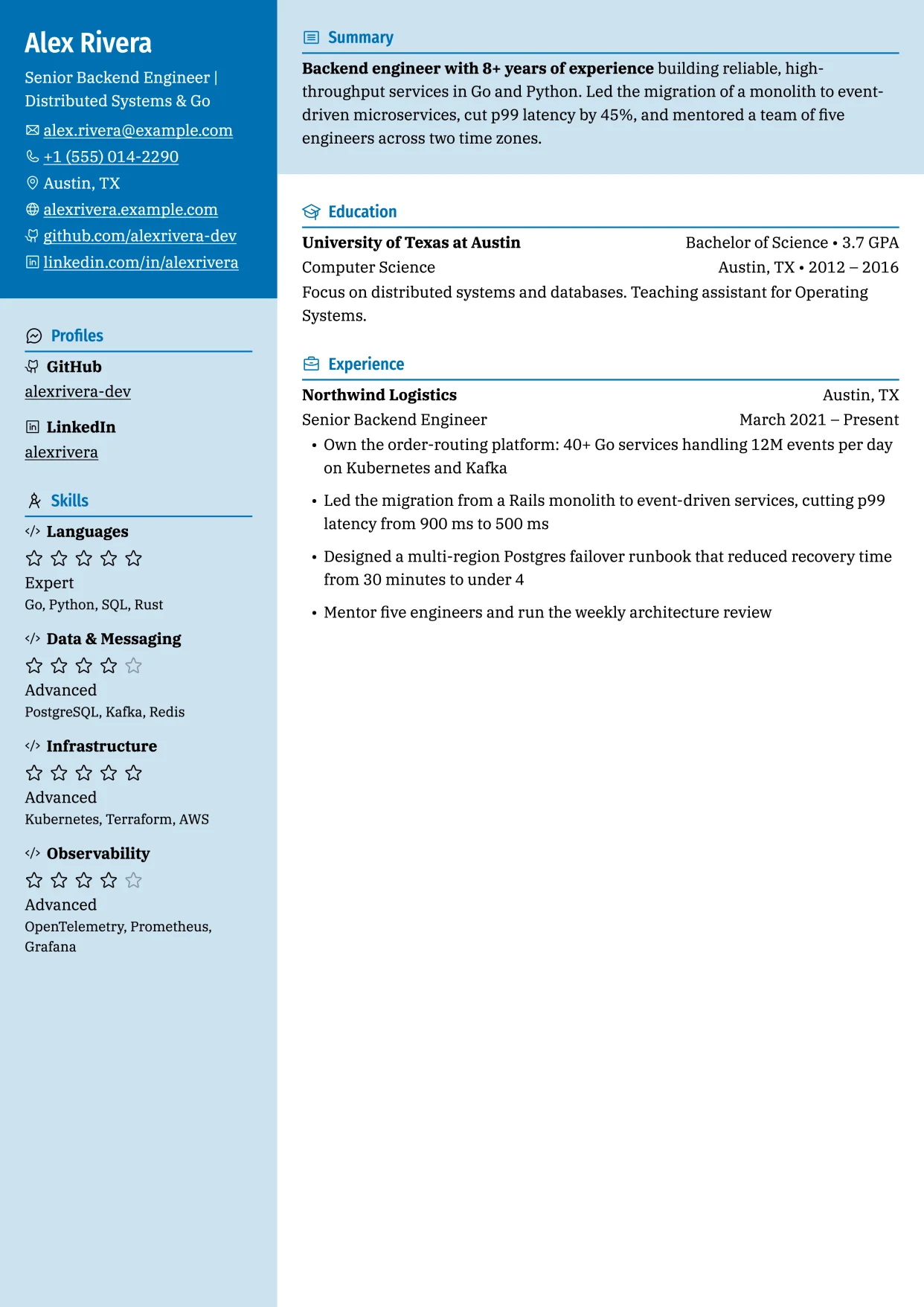
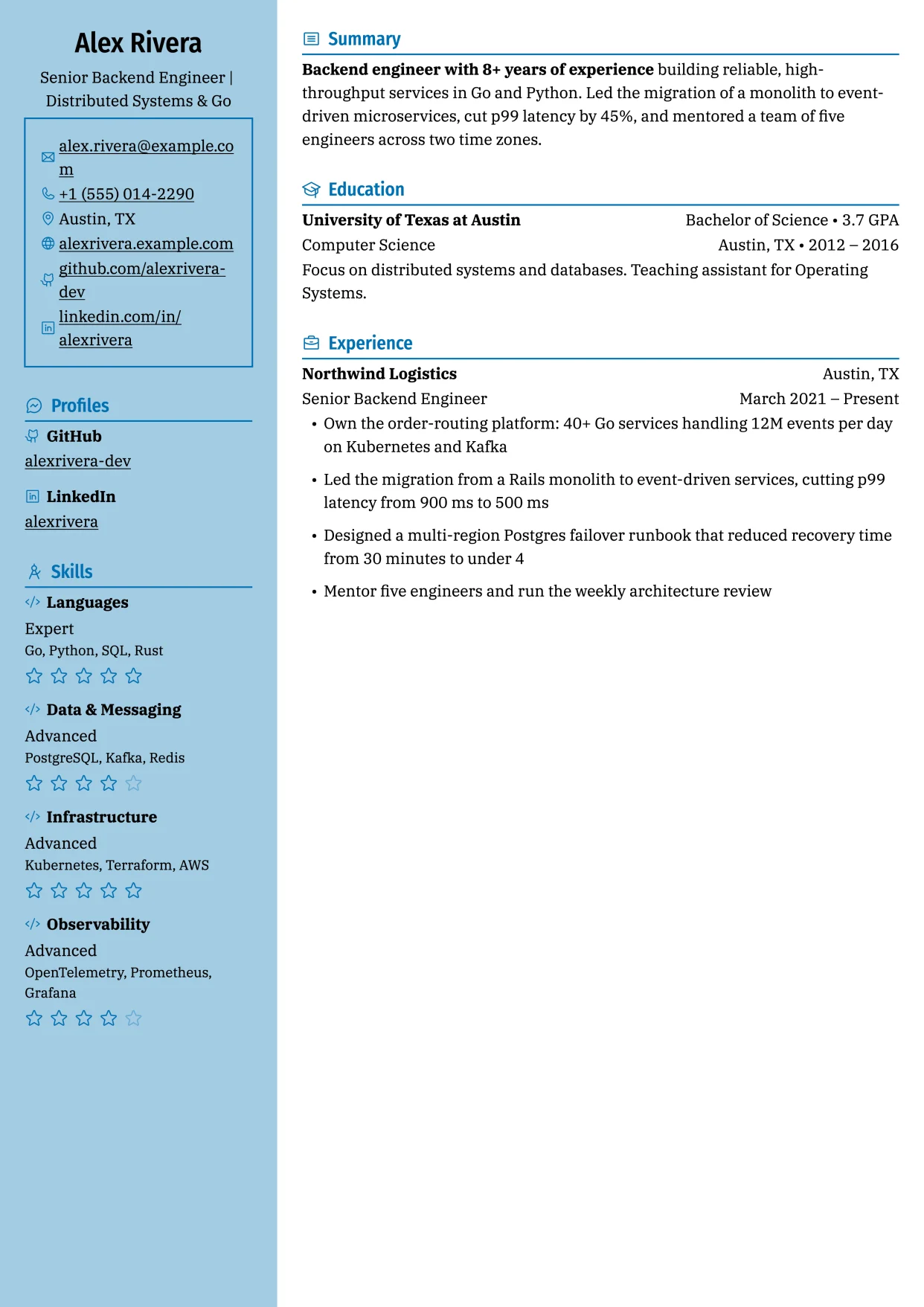
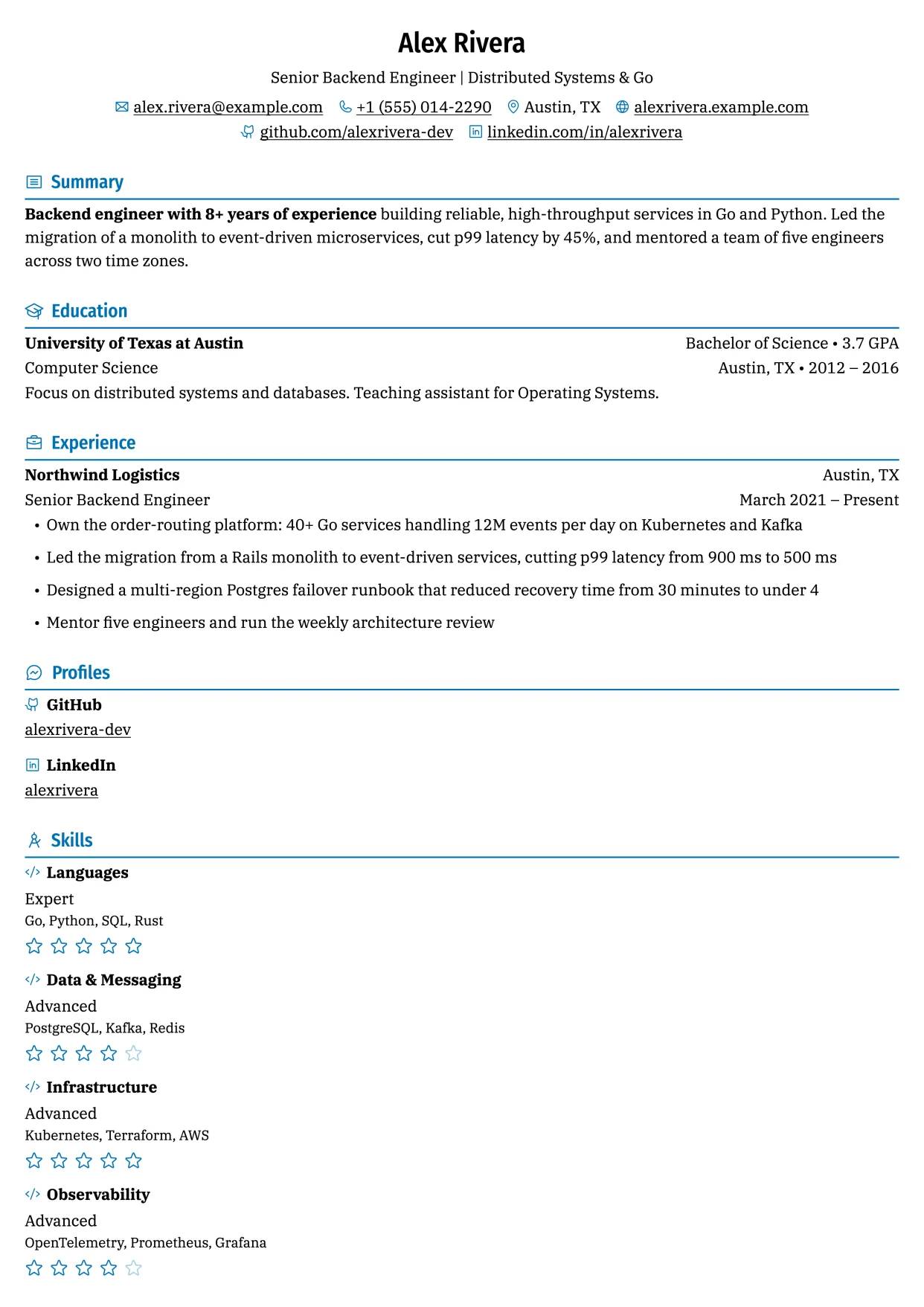
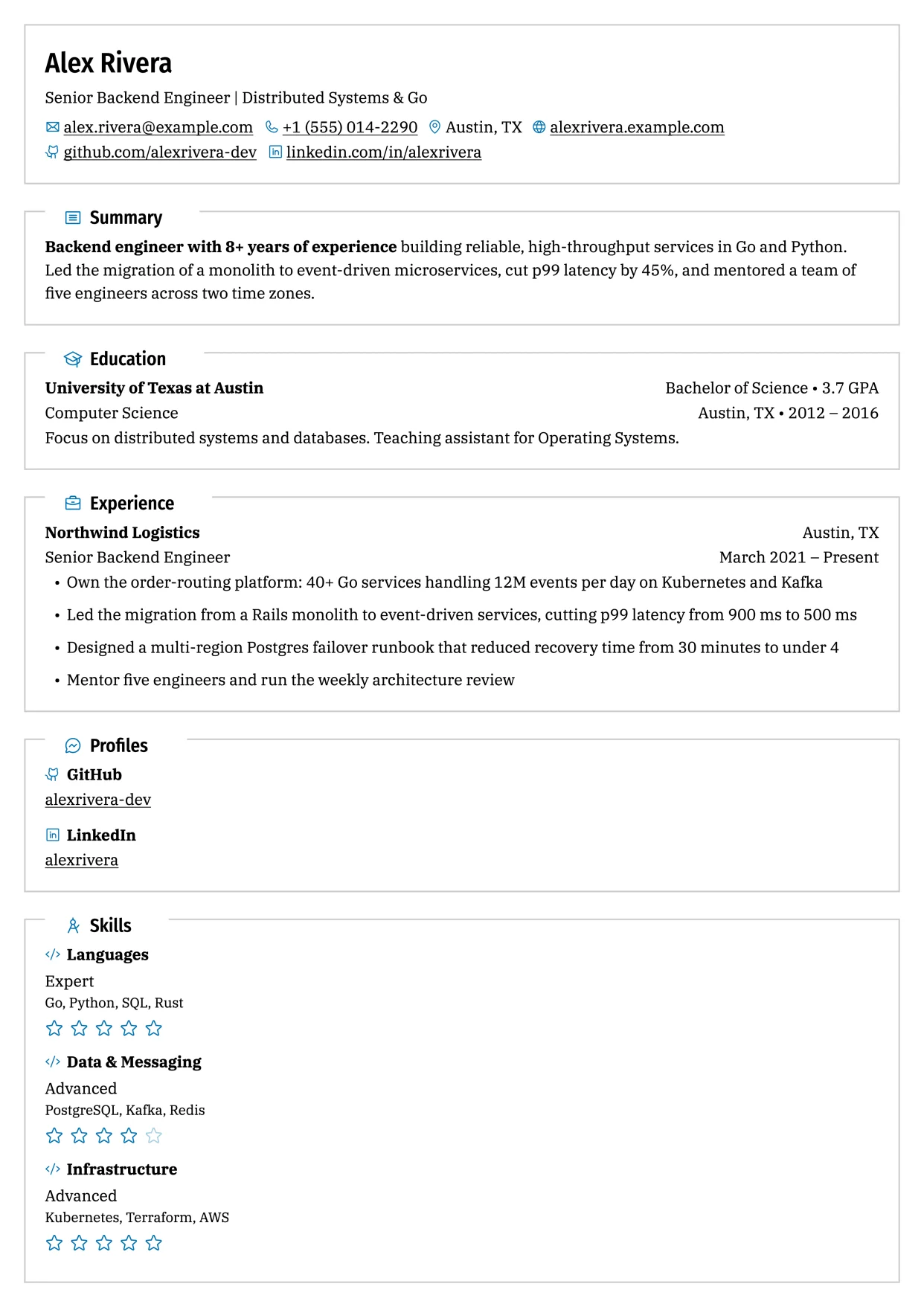
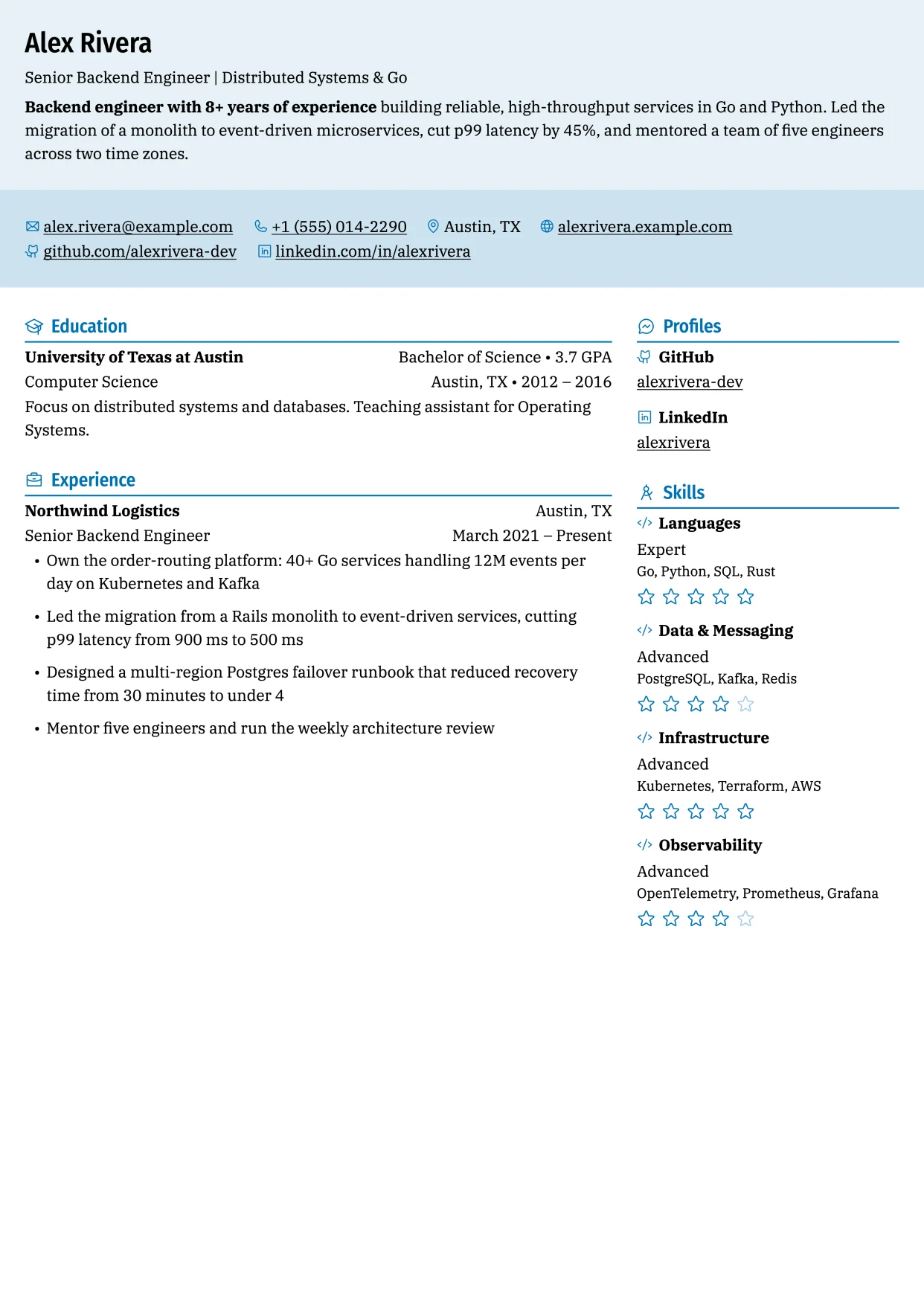
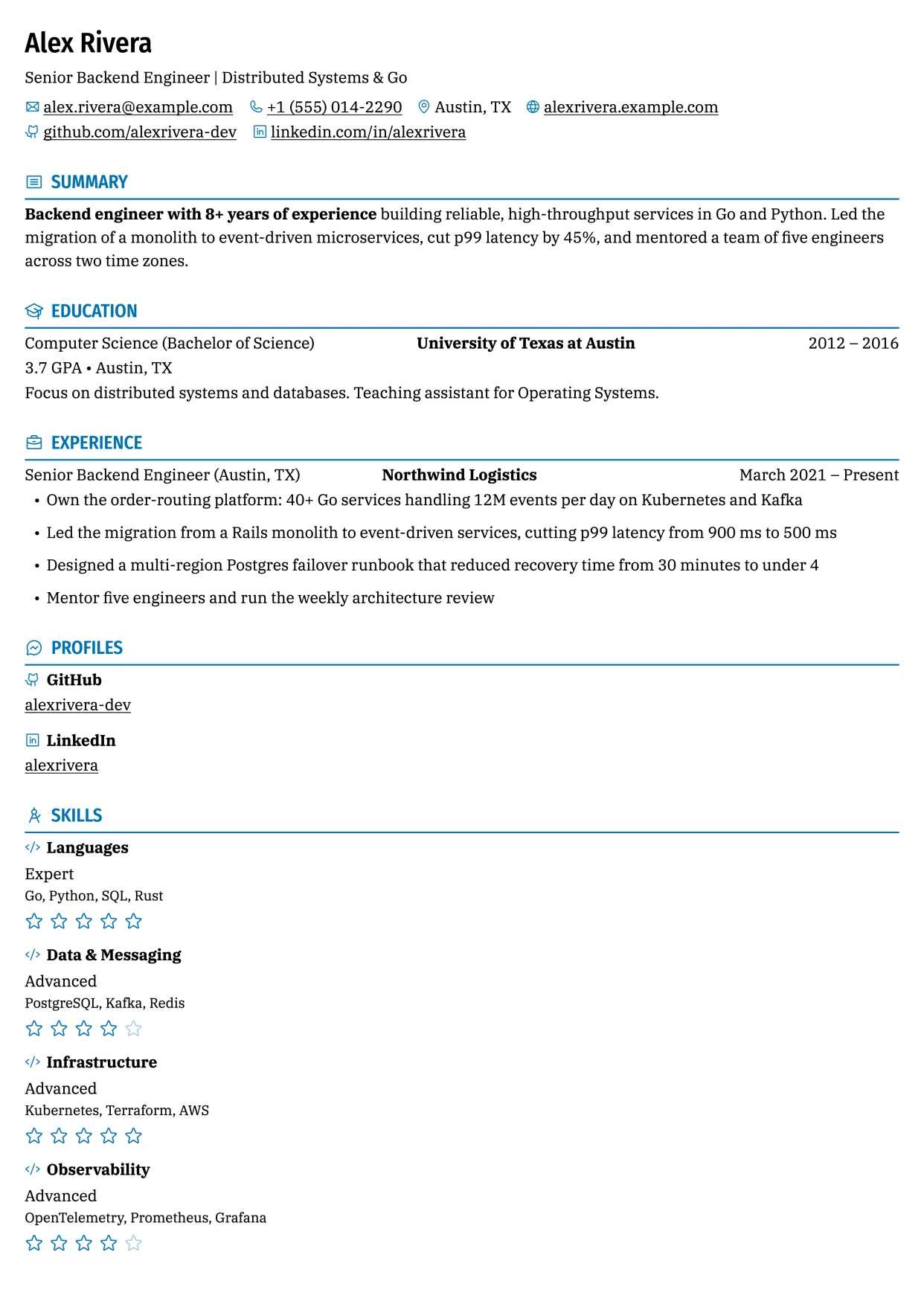
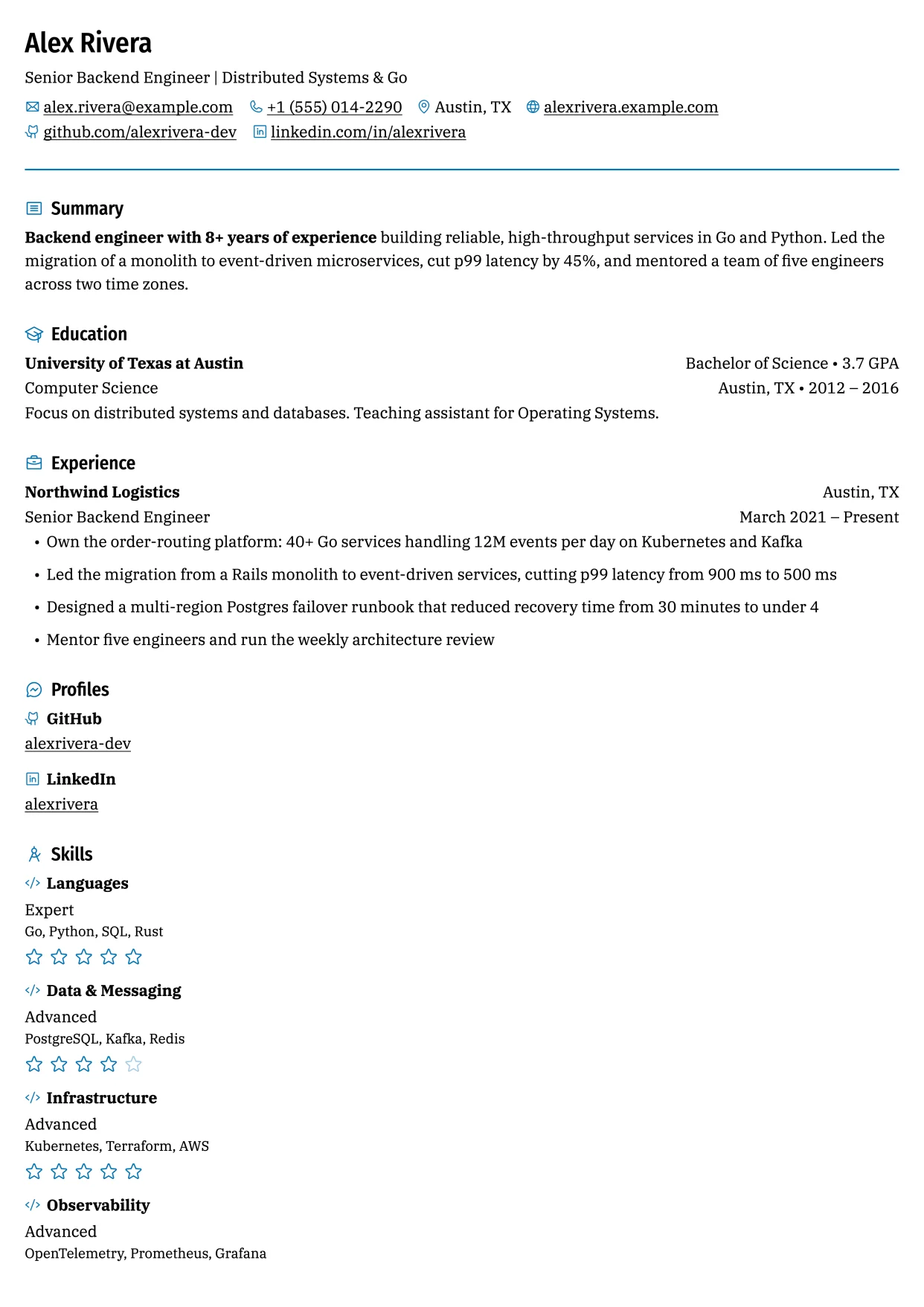
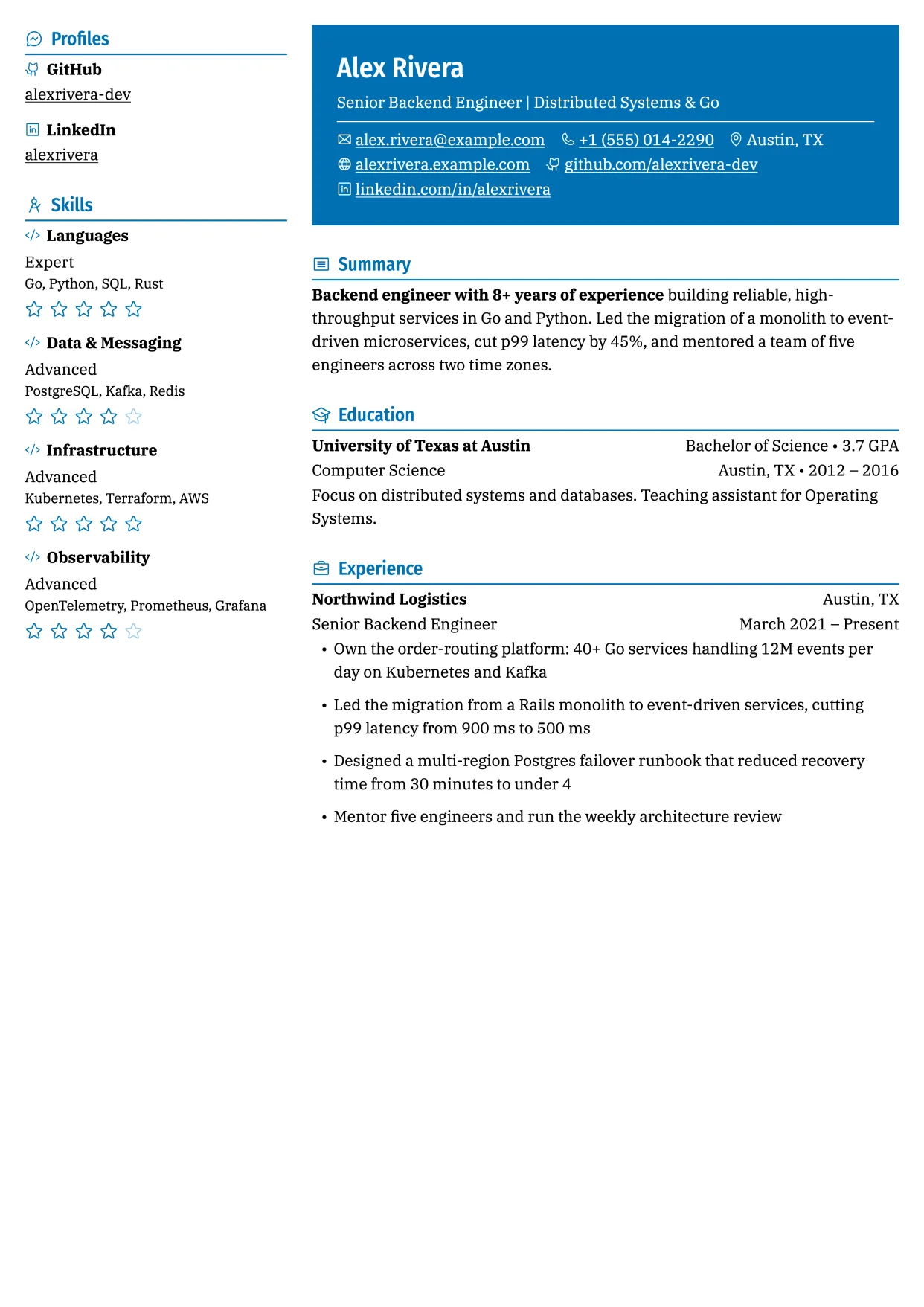
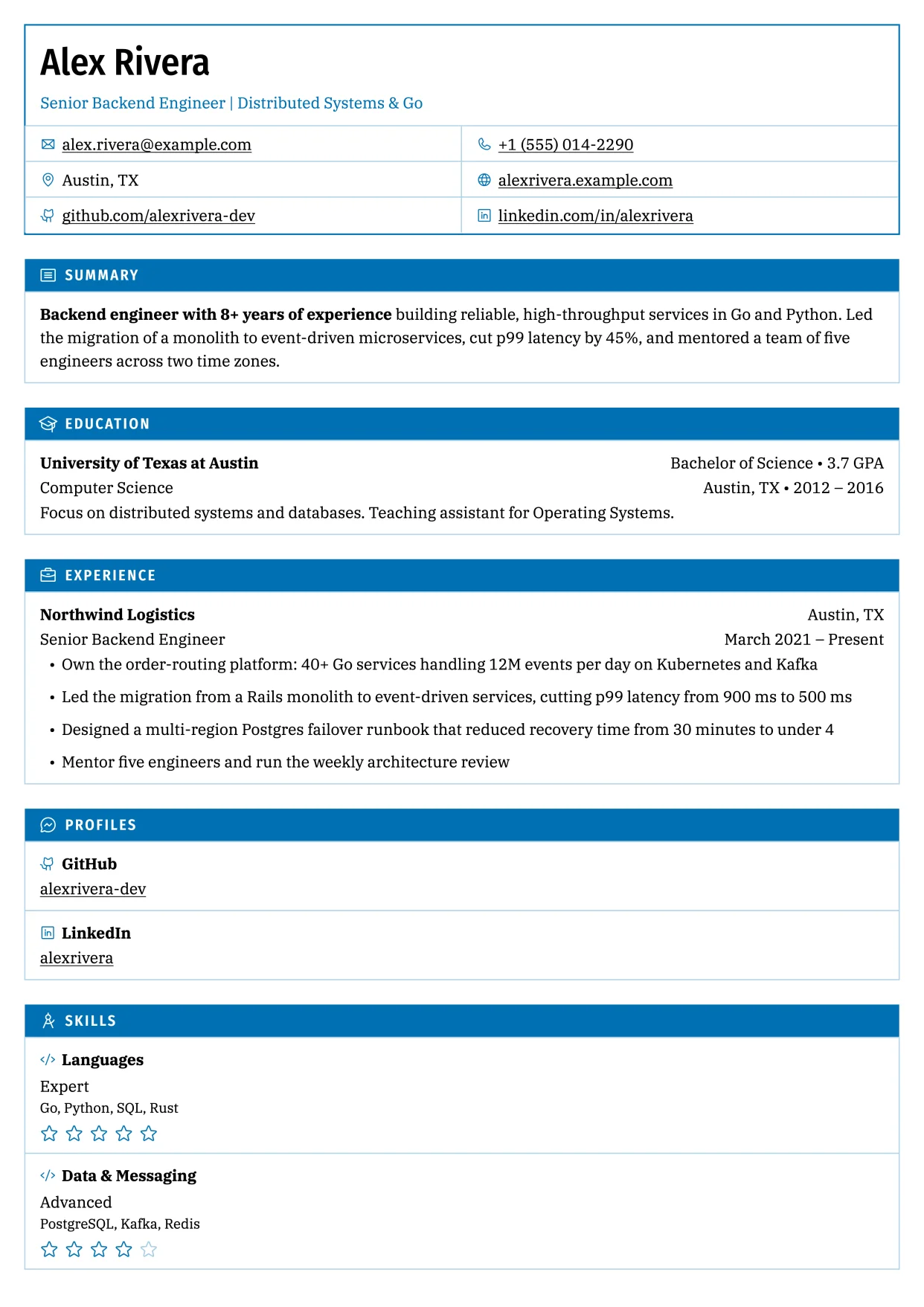
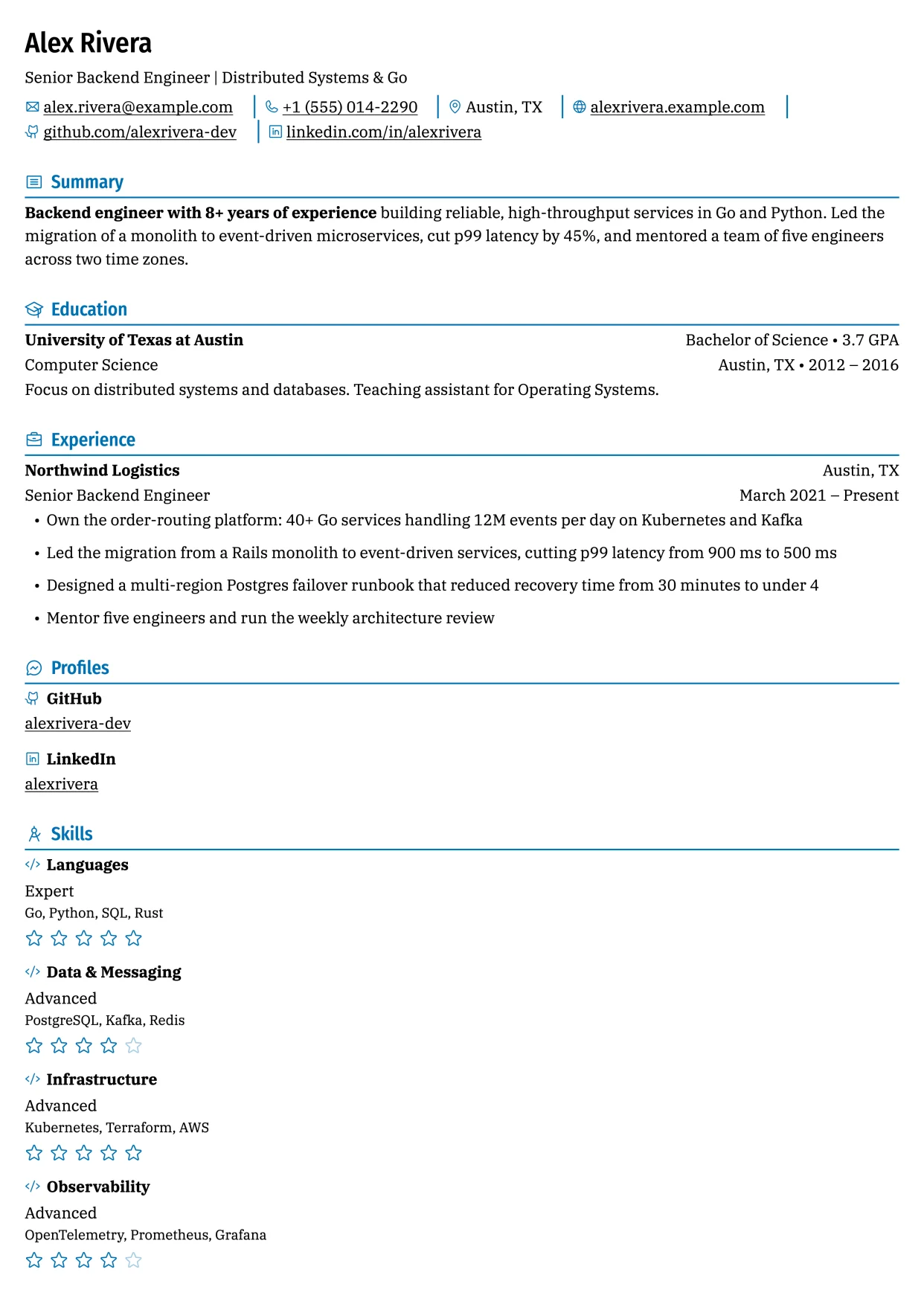
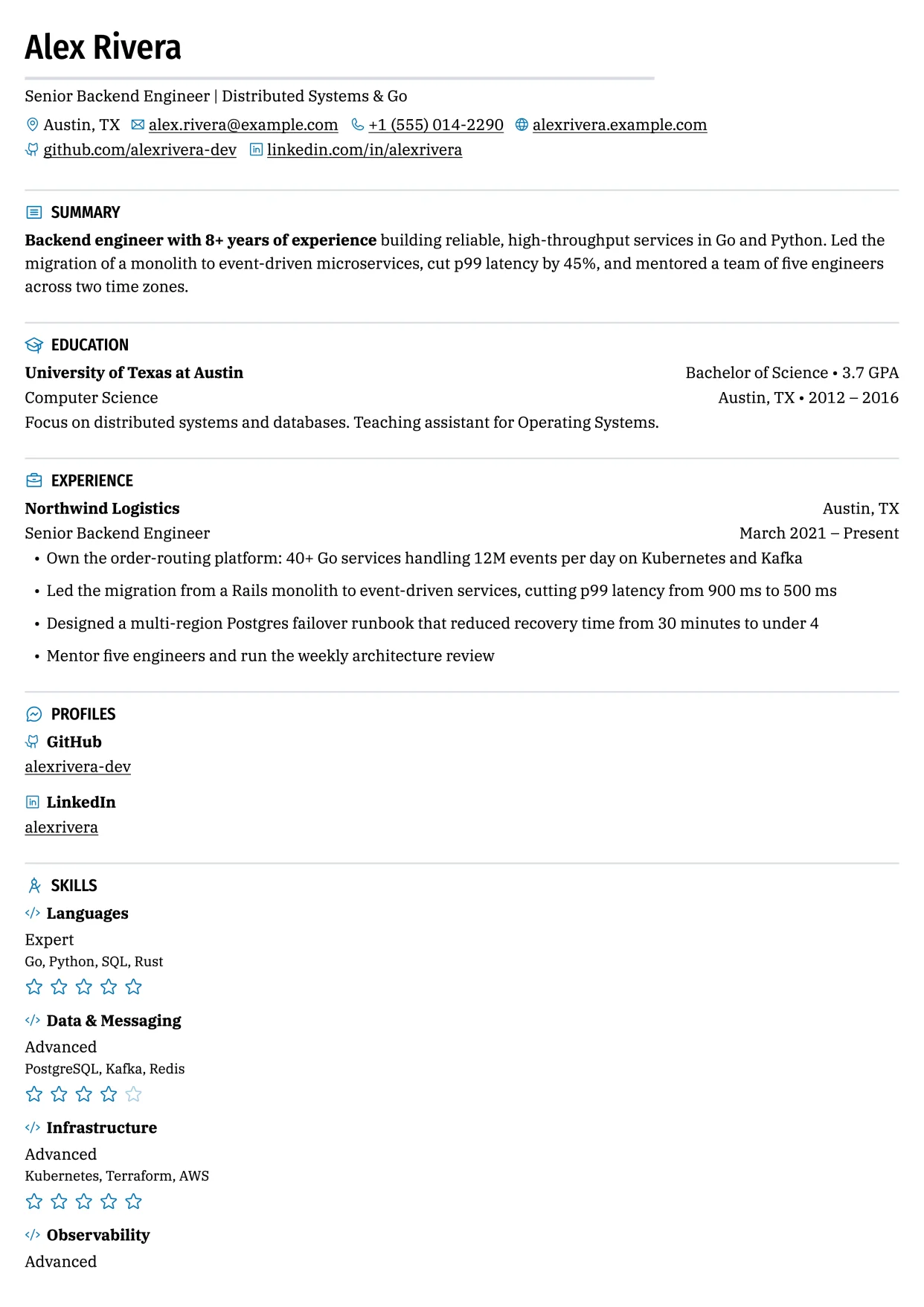
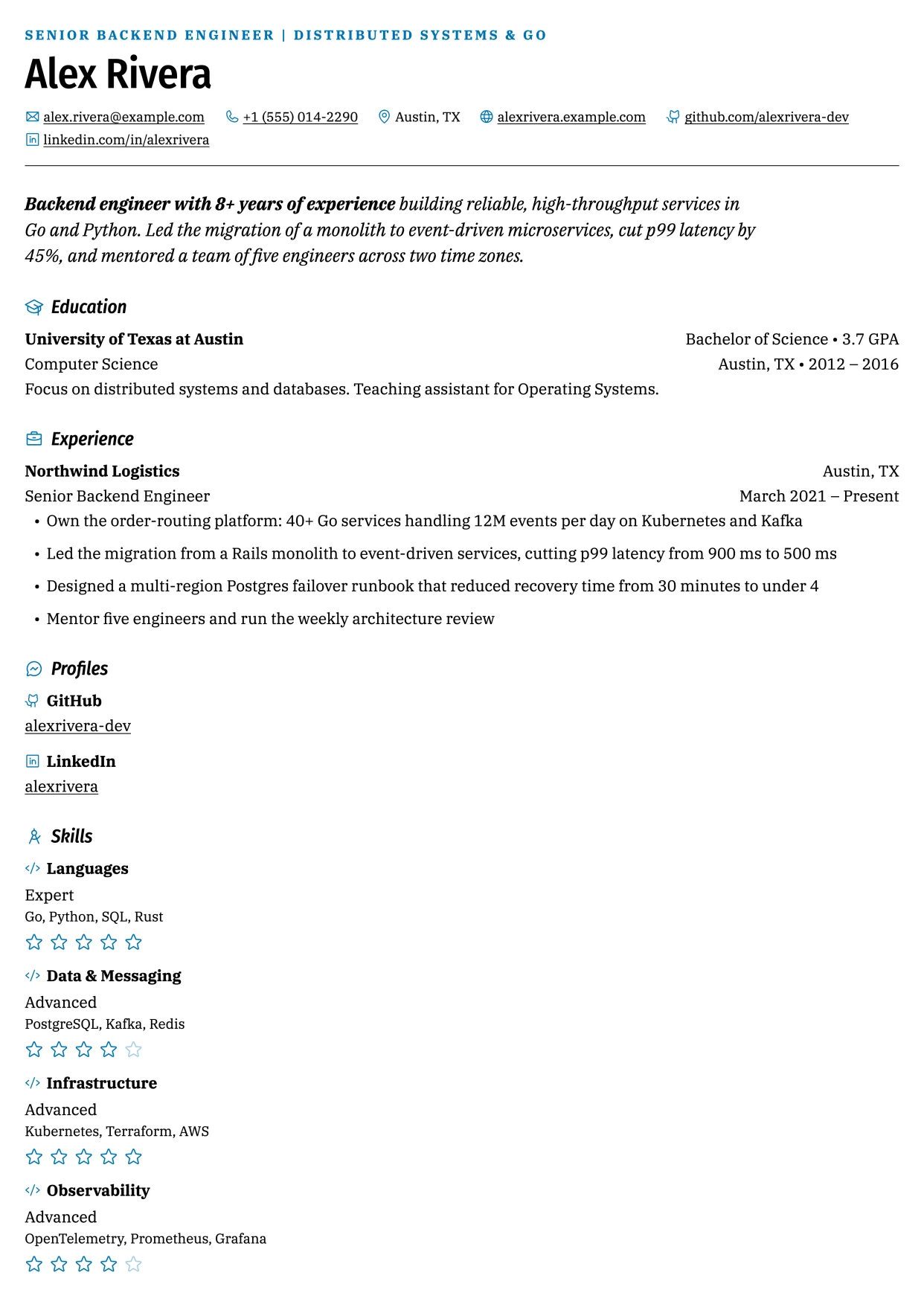
All templates support the same sections and features. They differ only in how they arrange your information. The images below use the same resume in each template.
| Template | Columns | ATS-safe | Sidebar side |
|---|---|---|---|
| Azurill | Two | No | Left |
| Bronzor | One | Yes | — |
| Chikorita | Two | No | Right |
| Ditgar | Two | No | Left |
| Ditto | Two | No | Left |
| Gengar | Two | No | Left |
| Glalie | Two | No | Left |
| Kakuna | One | Yes | — |
| Lapras | One | Yes | — |
| Leafish | Two | No | Right |
| Meowth | One | Yes | — |
| Onyx | One | Yes | — |
| Pikachu | Two | No | Left |
| Porygon | One | Yes | — |
| Rhyhorn | One | Yes | — |
| Scizor | One | Yes | — |
| Smeargle | One | Yes | — |
In a one-column template, sections you placed in the sidebar print after the main sections instead of beside them. Bronzor prints them as labelled rows. On two-column templates you can move the sidebar to the other side; see Arranging the layout.
Tips for choosing
- Applying through job portals? Start with the ATS-safe filter. Two-column layouts can be read out of order by applicant tracking systems, and Check mode warns you when sidebar sections might be affected. See Checking your resume.
- Lots of experience? Compare how full each thumbnail's first page looks. After you apply a template, the page count in the zoom bar at the bottom of the page tells you the total.
- Judge with real content. Because the gallery draws your own resume, fill in your details first and then pick.
Reset the design settings
If you have changed a lot of design settings and want a clean slate, open Advanced at the bottom of the Design panel and select Reset design defaults. This resets fonts, text size, line height, colors, level style, sidebar width, margins, spacing and the icon and underline switches. Your template, paper size, language, date format, section placement and custom CSS stay as they are. A message offers Undo.
The reset doesn't depend on the template: every template goes back to the same standard settings (IBM Plex Serif at 10 pt, a red accent, circle levels and hidden section icons). Pick a font pairing and accent color again afterwards if you want a different starting point.
If Design's controls are greyed out, the resume is locked. Open the document name menu at the top left and select Unlock editing.
Related guides
Editing on a phone or tablet
How the Hireway editor works on phones and tablets: the Write, Page, Design and Check tabs, full-screen entries, the design sheet and the panel drawer.
Customizing typography
Choose a font pairing, text size and density for your resume, or pick any of about 500 fonts with exact sizes, weights and line height.